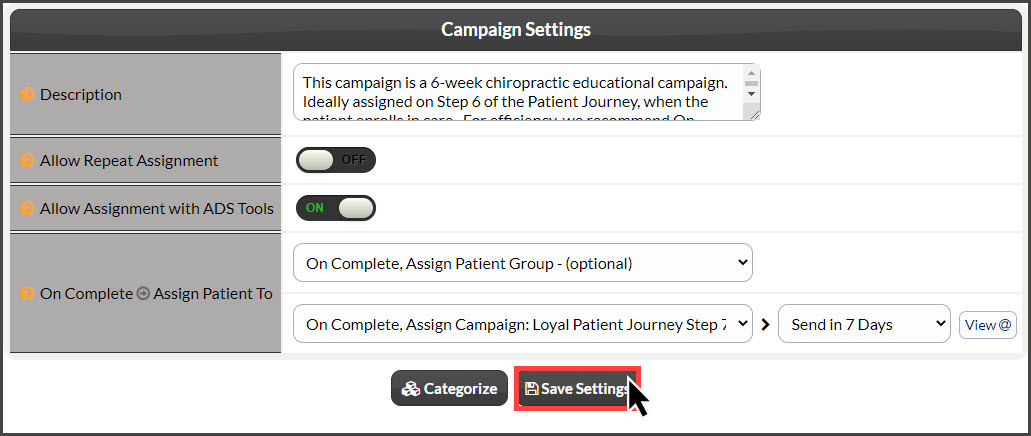
If you are like our many other members, you want to make it as easy as possible to stay in constant communication with your patients. Whether it's a newsletter or continuing education, the need to stay in touch is crucial to creating lifetime practice members. Linking your campaigns together makes a seamless transition from one campaign to the next without any further work on your staff's part aside from assigning the first campaign.
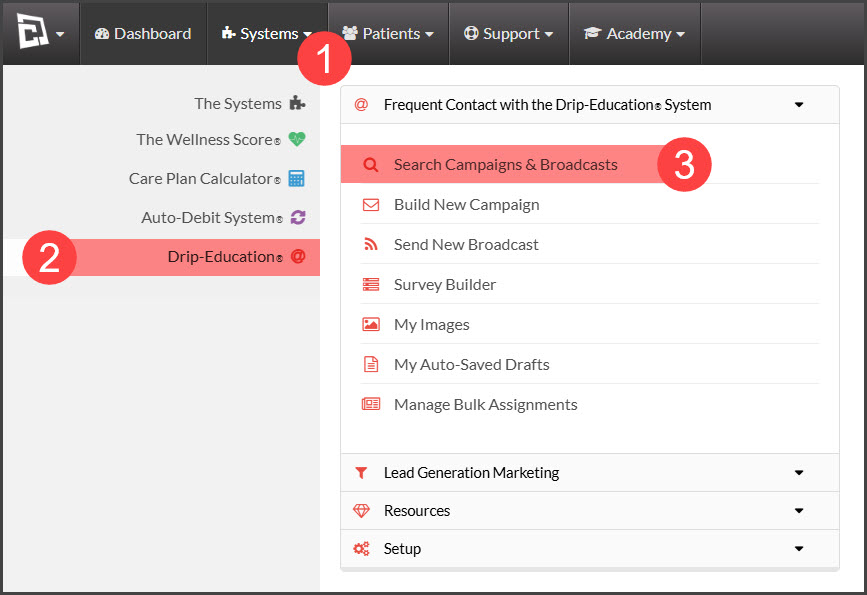
Step 1: Hover over [Systems] → click on [Drip-Education®] → [Search Campaigns & Broadcasts].
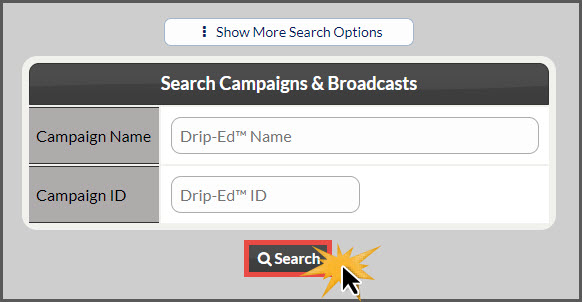
Step 2: Use the search options to refine your search for the campaign you are looking to edit→ click the [Search] button.
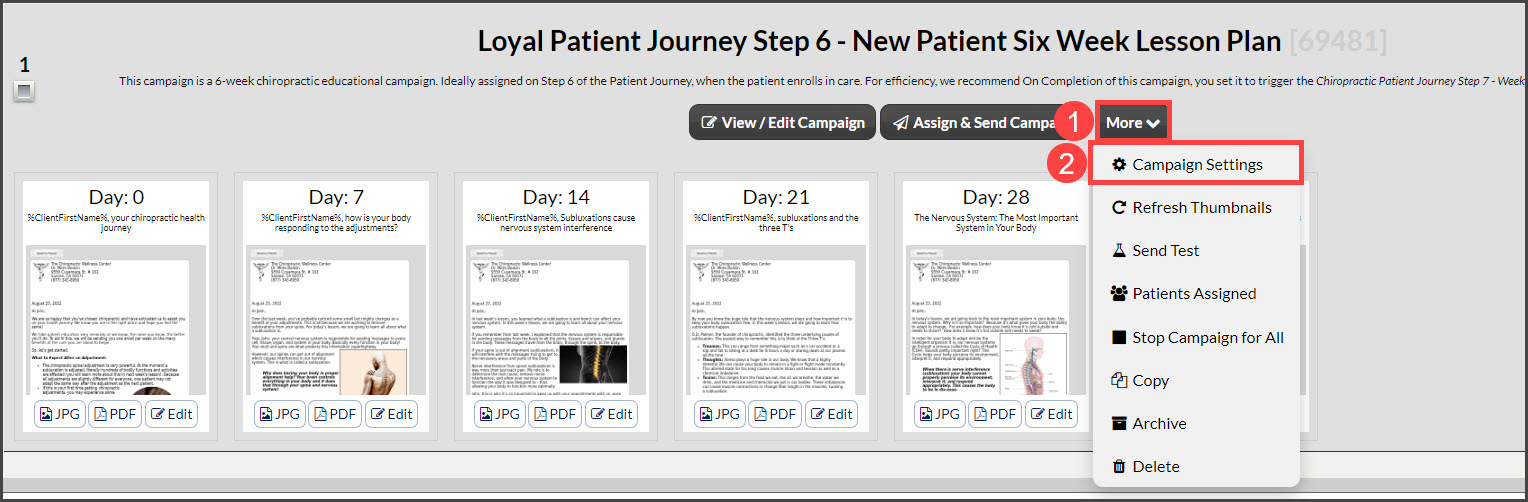
Step 3: Click the [More] drop-down menu and select the [Campaign Settings] button.
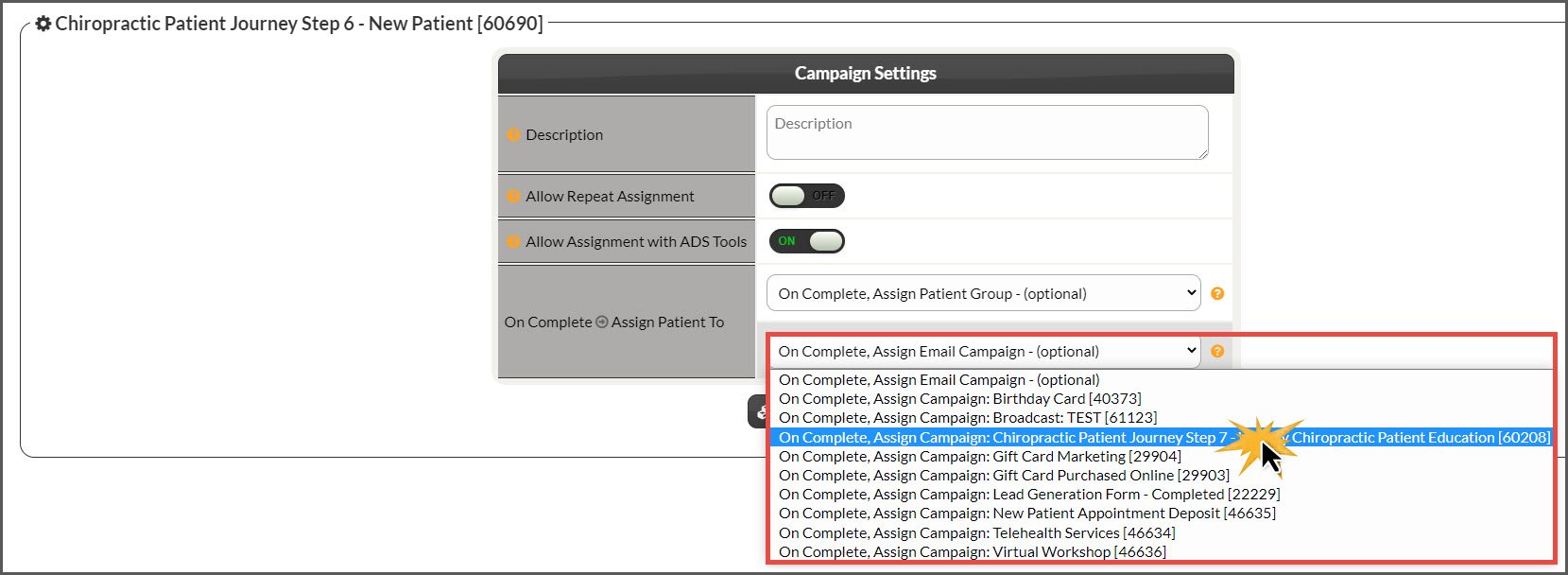
Step 4: In the [On Complete→ Assign Email Campaign] drop-down menu, select the campaign you want to have assigned upon the completion of your campaign.
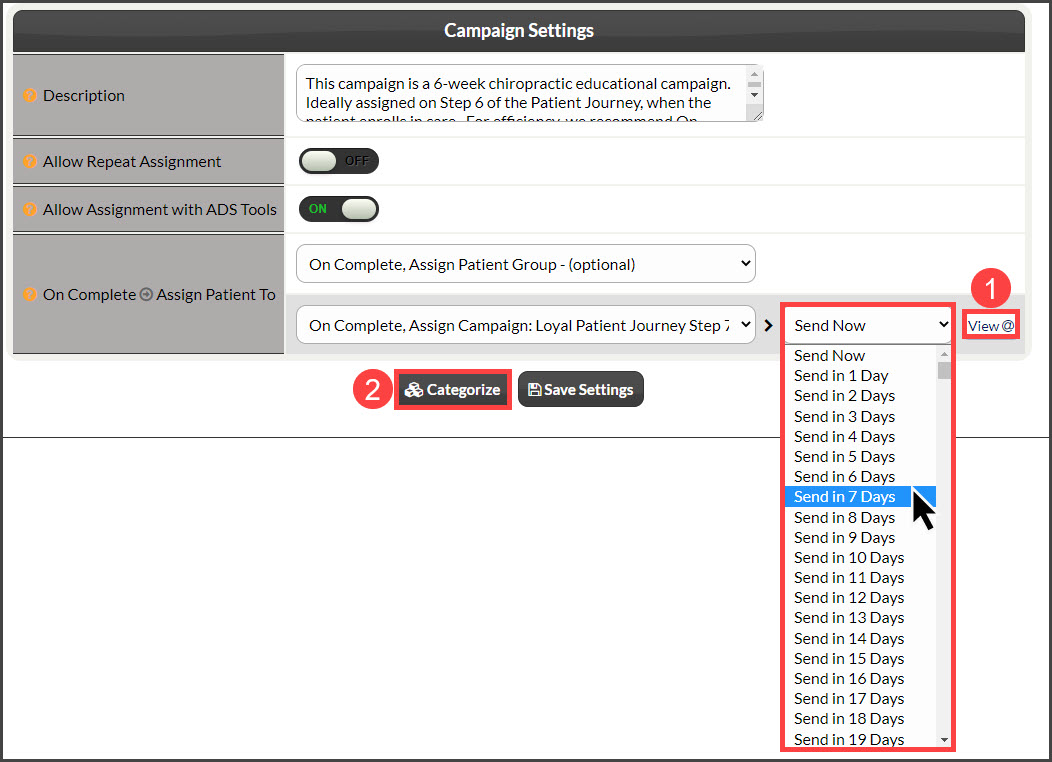
Step 5: Choose how many days after the first campaign is complete, you want the second campaign to begin.
Tips:
1: Use the [View @] icon to access a shortcut to see the list of emails for the second campaign you are about to assign.
2: Select the [Categorize] button to input this campaign into a category of your making. For more information on creating categories, click HERE.
Step 6: Once finished, click the [Save Settings] button.