Getting started:
Step 1: From the campaign editor composition page, you will have the ability to add an image to your email content. For steps on how to access the campaign editor, click HERE.
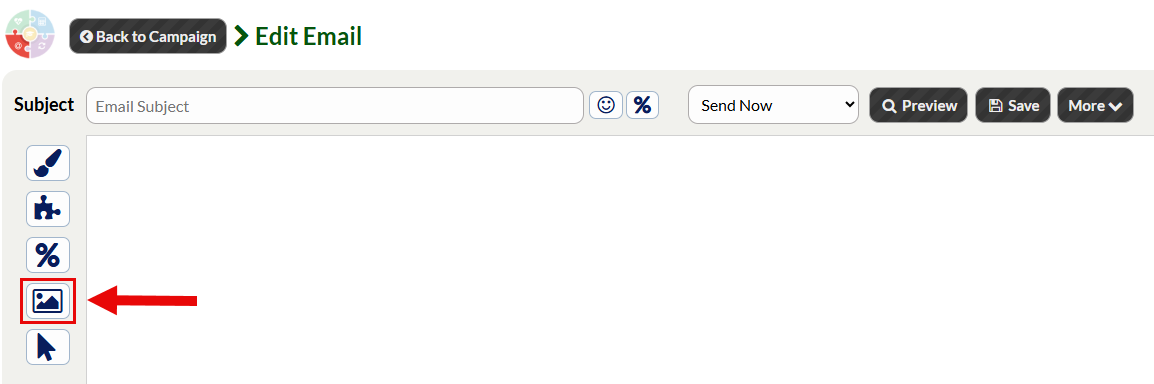
Step 2: Click the [My Images] icon.
Step 3:
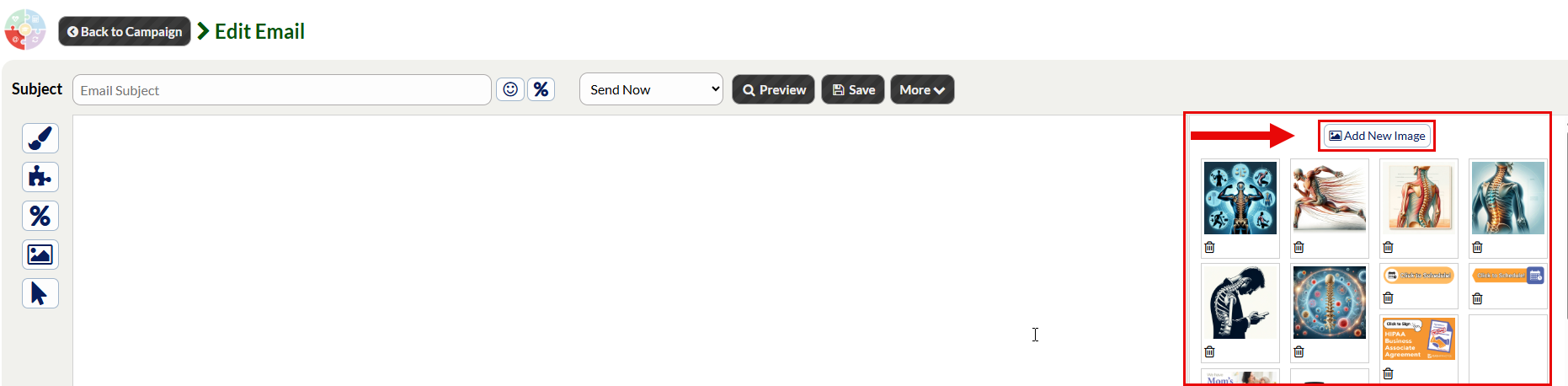
Existing Image: Click the [Show My Images] button → Select the image and it will load to your composition page.
Add New Image: Select the [Add New Image] button. Follow the prompts to upload your photo→ select the image you would like to use and it will load to your composition page.
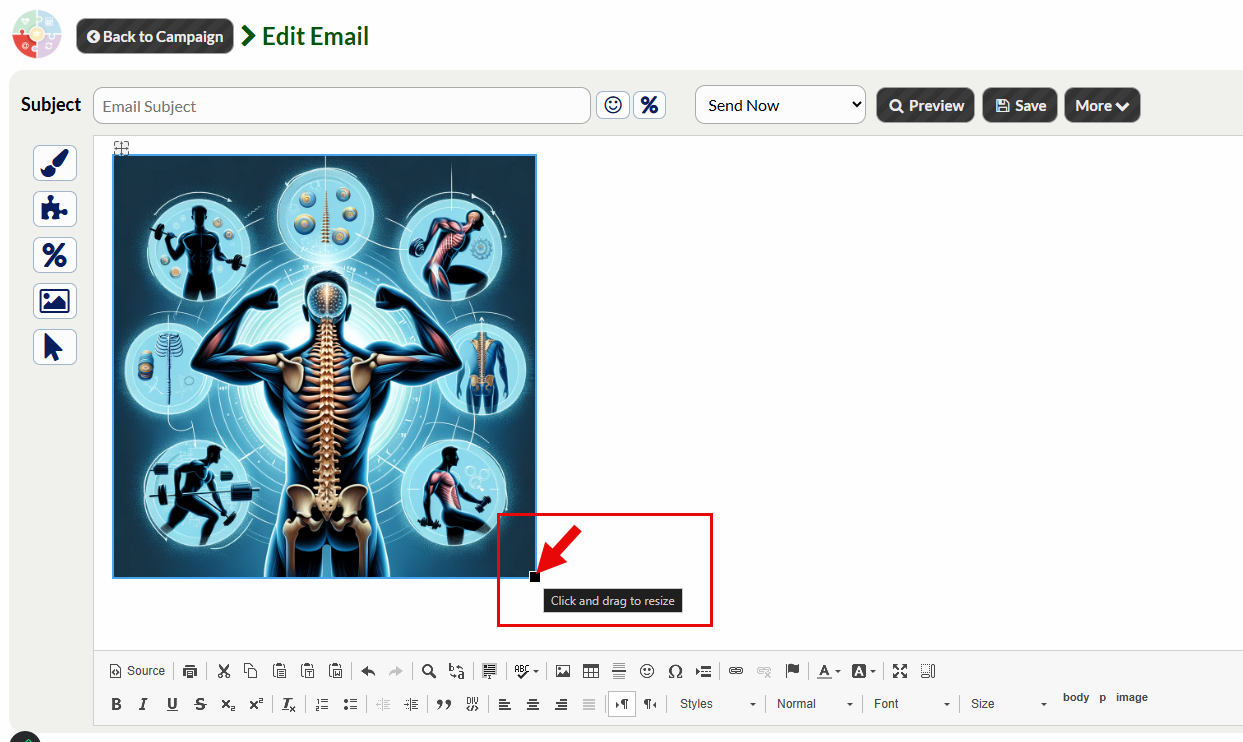
NOTE: To resize an image once it has been uploaded to your email, simply click on or hover over the picture and use the drag handle located in the lower-right corner to adjust its dimensions.