

Manage Drip-Ed™ Active Campaign Subscriptions Assigned in Bulk!
In the event that you've assigned a campaign to multiple patients at once and need to manage it, there is the [Manage Bulk Assignments] area. This will primarily be used in circumstances like this: you accidentally assigned the wrong campaign or assigned a campaign to the wrong patient group, etc.
This report gives you the ability to STOP campaigns that were assigned to multiple patients at once.
Getting started:
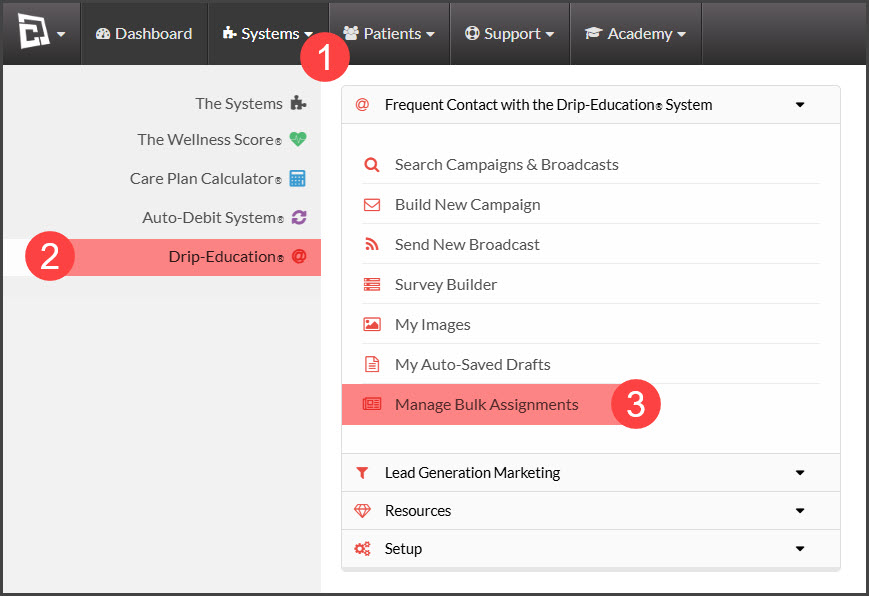
Step 1: Hover over [Systems] → click on [Drip-Education®] → [Manage Bulk Assignments].
Step 2: Click the [STOP] button in the [Action] column to the right, next to the campaign subscription you wish to stop.

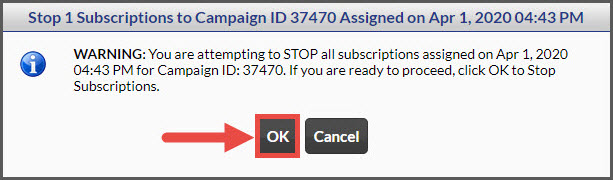
Step 3: Click [OK] to confirm that you would like the campaign subscribed on the mentioned date and time to cease.
You will then receive a message similar to the one below, stating that you've successfully STOPPED the bulk campaign subscription.
