

Manage Drip-Ed™ Active Campaign Subscriptions Assigned in Bulk!
In the event that you've assigned a campaign to multiple patients at once and need to manage it, there are the Active Campaign Subscriptions Assigned in the Bulk area. This will primarily be used in circumstances like this: you accidentally assigned the wrong campaign or assigned a campaign to the wrong patient group, etc.
This report gives you the ability to STOP campaigns that were assigned to multiple patients at once.
Getting started:
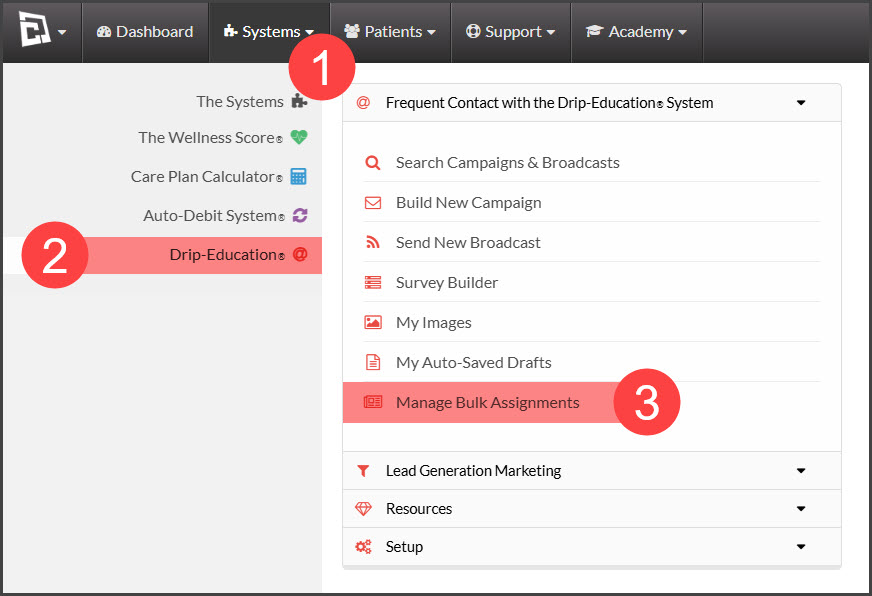
Step 1: Hover over [Systems] → click on [Drip-Education®] → [Manage Bulk Assignments].
Step 2: From the Manage ACTIVE Drip-Ed™ Campaign Subscriptions Assigned in the Bulk page, you will be able to do the following: Stop the campaign, view the campaign settings, and see patients assigned to the campaign.
[Stop] button: Click the [STOP] button in the [Action] column to the right, next to the campaign subscription you wish to stop.
[Campaign] button: Click the [Campaign] button in the [View] column to the right, next to the campaign subscription you wish to view or edit. From there, you will have the ability to edit the campaign settings if needed.
[Patients] button: Click the [Patients] button in the [View] column to see the patients assigned to the campaign.
