

The Cash Practice ClinicMind Chiropractic software integration is simple and effective. With a single click, open your Cash Practice Systems account directly from within the ClinicMind web application. No need to enter a username and password. Use all the features of your Cash Practice membership directly from within ClinicMind. All payments processed using the Auto-Debit System are automatically imported and synced in ClinicMinds patient accounts.
This article reviews how to subscribe to Cash Practice from within ClinicMind.
Getting started: Log into your ClinicMind account.
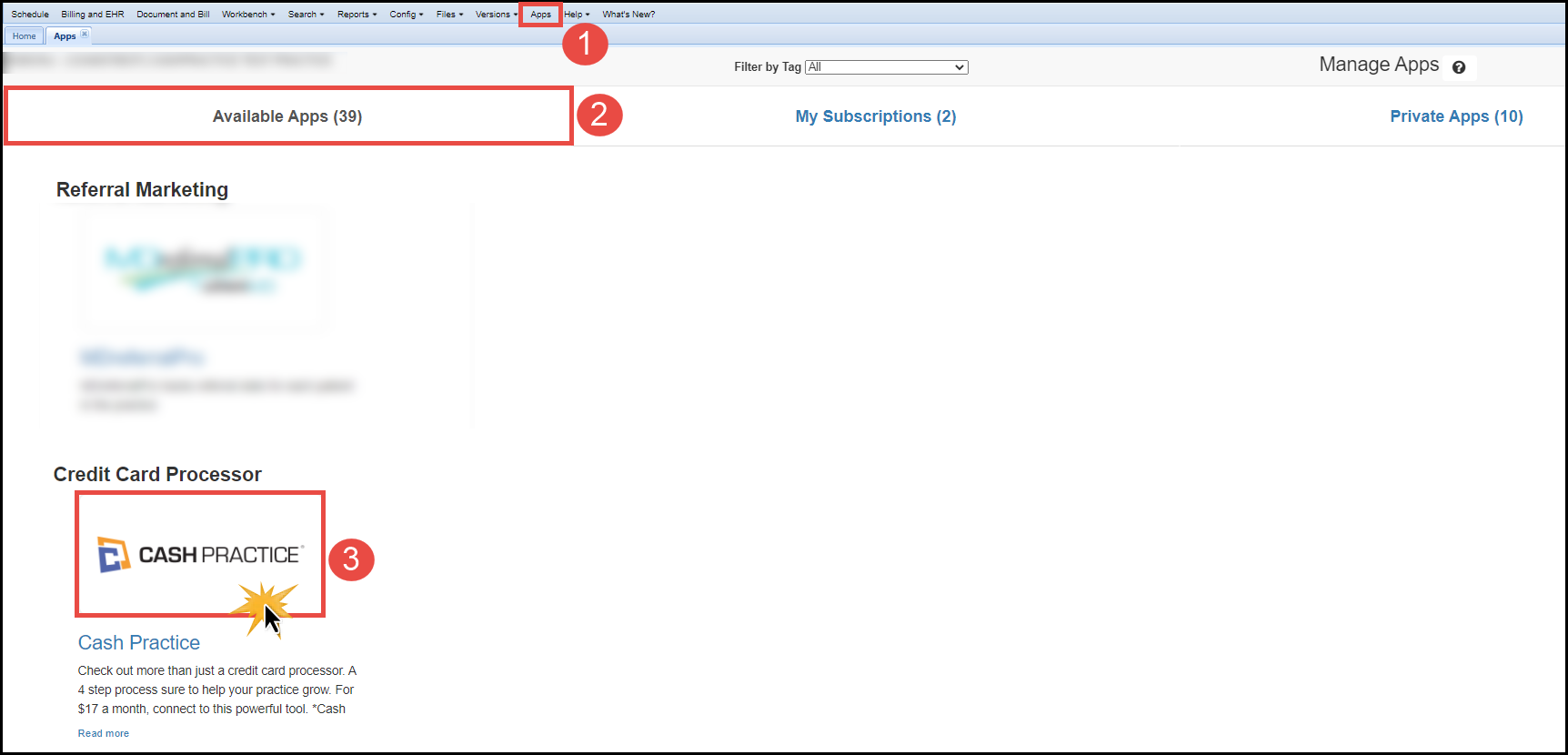
Step 1: Click on the [Apps] tab at the top of the page.
Step 2: Select [Available Apps]
Step 3: Click on the [Cash Practice] option under "Credit Card Processor".
Step 4: Read through the brief description if needed. Then select the [Subscribe] button. This will add Cash Practice to your account. Follow the instructions HERE on how to finish the integration between the two programs.
