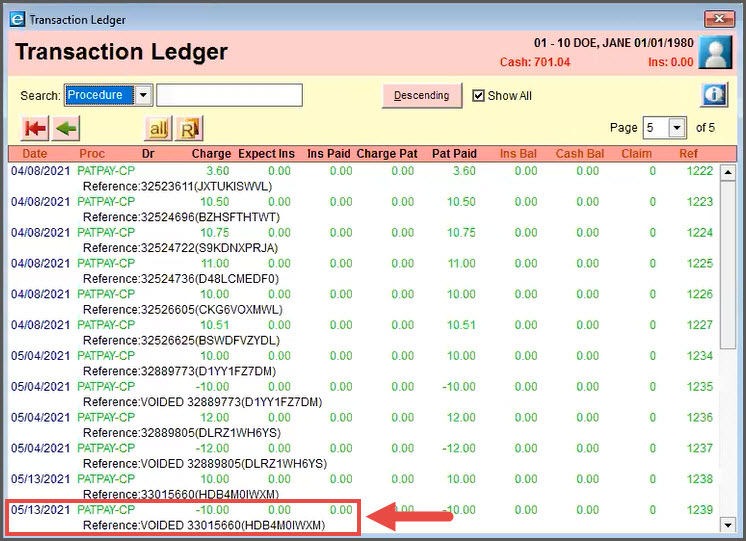
Watch the video or follow the instructions below.
IMPORTANT: Voiding and refunding have the same steps. Our payment tools are so smart, they will select the correct tool for you depending on when the transaction was processed.
INSTRUCTIONS
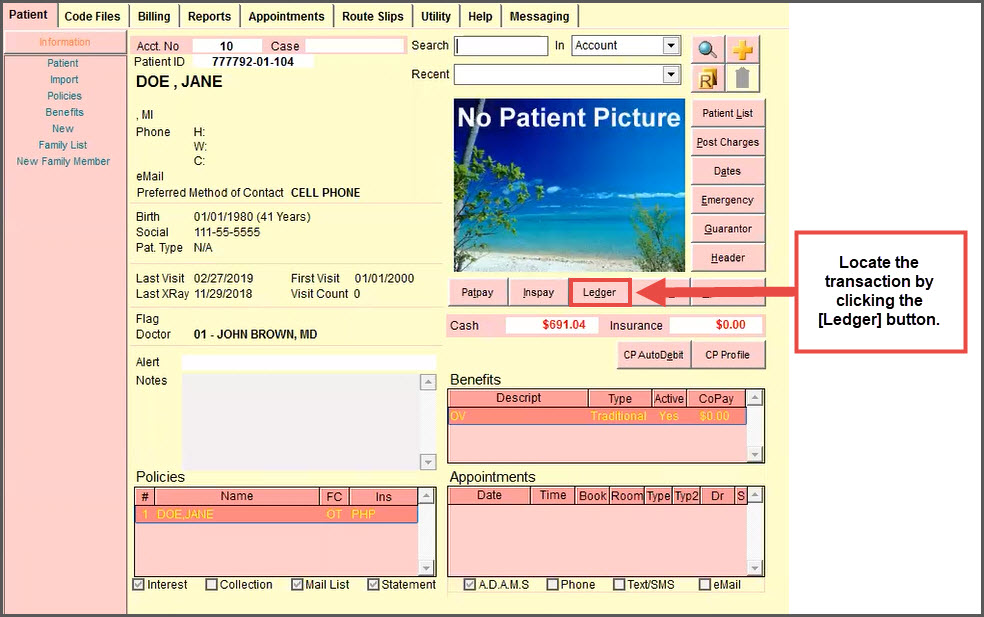
Step 1: From the Patient screen → Click on the [Ledger] button to locate the original transaction.
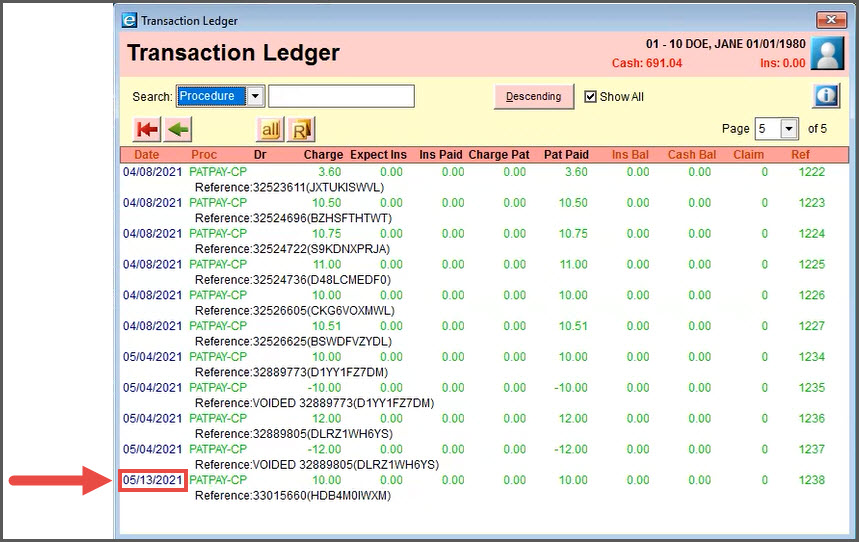
Step 2: From the Ledger → Click on the [Transaction date] for the transaction you wish to void/refund.
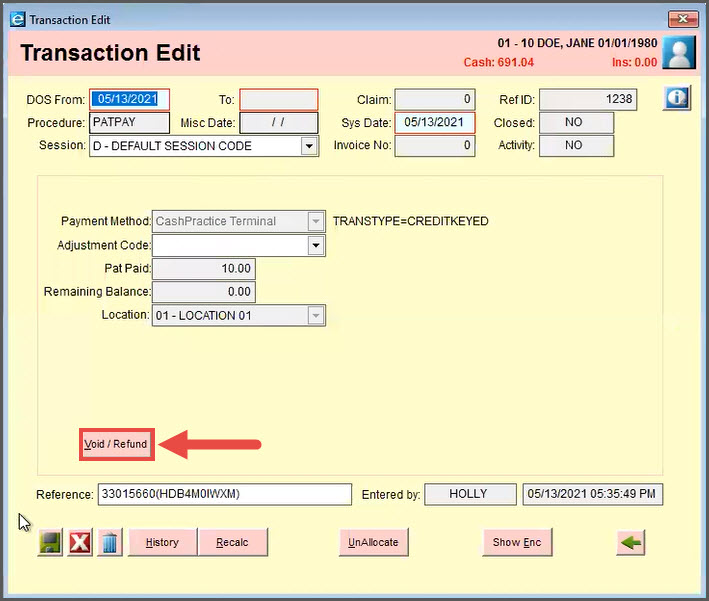
Step 3: Click on the [Void/Refund] button.
Step 4: Enter an optional reason that will be recorded in eTHOMAS → Click on the [Void/Refund] button.
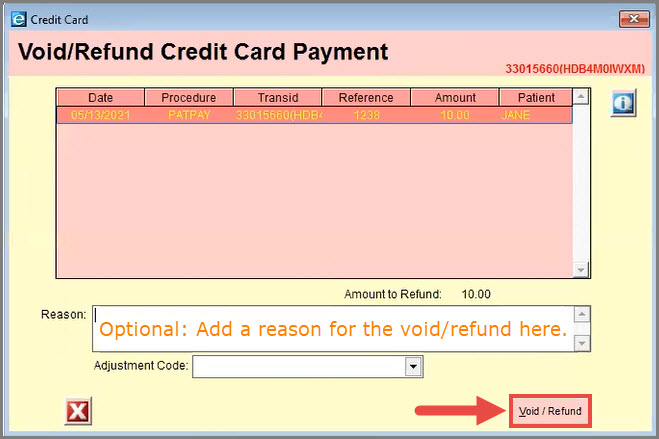
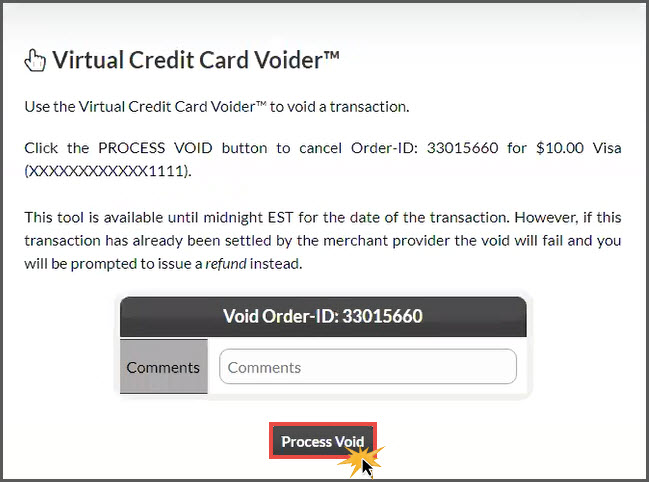
Step 5: The corresponding Cash Practice tool will open → click [Process Void]. Note: If the transaction is less than one day old, you will see the voider. If the transaction is older than one day, you will see the tool to refund. Click [OK] to proceed.
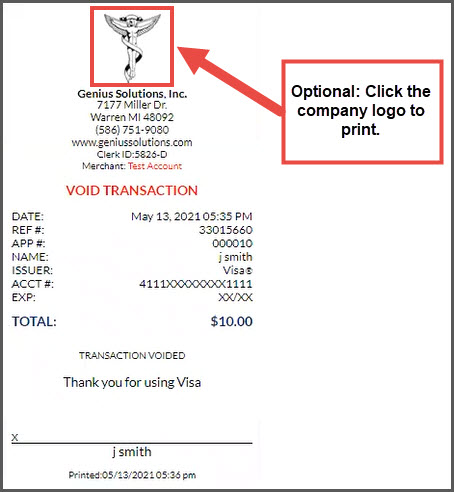
Optional: View or print the receipt.
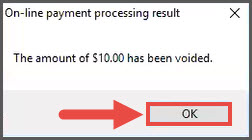
After closing out the void receipt, click [OK].
Optional: View the patient ledger to see the auto-posted void/refund.