

Click the Self Help button to use the Cash Practice® walkthrough when logged into your account.

Loading a gift card is quick and easy, and so is collecting the payment. This article outlines how to load Gift Cards using a Credit Card. If you are looking for instructions on how to load Gift Cards with Cash or for promotional purposes, please see the linked articles below:
Getting Started:
Step 1: From the top right of the menu, click on the [Gift Card] icon.

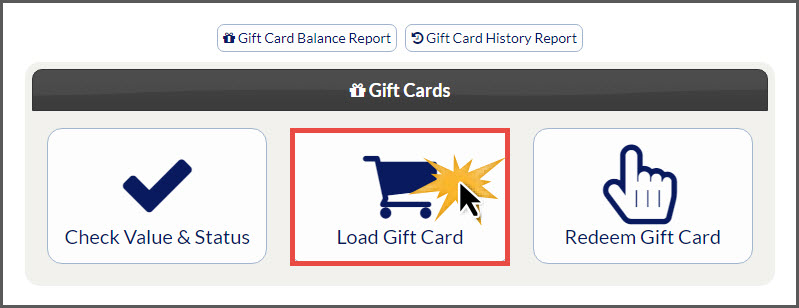
Step 2: Select the [Load Gift Card] button.
Step 3: Select [Virtual Terminal], enter the [Amount], then swipe the Gift Card through a Cash Practice® USB card reader.
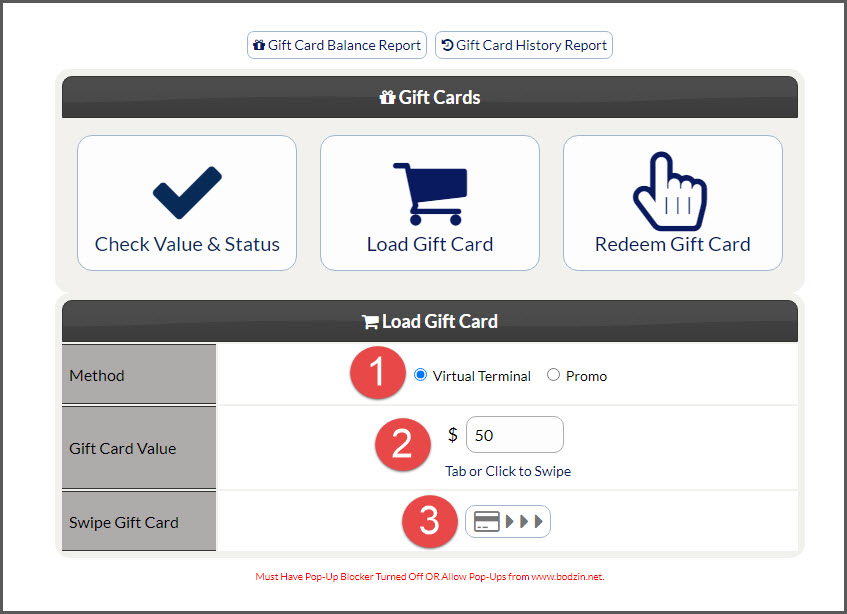
*Note: Must have pop-up blockers turned OFF or allow pop-ups from www.bodzin.net for this feature to function properly. Click HERE for more information.
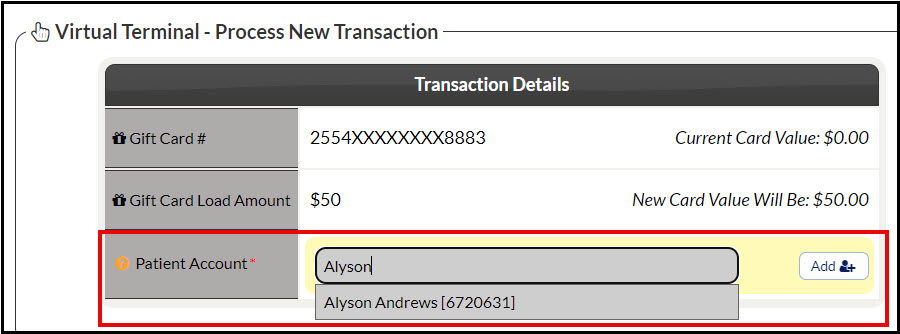
Step 4: Once swiped, the screen will reload to show the current value of the card, the amount being added, and the new balance once loaded.
Patient account: Attach the patient, or add a new patient by selecting the [Add] button to the right.
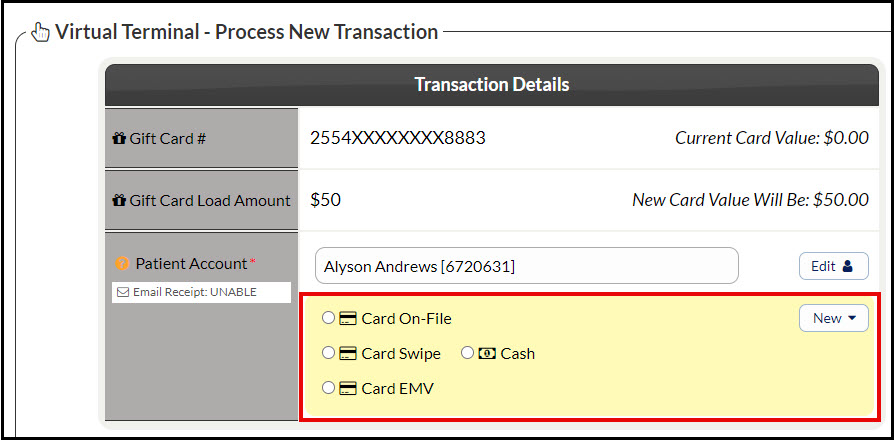
Step 5: Depending on the Billing Type, this step will vary slightly
Card On-File: Select a saved card on file & confirm the pre-loaded information OR choose [NEW-CREDIT CARD] & key enter the new card information & billing address.
Card Swipe: Check the box (optional) to save the swiped card to the patient's Billing Vault for future use &/or as the patient's default card then, swipe the card.
Card EMV: Select [Process EMV Card for $X] at the bottom of the screen & follow the instructions HERE starting at step 5.
Cash: This is to be used when the patient hands you cash over the counter for the gift card. It's very important that you have strong procedures in place as to how your office collects, records and tracks cash.
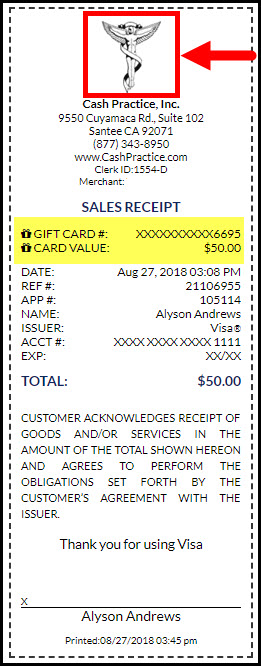
Step 6: A receipt will be produced on your screen displaying the amount paid, and the current balance on the gift card. Click on the logo at the top of the receipt to print.
If you are unable to access or use the Gift Cards feature, please contact your account administrator to request permission. Instructions on how to locate and edit permissions are HERE. Make sure to click over to the Auto-Debit System® section to locate the Gift Cards permissions.