

Step 1: Add your new staff member as an [Account User] by following these instructions on How do I add a new Account User?
Step 2: After you have added in your new [Account User], you'll want to gather their [Clerk Key]. Please follow these instructions for: How do I find my third party software keys?
Step 3: After you've gathered their [Clerk Key], it's now time to insert that key into ChiroTouch®.
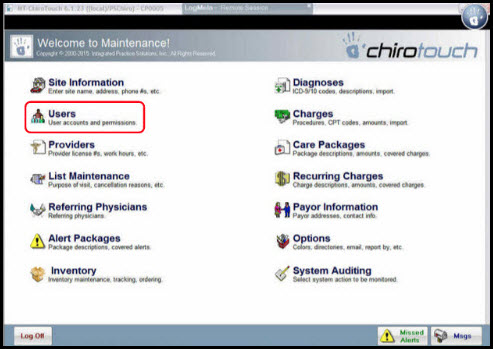
Step 4: From ChiroTouch®→ access the [Maintenance] screen.
Step 5: Click on [Users].
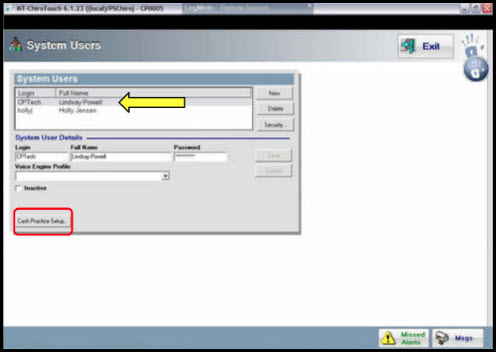
Step 6: Select the User → click the [Cash Practice® Setup] button.
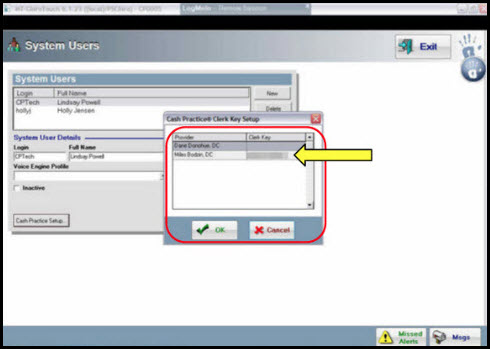
Step 7: *Enter the [Clerk-Key] next to the correct provider's name (The Provider is the owner of the CashPractice.com account) → click OK.
*Note: If you are pasting the numbers here, use your keyboard and click
Multiple Providers: If you have multiple providers, who each have their own CashPractice.com membership, then you will have a separate [Clerk Key] for each provider's CashPractice.com account users.
That completes the setup for allowing a new [Account User] to process payments or run report cards through ChiroTouch®.