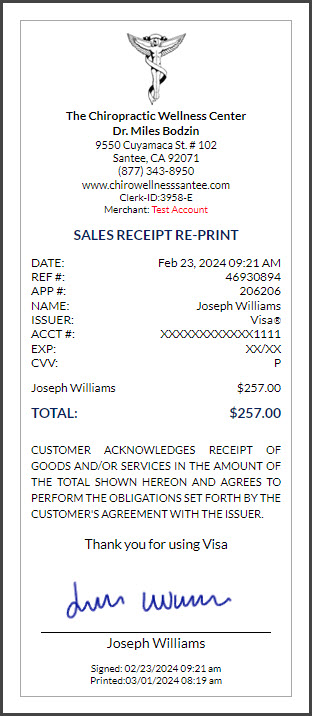
Why you may NOT want to print receipts:
We recommend that you keep the patient's signature on file, then you don't have to worry about printing anything.
To keep the signature on file, when logged into the account go to the [Systems] menu→ [Auto-Debit System®] → [Resources] → [Forms] download & customize the EZ-Payment Authorization Form.
This form grants the office permission to charge the patient account for one-time transactions without a signed receipt.
Script to the patient: "To better serve our practice members, we prefer to keep your signature on file & email receipts to you. Should you ever need a printed receipt, please let us know."
To make sure the auto-email of receipts is on go to the Auto-Debit System® Setup → Step 2. On that screen check the boxes for Automated Email Alerts for One-Time Payments receipts to be sent, and SAVE. The system will automatically email the receipt if the patient has an email address on file.
Getting started:
Step 1: From the Dashboard, click on the [Search Payments] shortcut button under the "Payments" section.
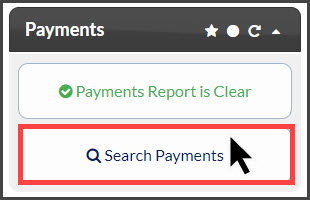
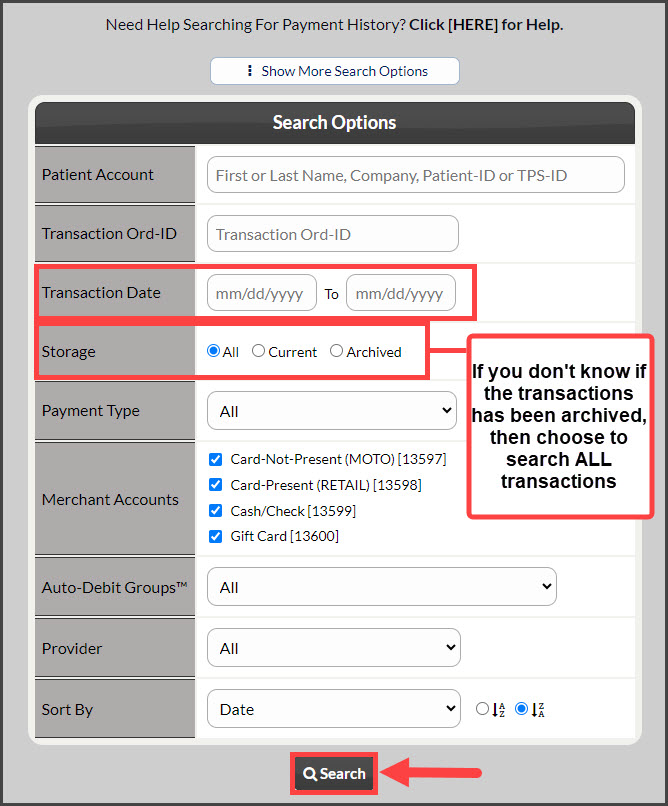
Step 2: From the Search Options page, type in your patient's first or last name in the [Patient Account] field. If you're unsure that the transaction has been archived, make sure you change the [Storage] to [ALL] → click [Search].
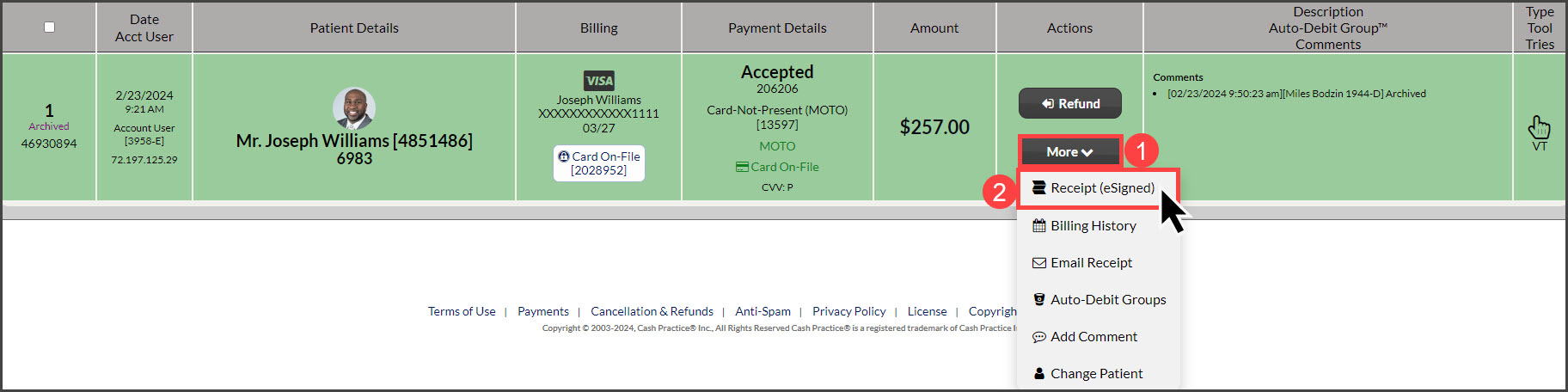
Step 3: In the search results, locate the [More] button, then click on [Receipt].
Step 4: The receipt will pop open on the screen. Click on the [Logo] at the top of the receipt to print.