

After you have created your patient group (learn how HERE), follow these steps to add a patient to a group. There are several ways to do this:
From the [Search Patient] screen
This is best when you have several people you would like to add all at once.
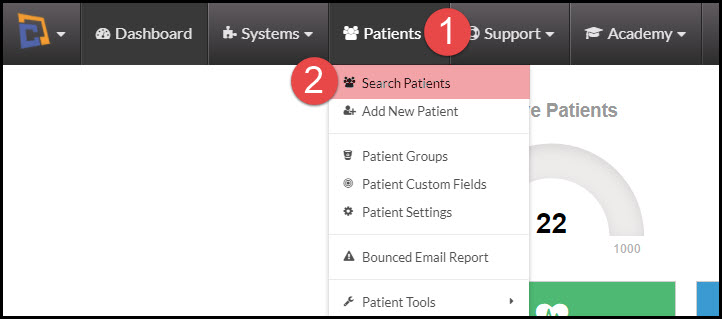
Step 1: [Patients] → [Search Patients]
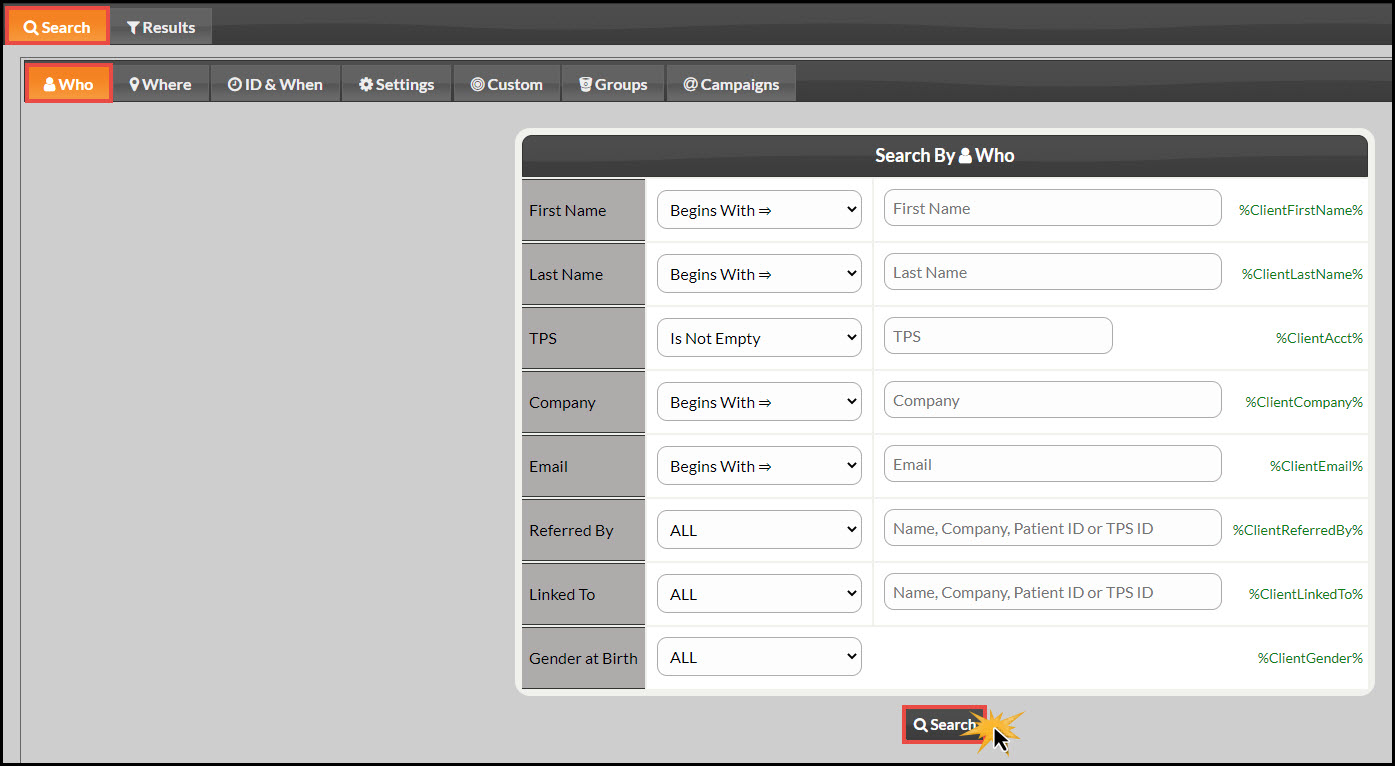
Step 2: You can bring up your entire list, or search by specific parameters like name, TPS ID, Company, or when the patient was added to the system. Click [Search].
Step 3: Select the people you wish to add to the group by checking the box next to their names individually or click the box with a checkmark on the top left to select everyone.
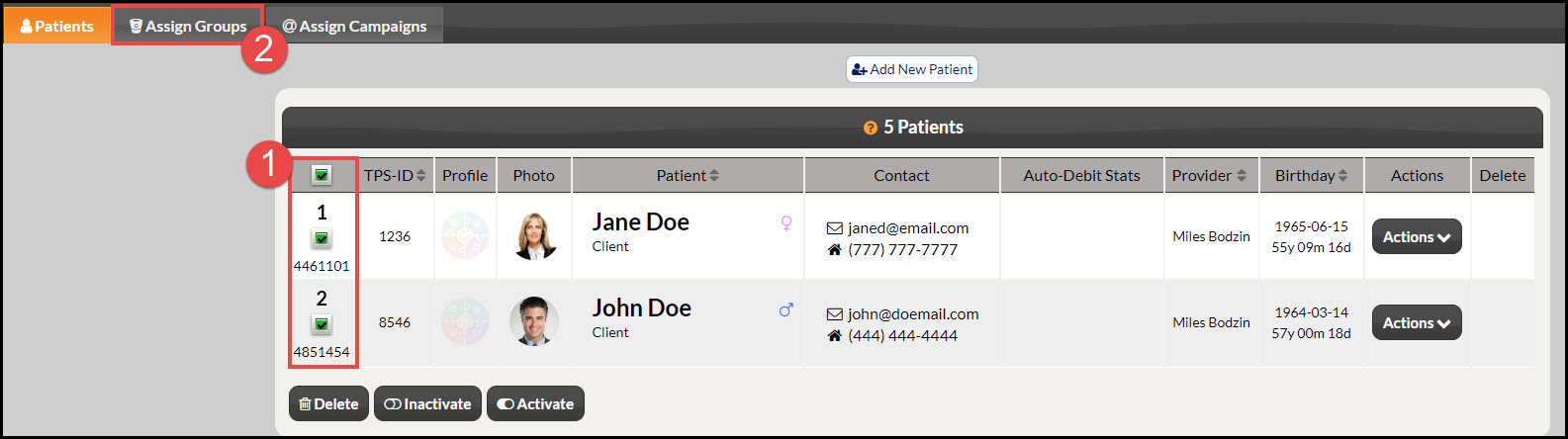
Step 4: Click on the [Assign Groups] tab.
Step 5: Locate the group you wish to add the patient(s) to and check the box in the [Assign] column.
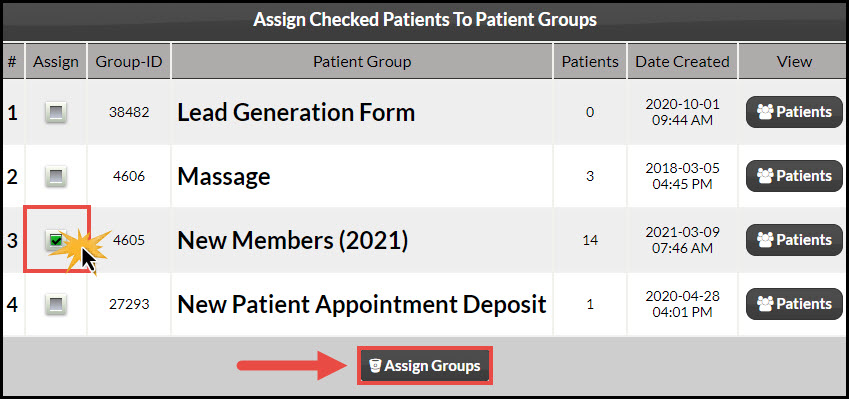
Step 6: Select the [Assign Groups] button.
OR
From the individual Patient Record:
This is best when you are already on a patient's individual account.

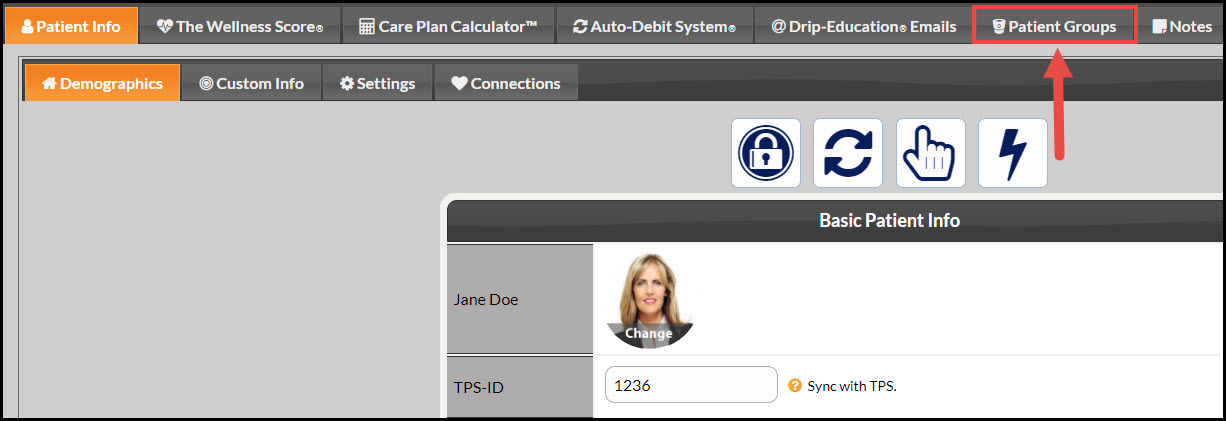
Step 1: With the Patient Record already open, click on the tab that says [Patient Groups].
Step 2: Check the box(es) in the [Assign] column next to the group you would like to assign.
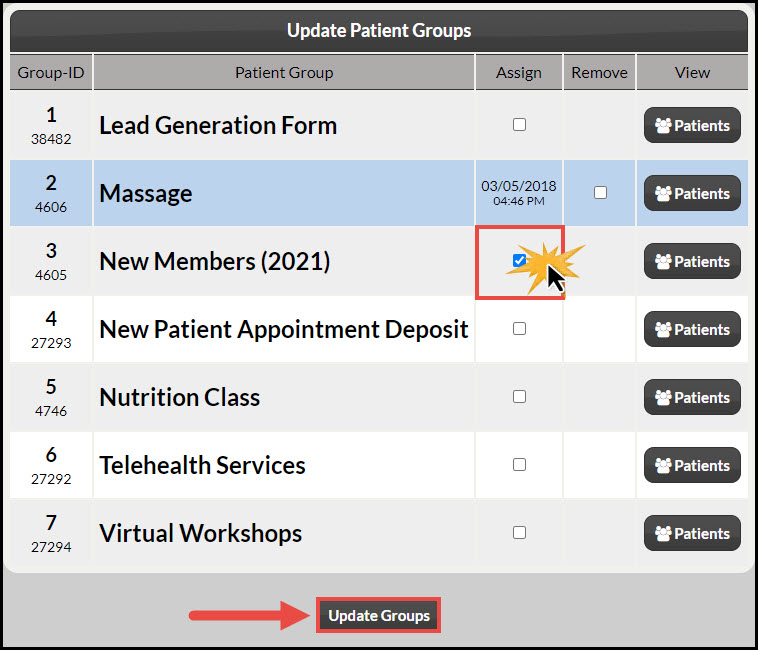
Step 3: Click [Update Groups].