

Step 1: Log in to your account as the Admin/Owner or user with permission.
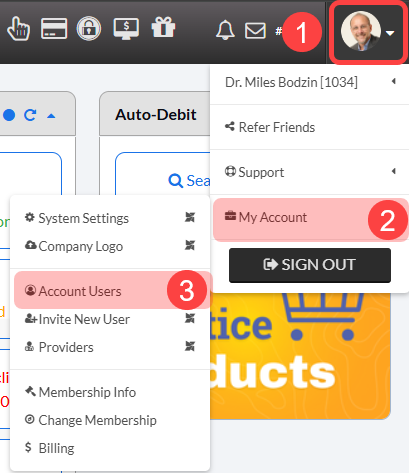
Step 2: From the User Profile menu → Go to [My Account] → [Account Users].
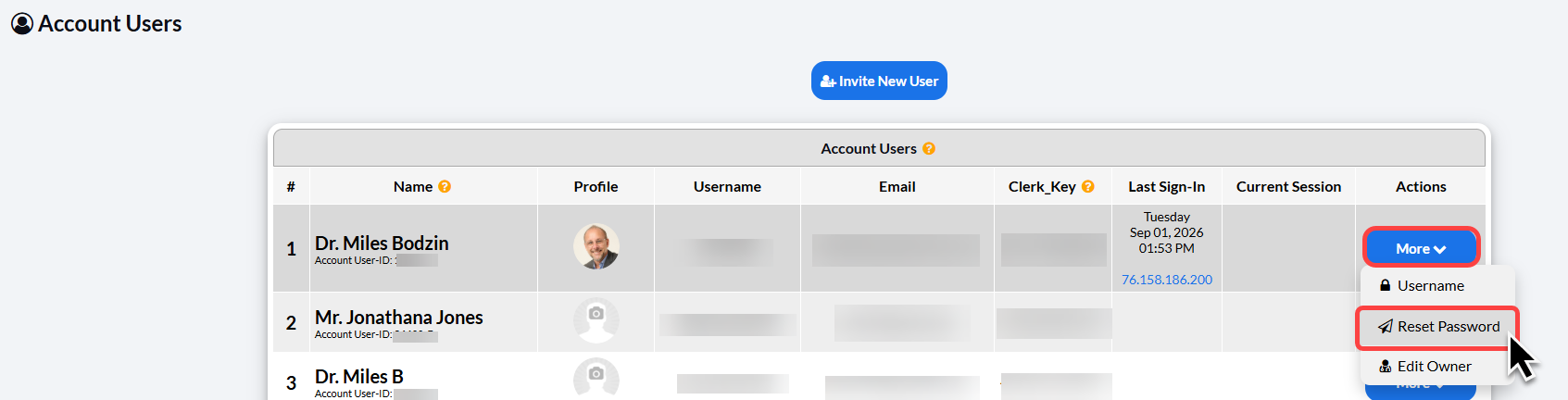
Step 3: Click on the [Actions] drop-down menu for the account user that is changing their password→ then click on the [Reset Password] button to change the password. Once updated, click [Save].
Password help? Click here: Security: How do I make a secure password?