Please note that in order to train on the Auto-Debit System®, your account will be set up in [Test Mode] initially. When you are ready to process real transactions, you will need to switch to [Live Mode]. Before switching to [Live Mode], you must have received a notification from us that your merchant account has been approved and set up.
Also, please be aware that accessing the Auto-Debit System® Setup requires administrative privileges and the administrator's password.
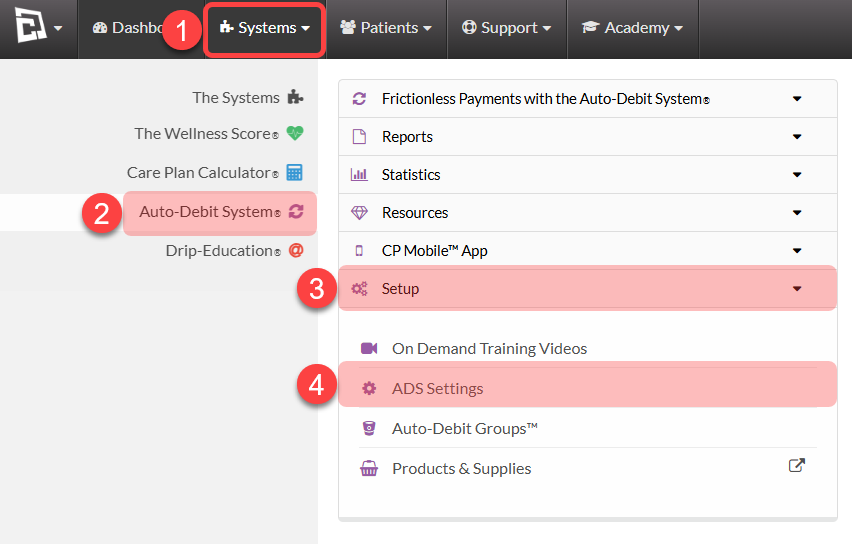
Step 1: Open ADS Setting through the Systems menu at the top of your Dashboard.
Click on the [Systems] menu.
Select [Auto-Debit System®].
The select [Setup].
Click [ADS Settings].
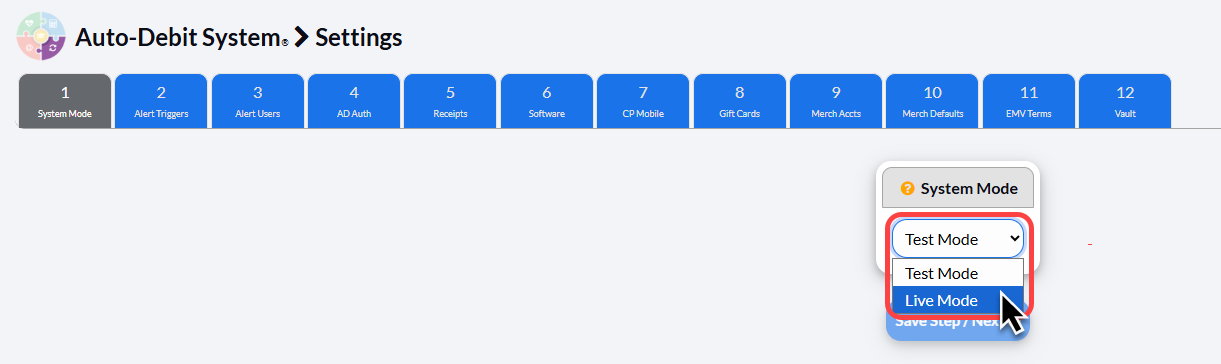
Step 2: From the [System Mode] tab:
Change the System Mode from [Test Mode] to [Live Mode].
Set your system to Live Mode to run REAL transactions. (Note: This requires your merchant account information to be entered.)
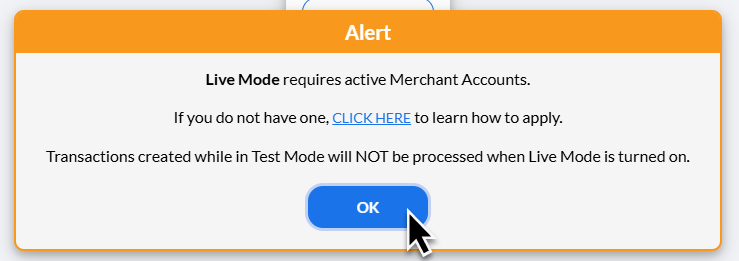
Step 3: Click [OK] on the alert to proceed.
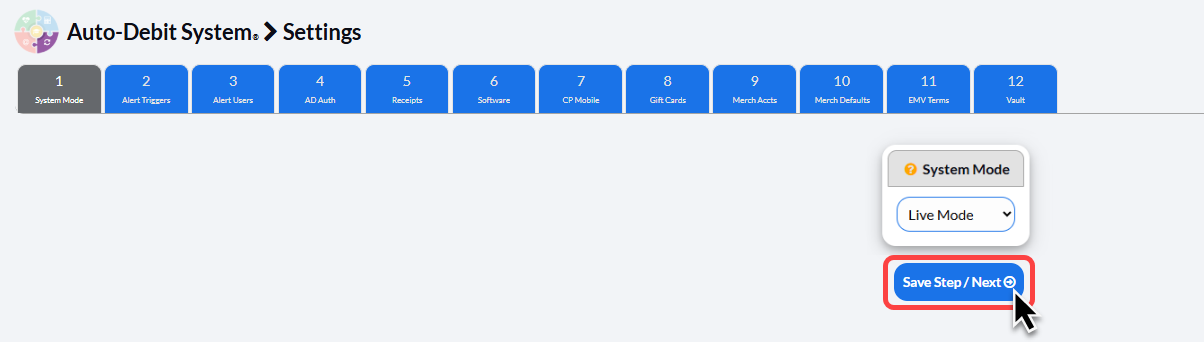
Step 4: Click the [Save Step/Next→] button to save your changes.