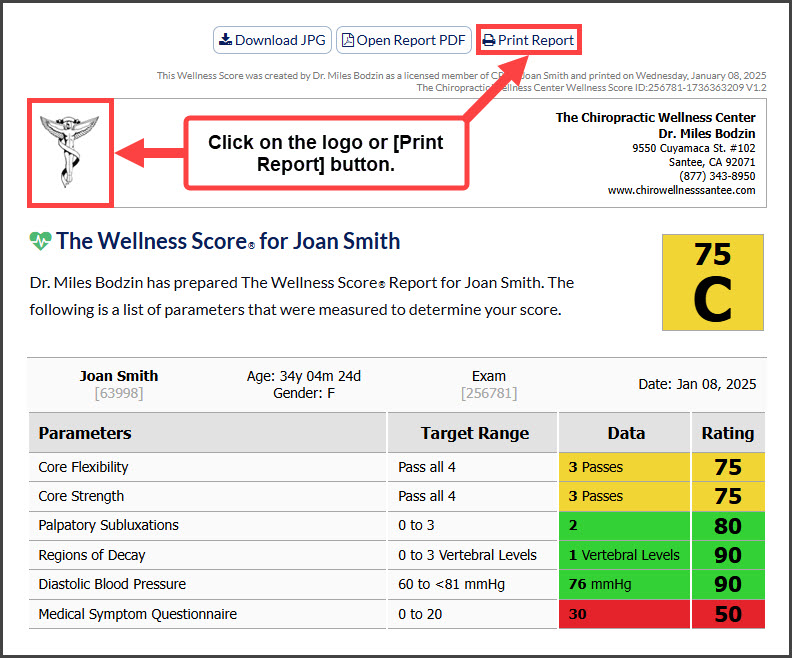

Step 1: Hover over the [Systems] menu → click on [The Wellness Score®] → select [Run Report].
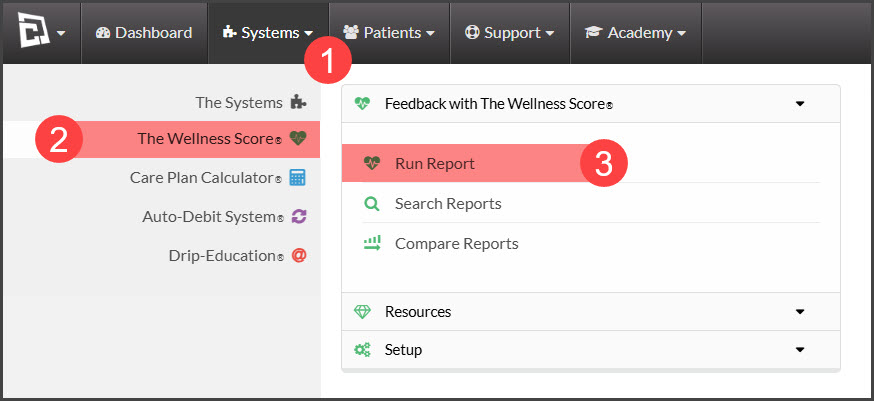
Step 2: Select the [Wellness Score Parameter Set]
Step 3: Attach a patient account:
Existing patient: Enter the patient's First name, Last Name, Company, Patient ID, or TPS ID into the patient account section. The menu will search for patients that match the information entered into the field.
New Patient: If this is a new patient and they have no patient account, the Section Menu will state that there is “NO PATIENT FOUND” you may add a new account by clicking the [Add New] icon
Step 4: Click the [Run Report] button.
Step 5: Confirm that the patient's birth date (age) and gender have been entered into their patient account.
Note: Age and gender are important for the accuracy of the parameter data.
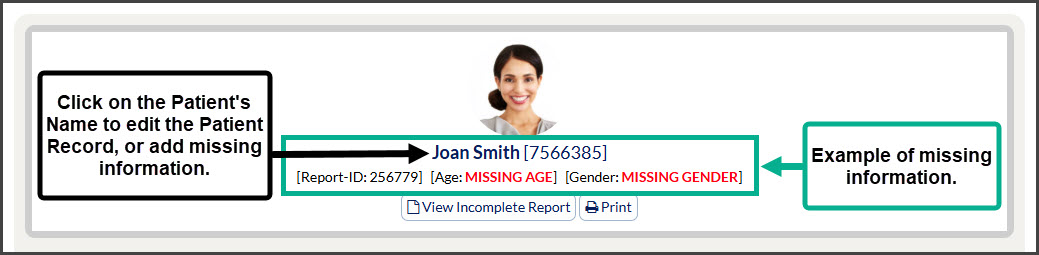
Step 6: Select the correct exam date. To change the exam date, click on the date range, a calendar will populate → select the appropriate day.
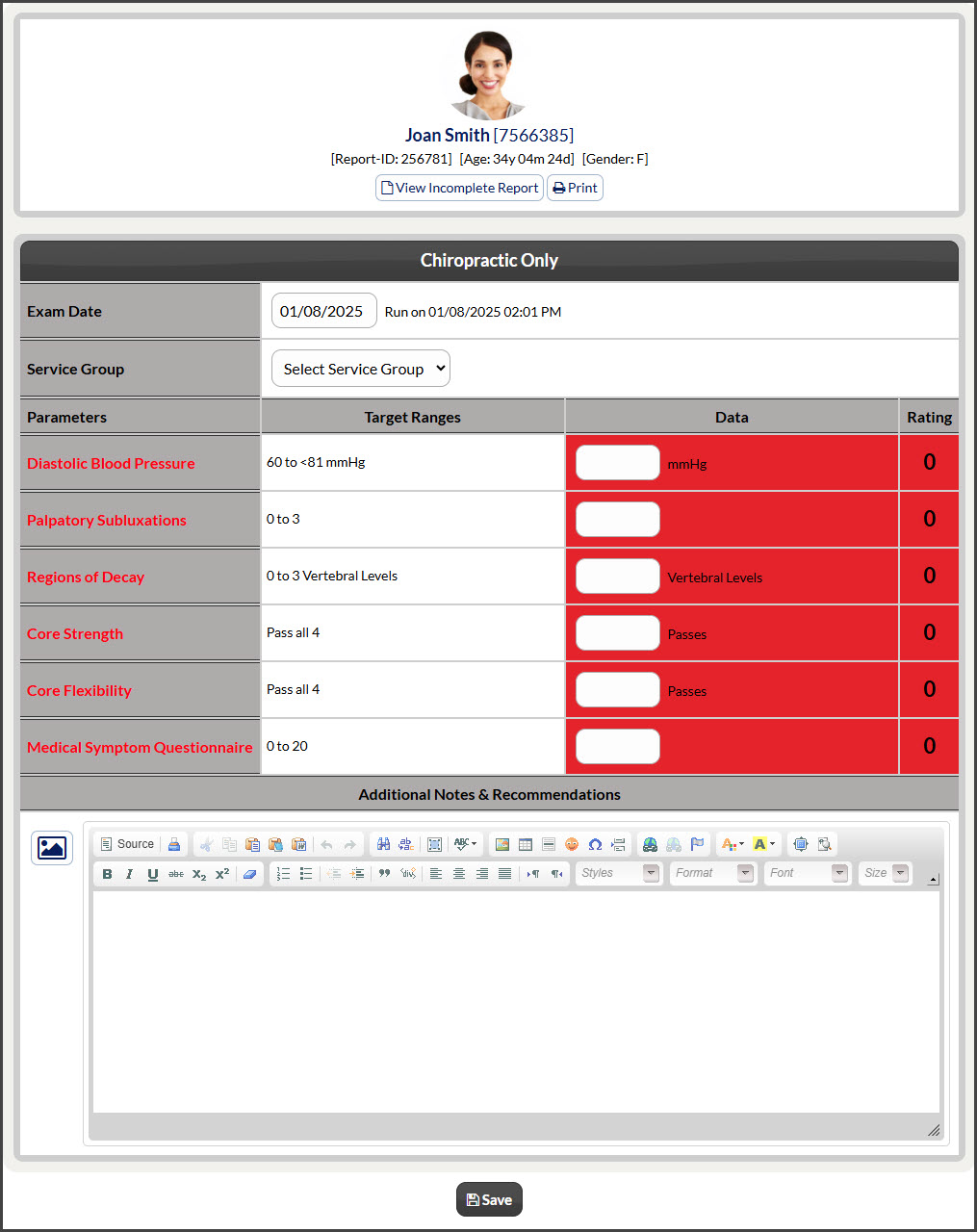
Step 7: (Optional) Select a service group. For more information on service groups, click HERE.
Step 8: Enter the [Measurements] for each parameter in the [Data] column. Note: You can leave parameter data fields blank if necessary, but the score will display as an incomplete score until all data has been entered.
Step 9: (Optional) Add additional notes or recommendations. Use this section to customize your wellness score. Content or images added here will display on the score for your patient to view.
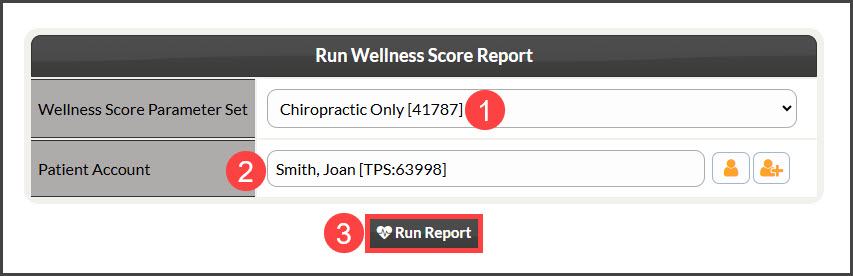
Step 10: Click the [Save] button. The Wellness Score® will refresh.
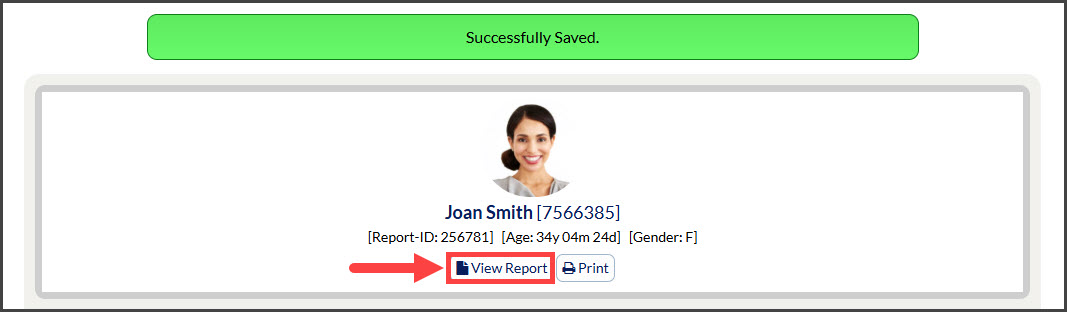
Step 11: Click the [View Report] icon to open The Wellness Score® Report.