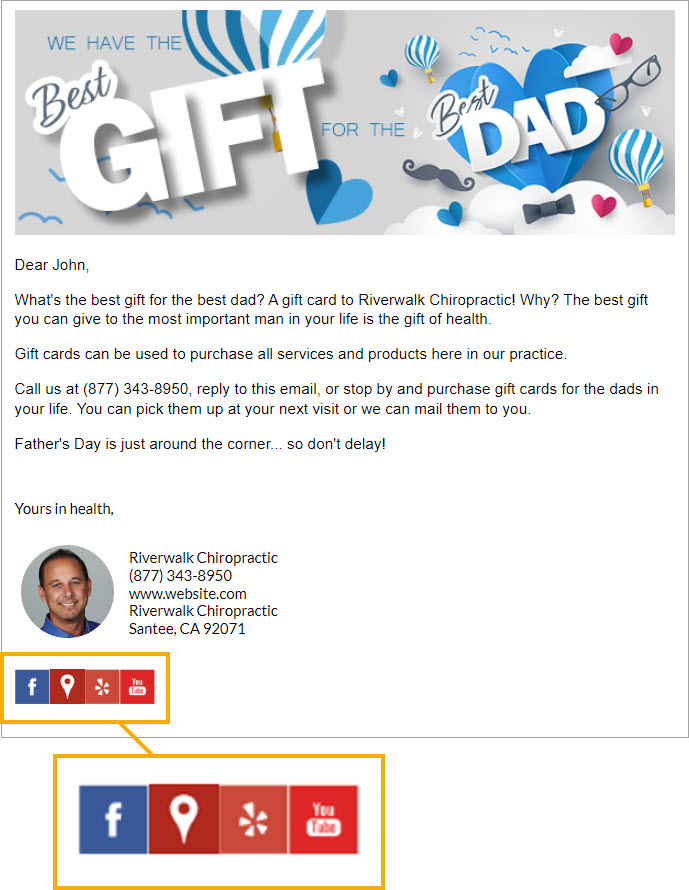
Make sure your clients know about your Social Media pages!
Let's face it, we live in a tech-savvy world where social media is EVERYWHERE! From Facebook, Twitter, Google, and YouTube almost everyone has a social media account of some sort; and what better way to show them to our clients than to create links for these pages in our educational campaign emails!
Getting started:
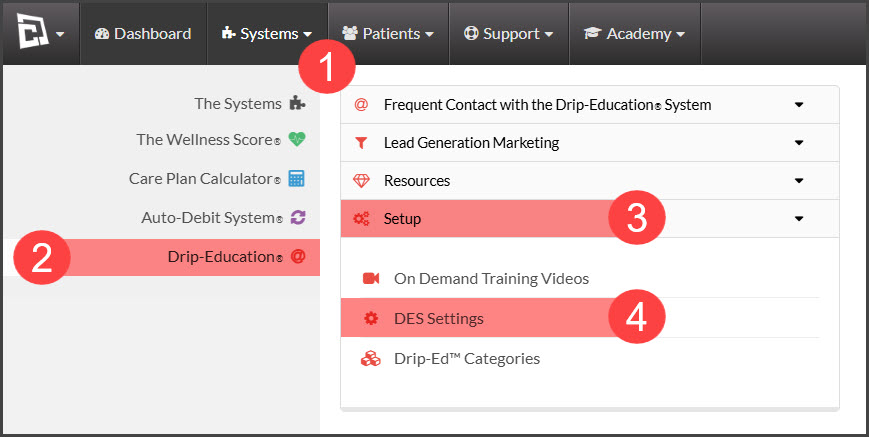
Step 1: From the navigation menu select → [Systems] → [Drip-Education®] → [Setup] → [DES Settings].
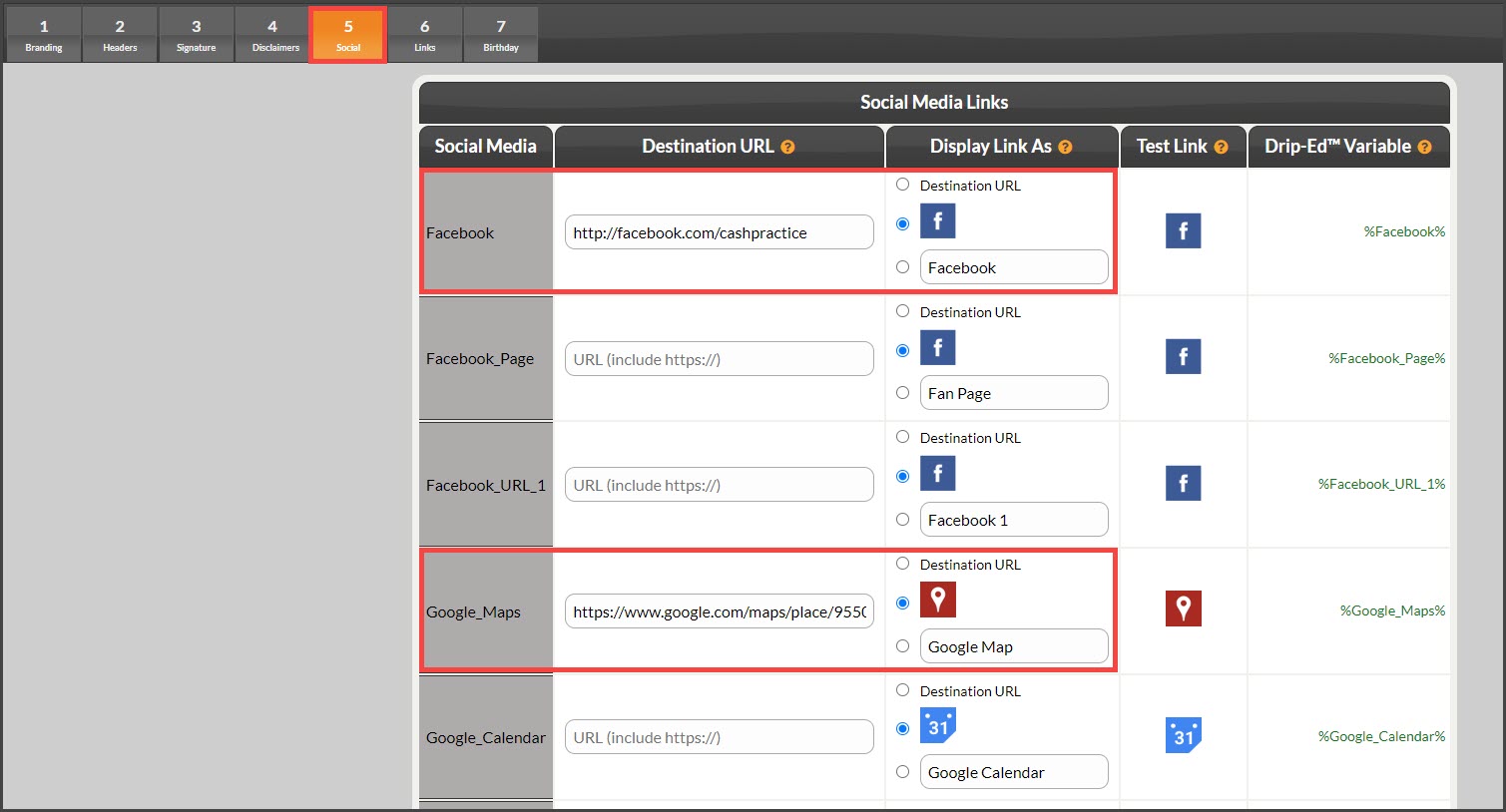
Step 2: Click over to tab [5 Social].
Enter the full URL web address (including the https://) into the [URL] column next to the social media company to which that URL is for.
Select either the stock media icon OR select and create a word link to your URL. Example: "Facebook".
Step 4: Click [Save/Next] at the bottom of the Social tab.
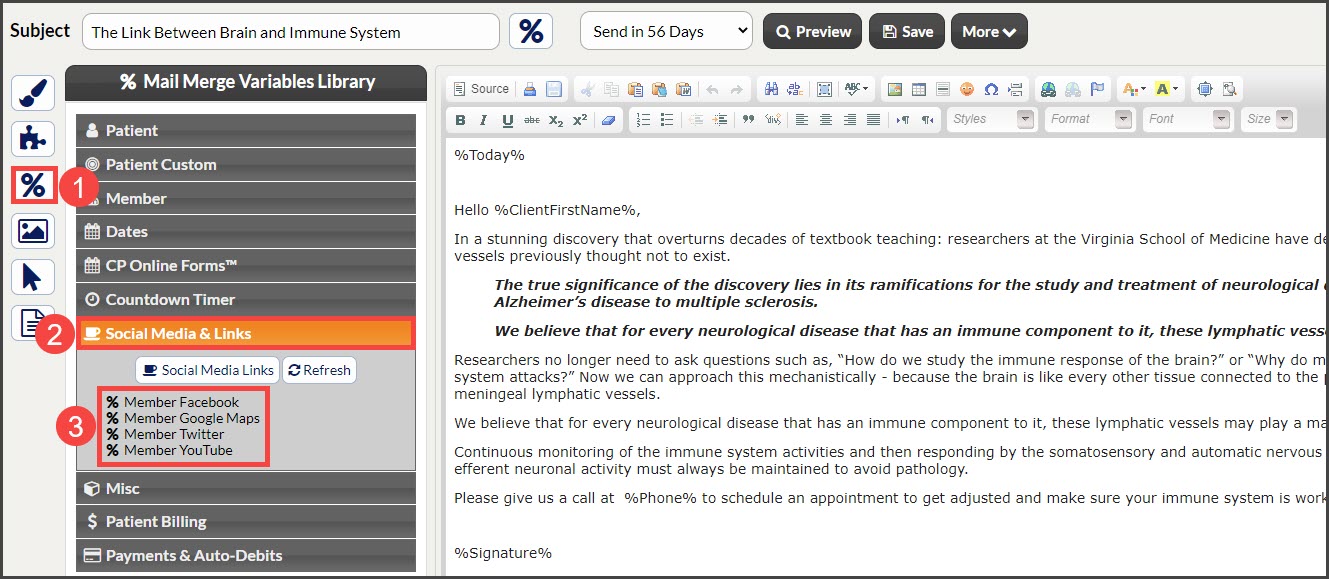
You can now insert the Drip-Ed™ Variable to the right of the media account to which you entered a web address for.
NOTE: You will also be able to access the same Drip-Ed™ Variables in your Campaign and Broadcast email editors. Select [%Mail Merge Variables Library].