Why do I need to add Third-Party Software ID numbers into my Cash Practice® patient records?
The reason that you would want to add the third-party software ID numbers into your Cash Practice® patient accounts is in order to allow synchronization between your Third-Party Software company and Cash Practice®
How to edit or add Third-Party Software ID numbers into my Cash Practice® patient accounts:
Step 1: In the top-right corner of your Cash Practice account, start typing the first or last name of your patient in the [Search Patient] bar and select the patient account once it appears in the drop-down menu.

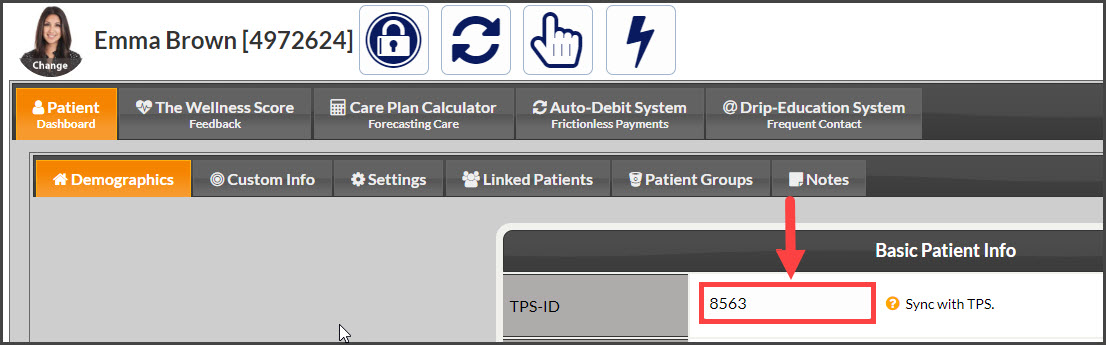
Step 2: Edit or *Add the Third-Party Software ID (Third-Party Software ID displays in the first field of the [Patient Dashboard] Tab).
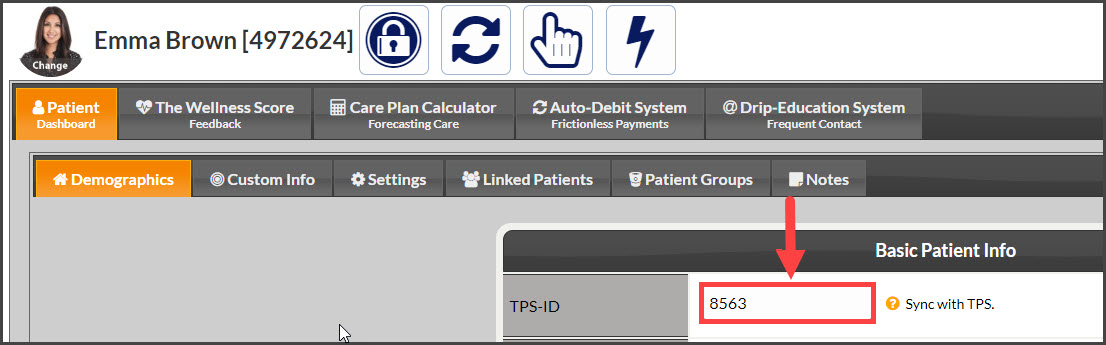
Step 3: Click [Save] at the bottom of the page.
Platinum System users click HERE
Eclipse users click HERE
Pay DC users click HERE
Genius Solutions/eTHOMAS users click HERE
iPatientCare users click HERE
How to edit or add Third-Party Software ID numbers into Cash Practice® patient accounts from the Posted Payments Report Generator™
Step 1: From your Dashboard, click on the [Search Payments] button located on the right, under the "Payments" section.
Step 2: Refine your report with the search options for the patient transaction you would like to edit or add the Third-Party Software ID for.
Step 3: Click the [Search] button.
Step 4: In the column labeled "Patient Details," click on the patient's name that's displaying in bolded letters. This will load the patient's record.

Step 5: Edit or add the Third-Party Software ID (Third-Party Software ID displays in the first field of the [Patient Dashboard] Tab). Click [Save].