

Once you have added your social media links to your account, you can begin including the links in your Drip-Ed™ Broadcasts and Campaign emails. You must add the URLs to your social media pages first, in order for them to work properly. If you have not done this yet, click HERE for instructions.
Step 1: Within the email that you are looking to enter social media links, point and place your blinking cursor where you intend to insert the link.
Step 2: Click on the [Variables Library] icon on the left-hand panel of the screen to locate the variable(s) needed for the social media links that will appear in this email.
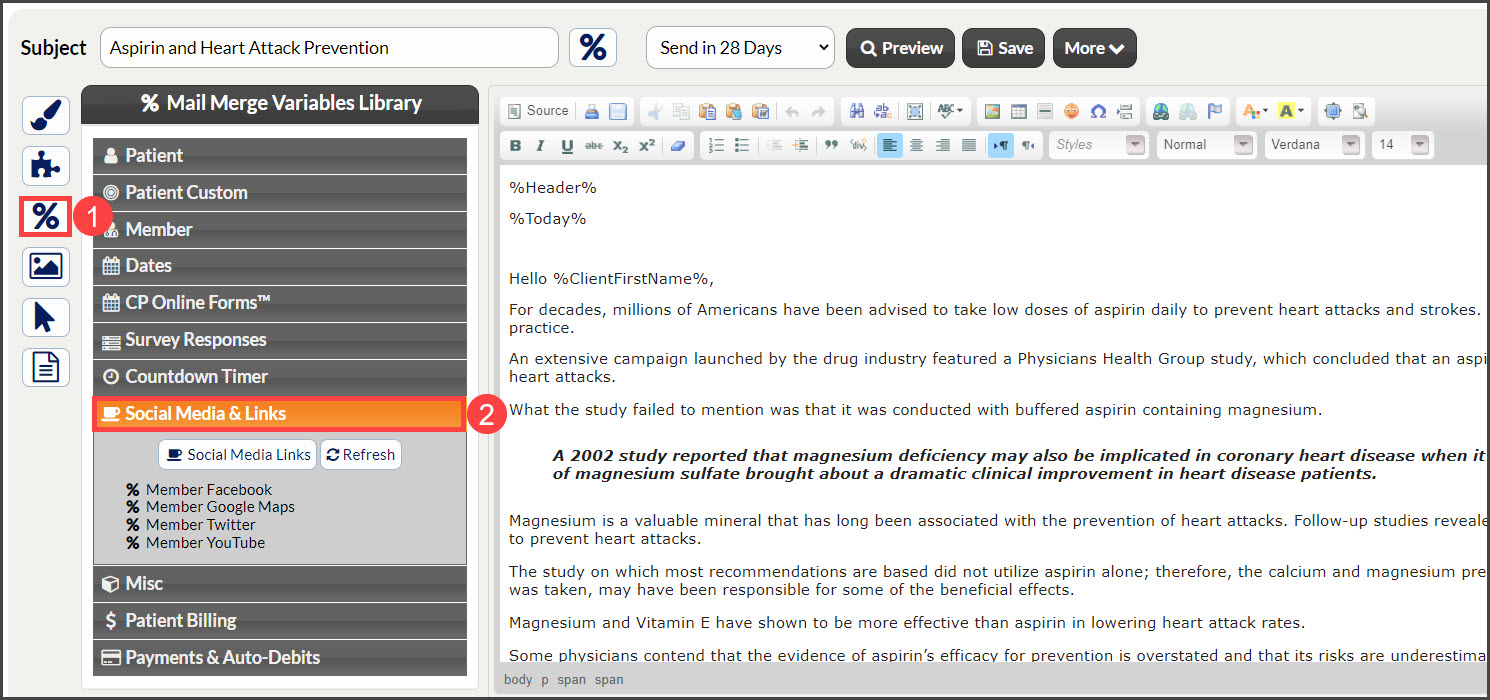
Step 3: Click on the social media variable(s) intended for this email.
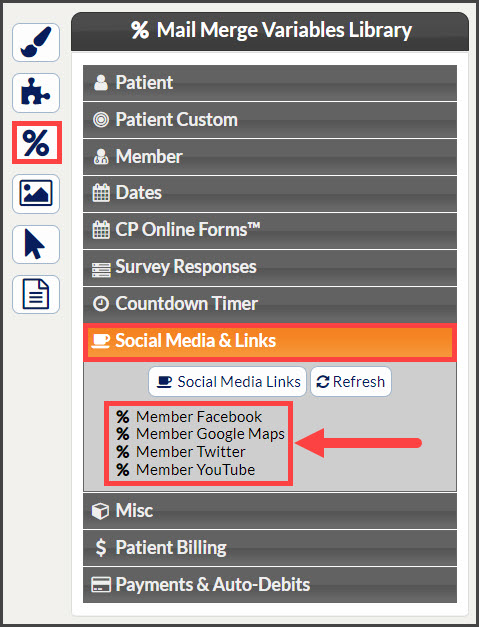
Step 4: Make sure you save your changes before closing the email.