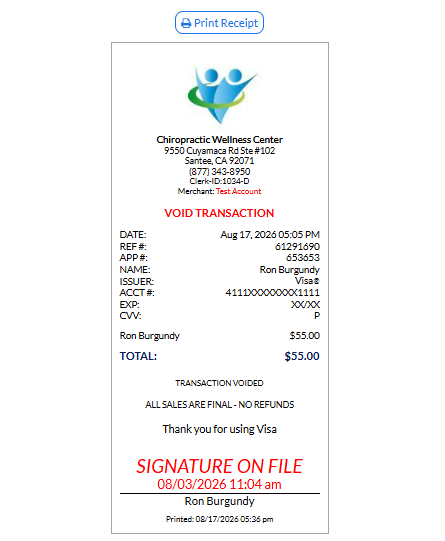
Use the Virtual Credit Card Voider™ to void a transaction.
This tool is available until 11:00 pm EST for the date of the transaction. However, if this transaction has already been settled, the option to void will not be available, and you will be prompted to issue a refund instead.
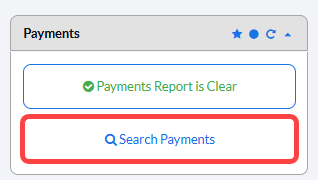
Step 1: From the Dashboard, click the [Search Payments] button, under the "Payments" section.
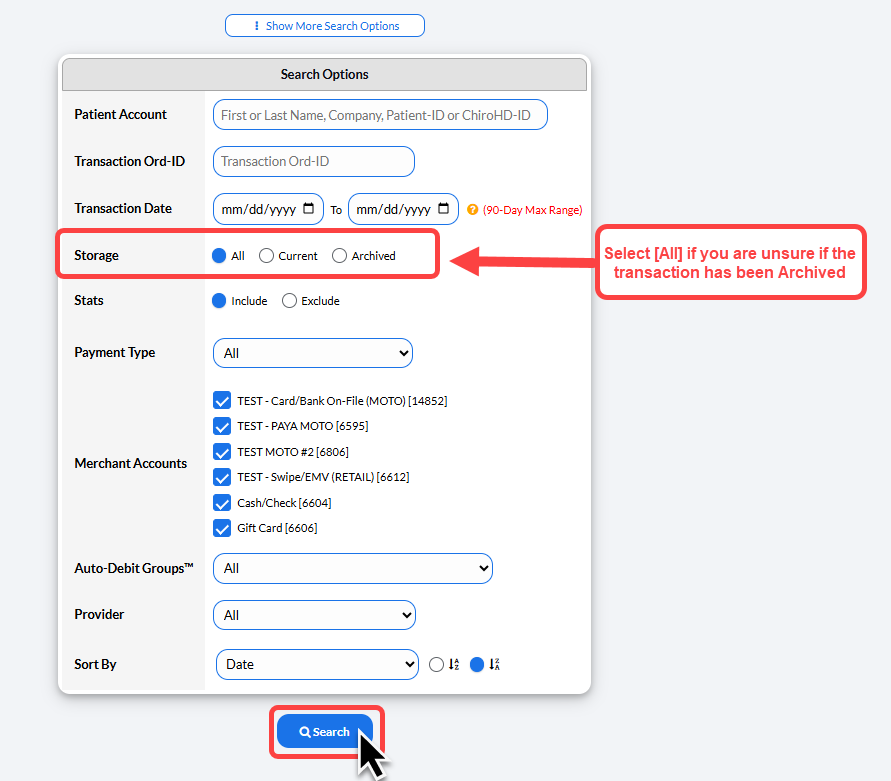
Step 2: Enter your search criteria.
Change the [Storage] field to "All"- this will show all transactions both current and archived.
For additional search criteria, select [Show More Search Options]. Then click [Search]
Step 3: On the right side of the report, click the [Void] button.

Step 4: The Voider Tool will open in a new window. You may add a comment here (optional). Once finished, click [Process Void]. Click [OK] to proceed.
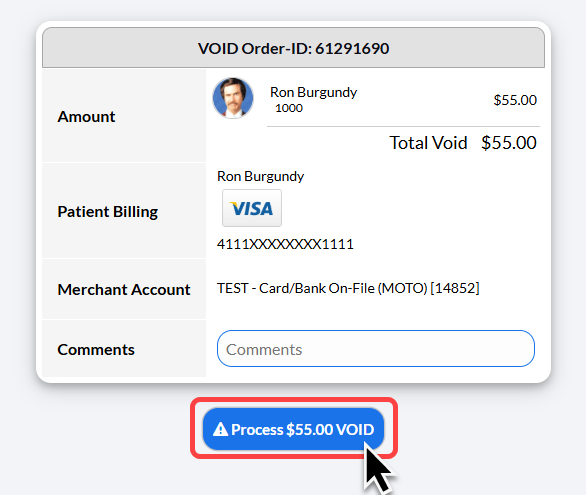
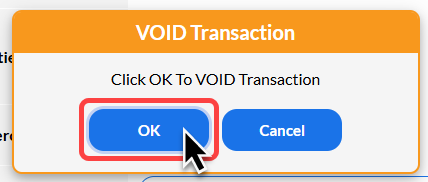
Step 5: Click OK to complete the Void.
Step 6: After the void is processed, the receipt will be displayed.
Click the company logo at the top of the receipt to print or select [Print Receipt].
Although you [Voided] the transaction, the original funds are noted on the customer's account as a Pending Transaction. The funds will not be debited from their account, and the hold on those funds will automatically fall off of the customer's account within 24-72 hours. If the patient is concerned, you may print off their voided receipt and ask them kindly to take the receipt to their bank to lift the funds.