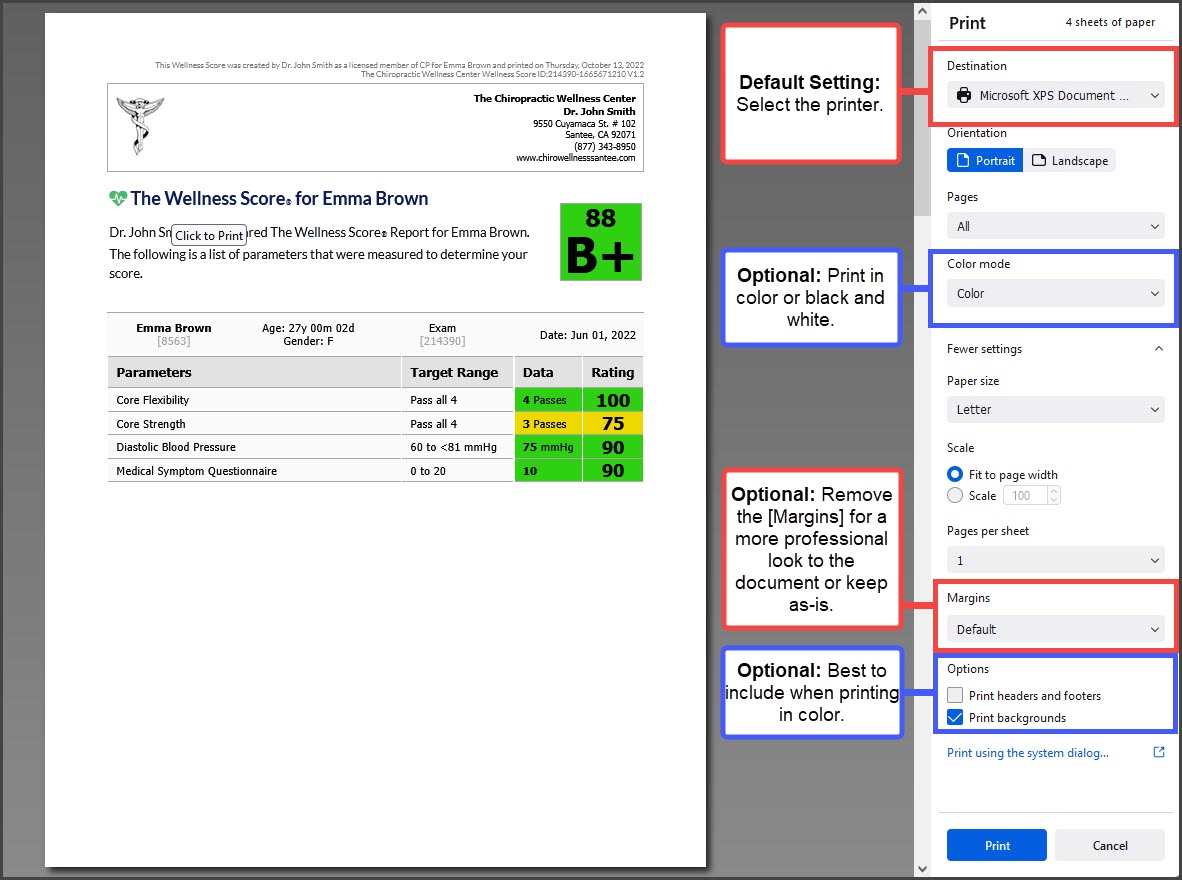
This article explains how to set page margins, header, and footer information for the web browser you are using when you print the report. What browser am I using?
Microsoft Edge: We do not recommend using Microsoft Edge when using the CashPractice.com website as certain functions may be missing or will not work properly.
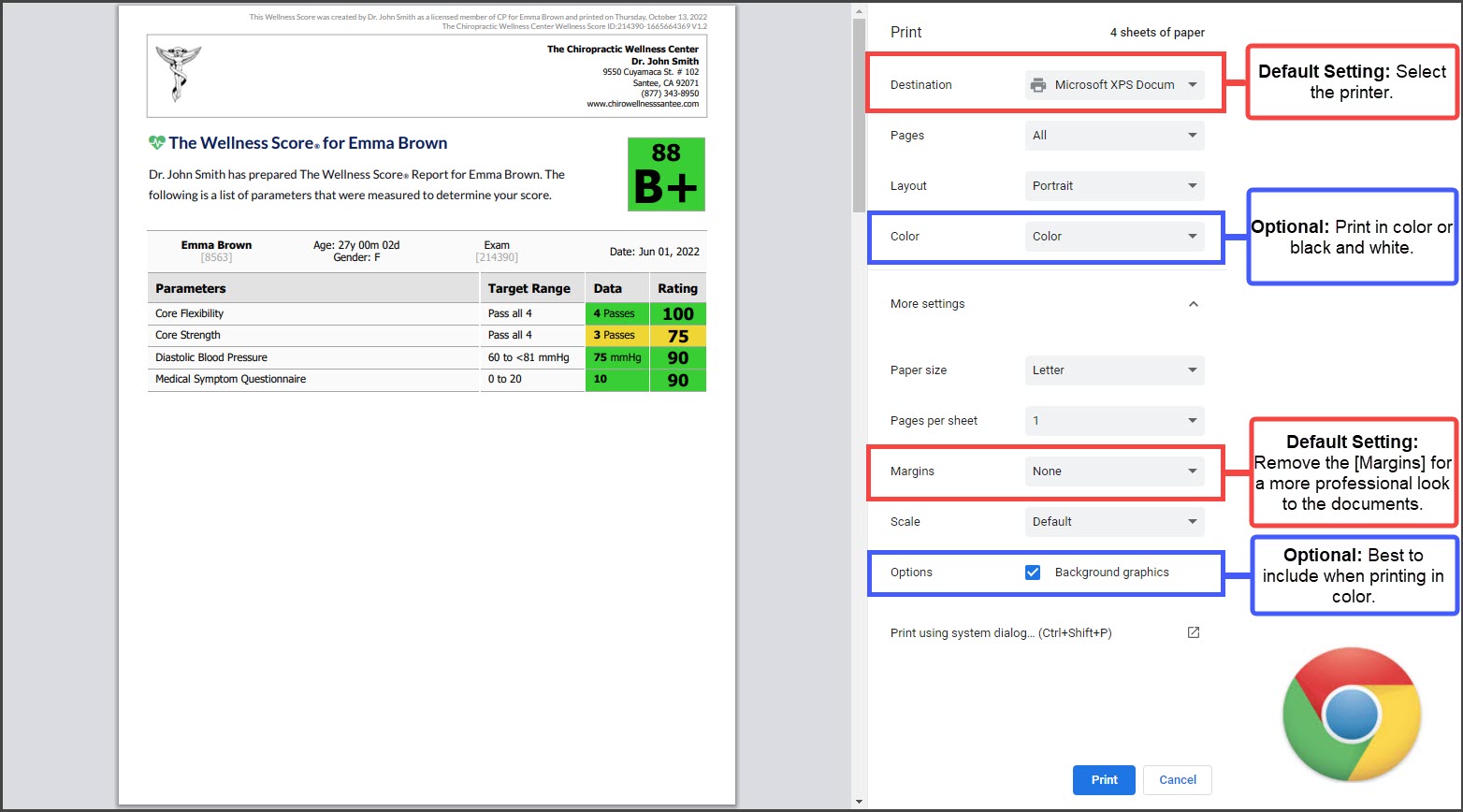
For Google Chrome: Preferred Browser
Step 1: Click on the [logo] of a Cash Practice document to bring up the printer settings.
Step 2: In the [Page Setup] window → [Margins] → select [None].
Step 3: (Optional) If printing in color, in the [Options] area, check the box to include [Background graphics]. Do not check "Headers and Footers".
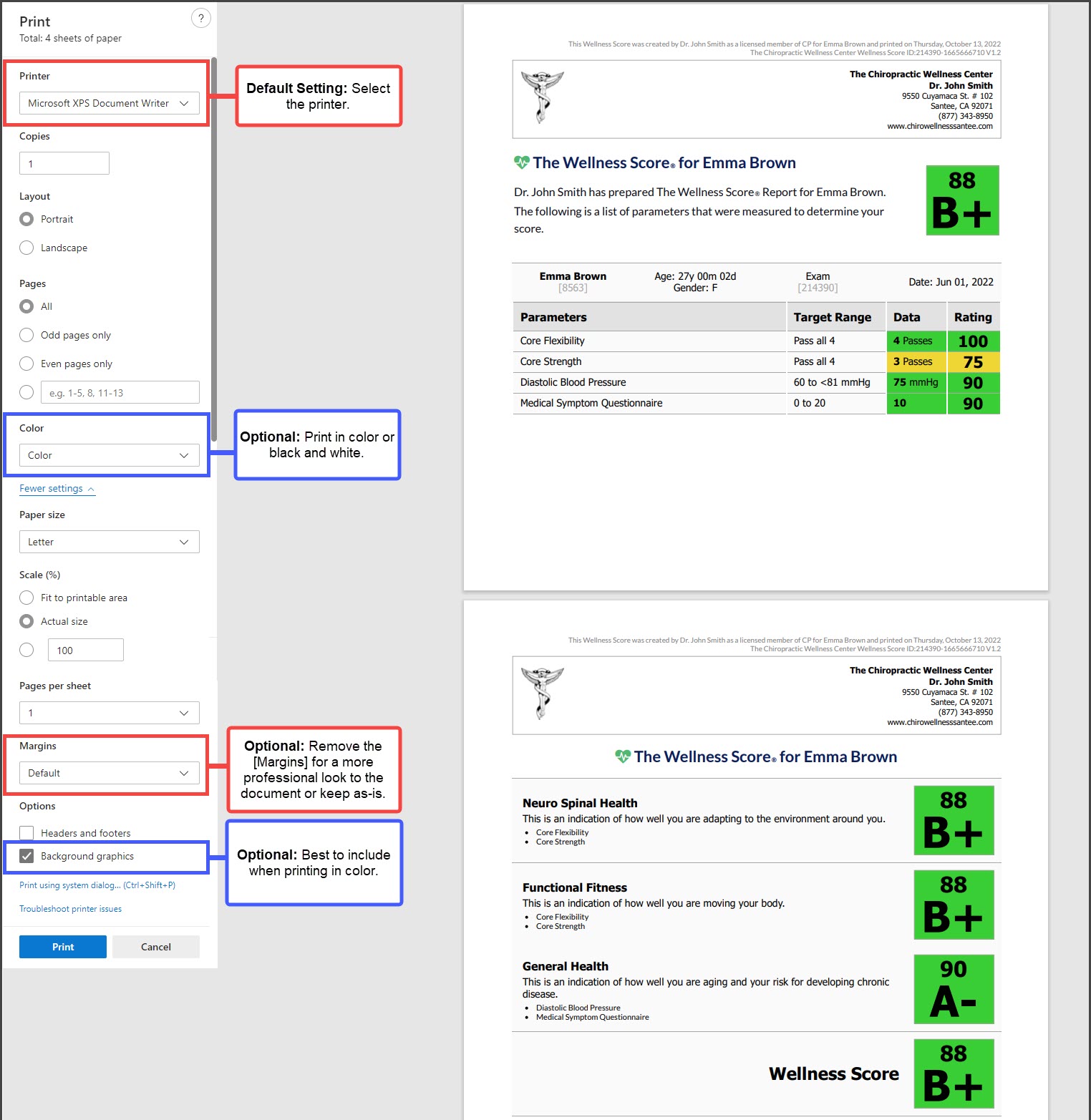
For Microsoft Edge:
Step 1: Click on the [logo] of a Cash Practice document to bring up the printer settings.
Step 2: In the [Page Setup] window → review all options
Step 3: (Optional) If printing in color, in the [Options] area, check the box to include [Background graphics]. Do not check "Headers and footers".
For Firefox (Mozilla): We do not recommend using Firefox when using the CashPractice.com website as certain functions may be missing or will not work properly.
Step 1: Click on the [logo] of a Cash Practice document to bring up the printer settings.
Step 2: In the [Page Setup] window → review all options
Step 3: (Optional) If printing in color, in the [Options] area, check the box to include [Background graphics]. Do not check "Print headers and footers".