

It is helpful to show your treatment plan on The Wellness Report. The treatment plan is made up of a list of services you provide. You can then enter the number of units and the number of months each will be provided.
The following can be done either when you are running a Wellness Score® for the first time or by retrieving a previously run report. Either way is the same.
Step 1: Either run a new report or retrieve an already run report.
Step 2: On the [Edit Report] screen, select the [Service Group] you wish to use for your treatment plan.
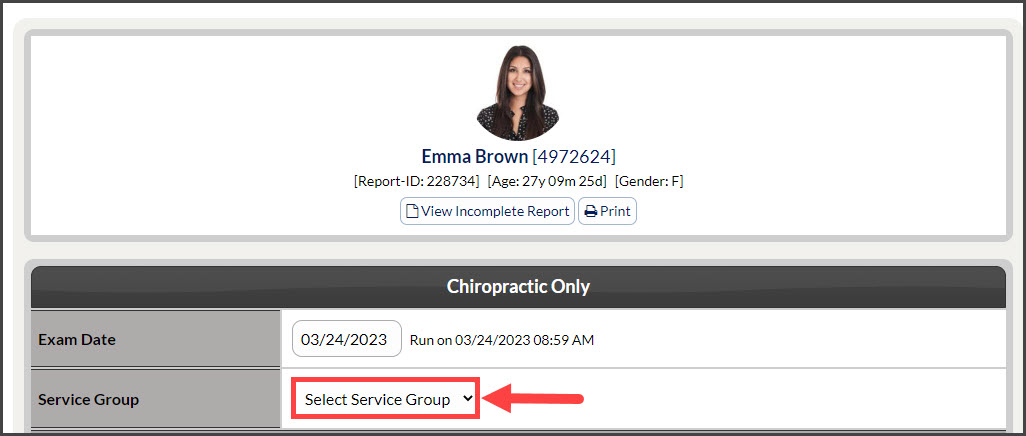
Step 3: Once you select the [Service Group], you will need to click [Save] which will reload the page with a list of services.
Step 4: Enter the number [Units] and [Months] for each service you want to include in the report. Then click the [Save] button.
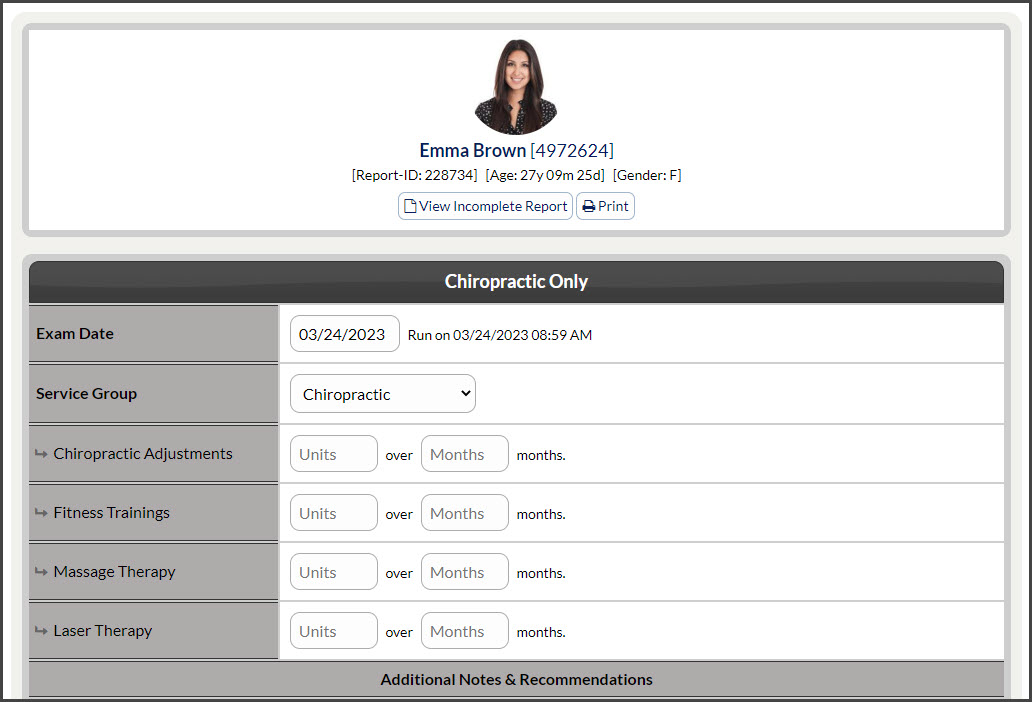
Step 5: Once you click [Save], you can then click the [View Report] button at the top of the page to open the Wellness Score® Report.
Step 6: On the opened report, you will see the report now contains the Treatment Plan.
Tips: You may be wondering if you have Service Groups. These are located in the WS Settings and can be viewed and edited from there.