

The Auto-Debit System® can be placed in TEST mode or LIVE mode. Test Mode allows you to run transactions and schedule auto-debits that are not real. This allows you to practice using the system.
Use the test account numbers below when testing. At any time you need to practice using the system, you can switch the system to test mode. Please note that once you schedule real auto-debits, be sure you return the system to live mode or they will not run.
Test Visa Card Number: 4111111111111111 ("4", then hold "1" key down)
You may use any expiration date (as long as it has not already passed) & make up any CVD code.
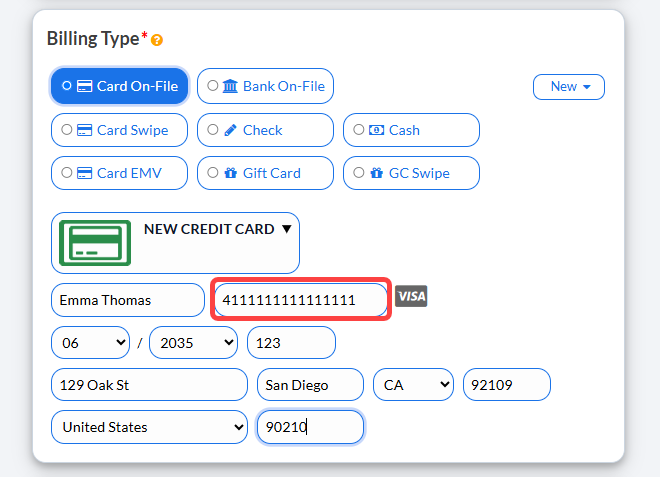
Click HERE to learn how to set up an Auto Debit using the fictitious numbers listed above.
Click HERE to learn how to process using the Virtual Terminal for one-time payments using the fictitious numbers listed above.
*Please note: if you have the USB swiper, you will need to be in LIVE mode to run test transactions using the swiped feature.
Live Mode allows you to run REAL transactions as well as schedule REAL auto-debits. To change the MODE of the Auto-Debit System® do the following:
How to switch your account into Live Mode:
Step 1: Go to the [Systems] menu → [Auto-Debit System®] →[Setup] → [ADS Settings].
Step 2: Step 1 of the setup, select Test Mode or Live Mode from the drop-down menu.
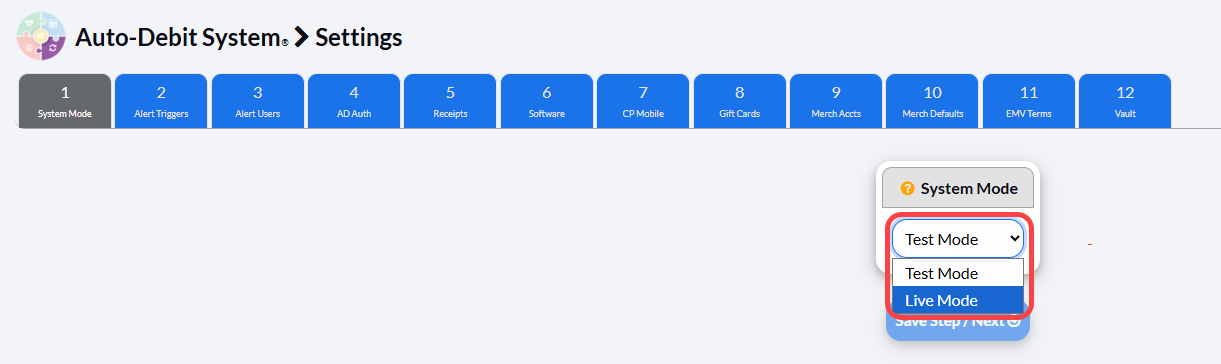
Step 3: Click the [Save Step/Next] button.