Why is it important to take action after a Bank EFT is returned?
Just like a paper check can "bounce," an Electronic Funds Transfer (EFT) can be "Returned." It is important to take action when a payment is declined or returned so that you can get paid. The system will not automatically reprocess a declined or returned transaction because you may need to take action in order for the transaction to successfully process.
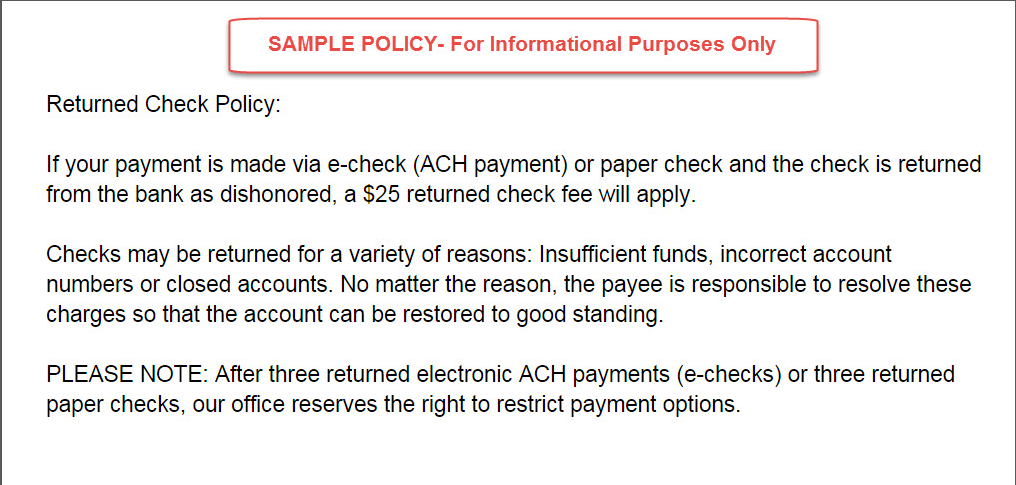
NOTE: You are charged a returned EFT fee of $9.50 by the bank for each returned item, just like a bounced check fee. You will want to confirm the billing information and available funds with your patient to avoid additional return fees. If the patient is at fault for the return, you can pass along the fee per your office policy on returned Bank EFT's/ Checks. For this reason, we recommend that your office have a written returned check policy in place. Here is an example:
Getting started:
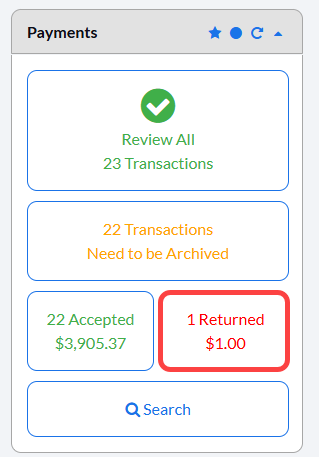
Step 1: When logged into your account, you will see a notification on the Dashboard page for your Returned EFT payments.
Click on the [Returned] notification to view the transaction details.
Step 2: Investigate the return. Click on the [Return Code] located under the [Payment Details] column to see the reason the EFT was returned and the action you will need to take.

Step 3: Take action on the returned payment:

[Reschedule]: Click on the [Reschedule] button to reprocess the transaction and make any necessary changes to the billing information.
[Cancel]: Click the [Cancel] option to cancel the transaction. This should only be done if you're going to accept another form of payment over the counter.
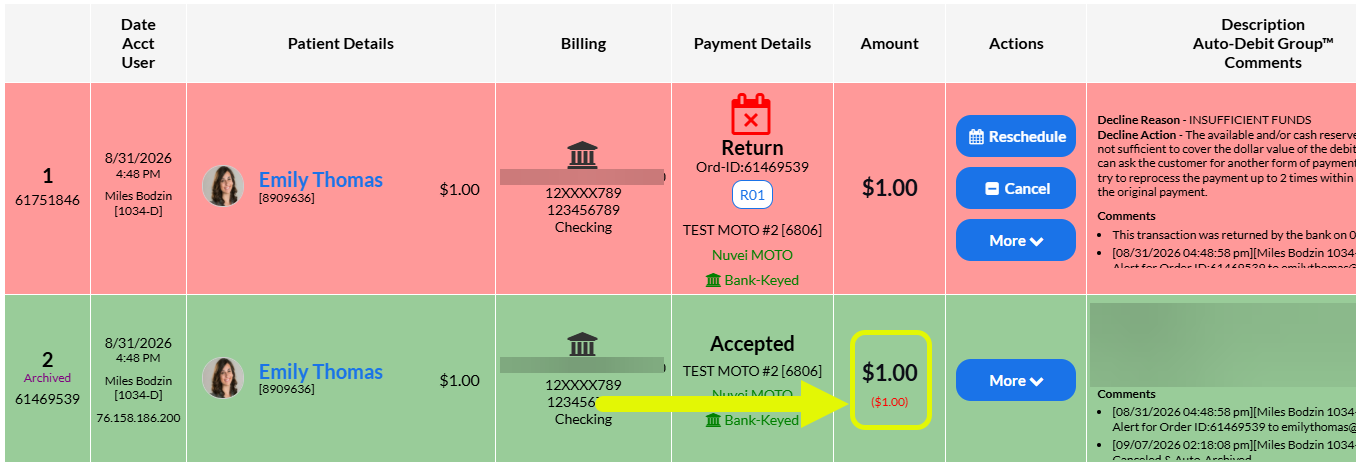
EXAMPLE: A common occurrence is code R01 for insufficient funds.
Scenario 1: After speaking to the patient to ensure the funds will be available, you will then take the action of [Rescheduling] this payment.
Scenario 2: After speaking to the patient, she has brought in a cash payment that has been collected over the counter. The action you will take will be to [Cancel] this payment.
Step 4: Now that action has been taken on the return, you can either archive the transaction if you canceled it, or you can process the pending transaction if you rescheduled it.
Note: You will see both the original "Accepted" transaction and the return in the payments report or billing history.
The original transaction will have the returned dollar amount in (red parentheses) in the [Amount] column.