

Why would I want to inactivate my patients?
As you may already know, patients that have a stored history of Wellness Score® Exams, Cash Plans, Auto-Debits/Payments, or Email Campaigns cannot (usually) be deleted from the system. If you have patients that have a history with any of these things but are no longer active patients and are wasting space in your patient database, you can mark them as inactive to make room for more patients!
How do I re-activate an inactivated patient account?
Patients can always be reactivated the same way that you inactivated them. Just be sure you have sufficient patient space available to reactivate an inactivated patient.
Processing a payment for this patient through your integrated EHR or Cash Practice will automatically reactivate their account.
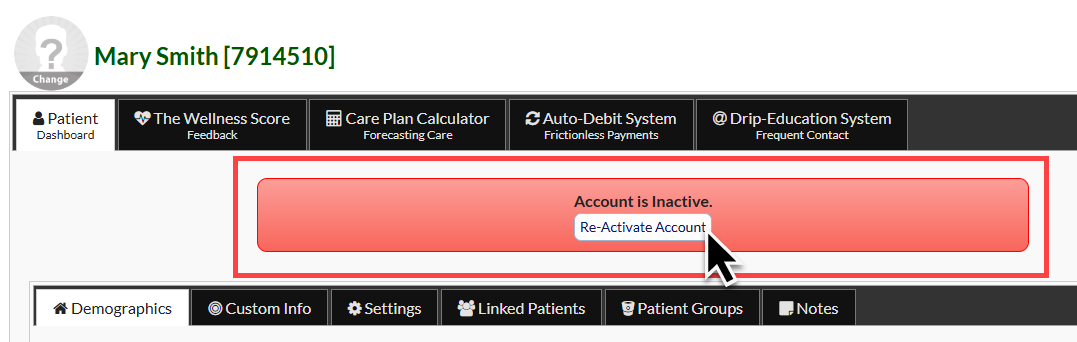
You may also click to Re-Activate directly from the patient account in Cash Practice:
Note: The instructions below are for inactivating patients individually. If you are looking to inactivate patients in mass, please click HERE for instructions.
Option 1:
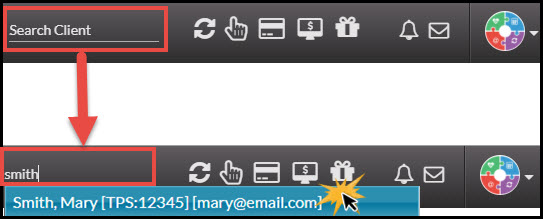
Step 1: From the top-right side of the website, head to [Search Patient], type the name of the person you are looking for, and select their name from the drop-down menu. This then directly brings you to the Patient Record.
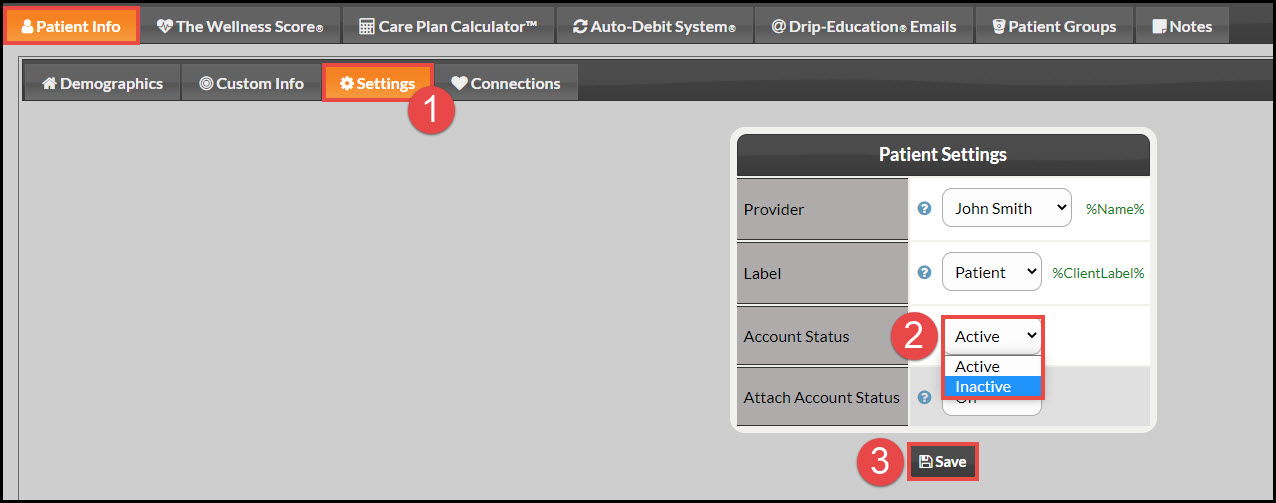
Step 2: Click on the [Settings] tab and change the "Account Status" field to [Inactivate] or [Activate] and then click [Save].
Option 2:
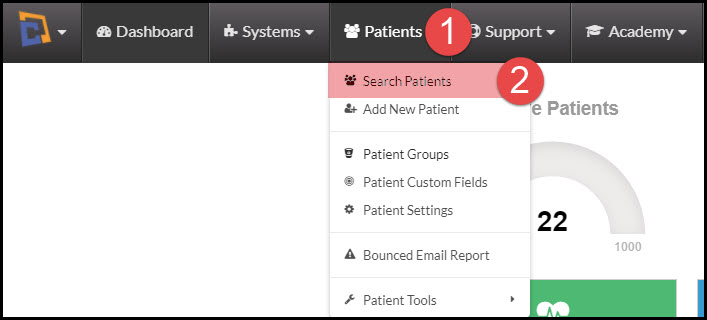
Step 1: Hover over the [Patients] menu → Select [Search Patients].
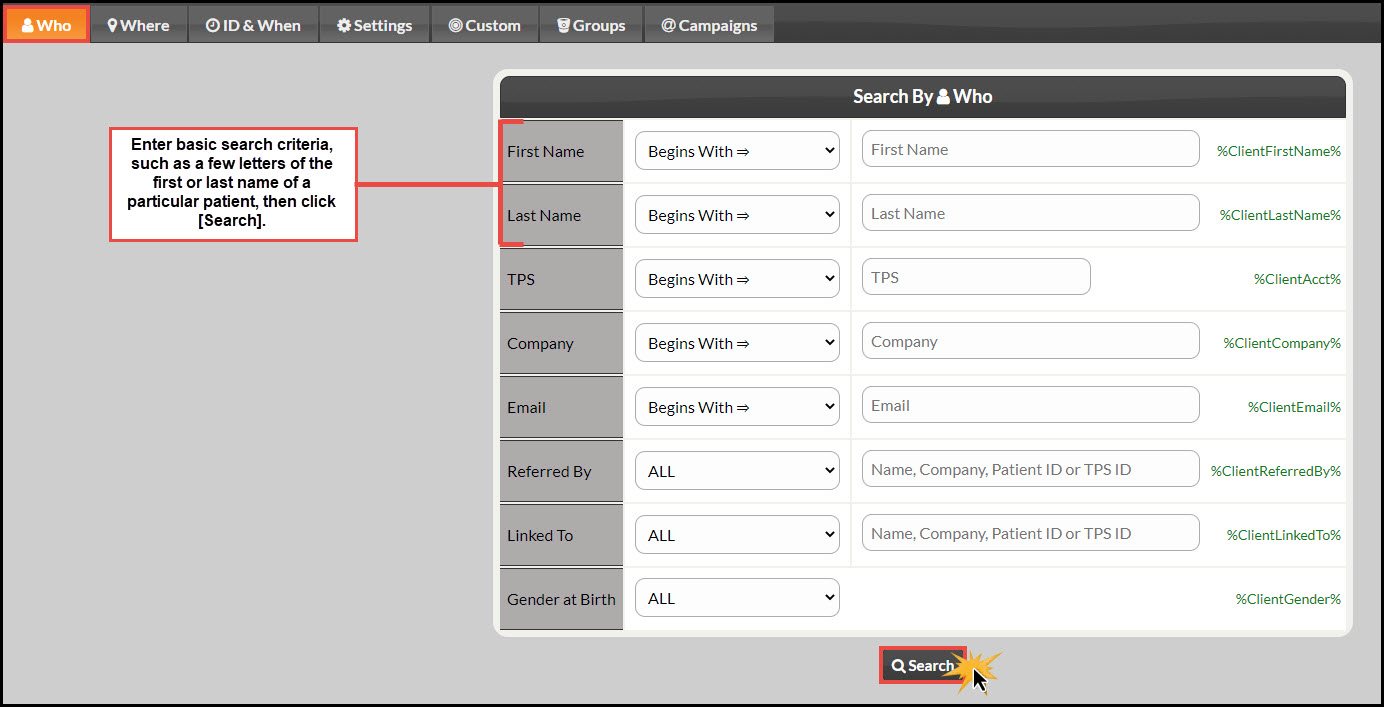
Step 2: Enter the search criteria and click the [Search] button.
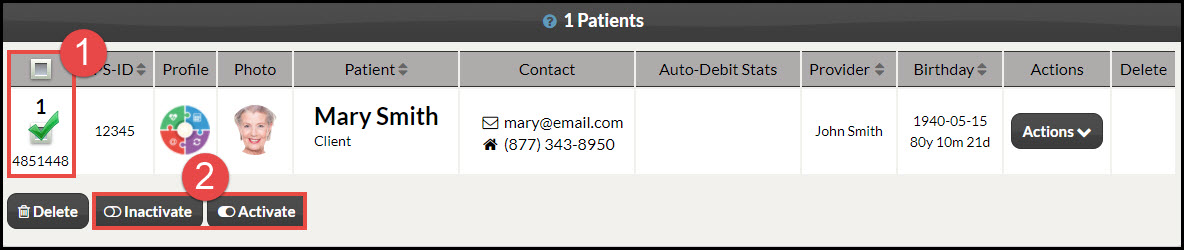
Step 3: Click on the box in the first column, which will [check] the box to select the patient, then click the [Inactivate] or [Activate] button at the bottom of the page.
NOTE:
Patients cannot be inactivated if they have an active auto-debit, active email campaigns, or any activity within the last 30 days. Click HERE for details.
Patients can always be reactivated the same way that you inactivated them. Just be sure you have sufficient patient space available to reactivate an inactivated patient.