

The Mailing List Status is automatically turned to ON for each and every new patient added to your Cash Practice® account. This allows all emails either from the Drip-Education® System or the Auto-Debit System® to be sent without any hindrances to your patients. This feature can be turned OFF or ON, as well as indicate if the patient has a bounced email address or has removed themselves from your email list altogether. Below are instructions on where to late this, and actions that can be taken.
Getting started:
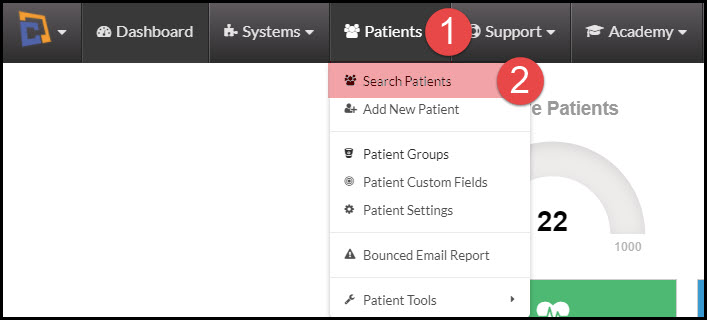
Step 1: Hover your mouse over the [Patients] menu → [Search Patients].
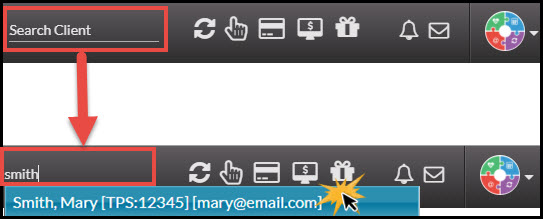
Option 2: From the top-right side of the website, head to [Search Patient], type the name of the person you are looking for, and select their name from the drop-down menu. This then directly brings you to the Patient Record. Skip ahead to Step 4.
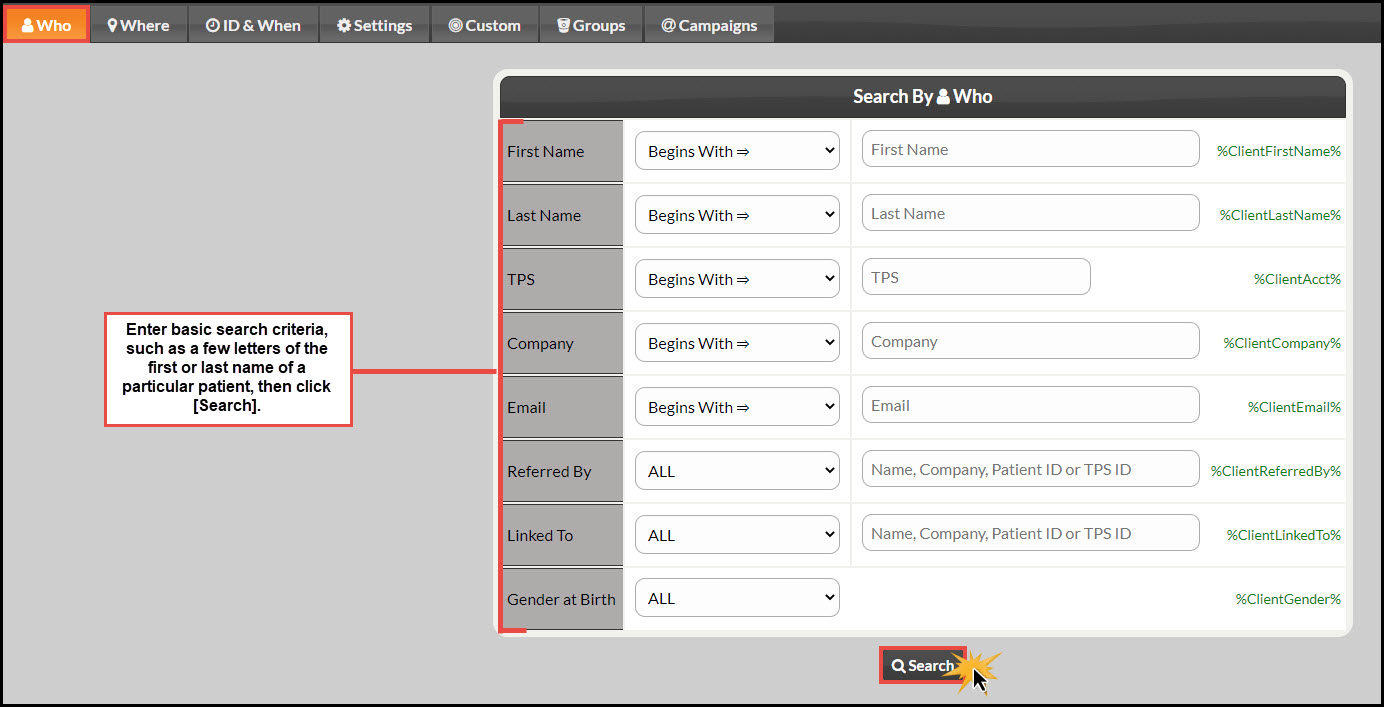
Step 2: From the Search options screen, narrow down your search by entering search criteria. When finished, click [Search] at the bottom of the page.
Step 3: Once the search results load, click the [Patient] button in the View column you would like to view/edit the Mailing List Status for.

Step 4: Scroll down to the [Mailing List Status] field on the "Demographics" tab. The current status will display within the selection field, and are as follows:
On (Send Emails): This shows that the patient is set to receive all emails sent by either the Drip-Education System® or the Auto-Debit System®. The Auto-Debit System® has its own individual settings viewable HERE.
Off (Do Not Send): When the Mailing List Status is set to OFF, this indicates a manual action taken by the Admin/Account User to no longer send emails to this Patient.
Bounced: Indicates that the patient's email address has bounced. This means their email address is not receiving emails.
Removed By Recipient: This shows that the Patient removed themselves from your list from a link located at the bottom of an email they received.
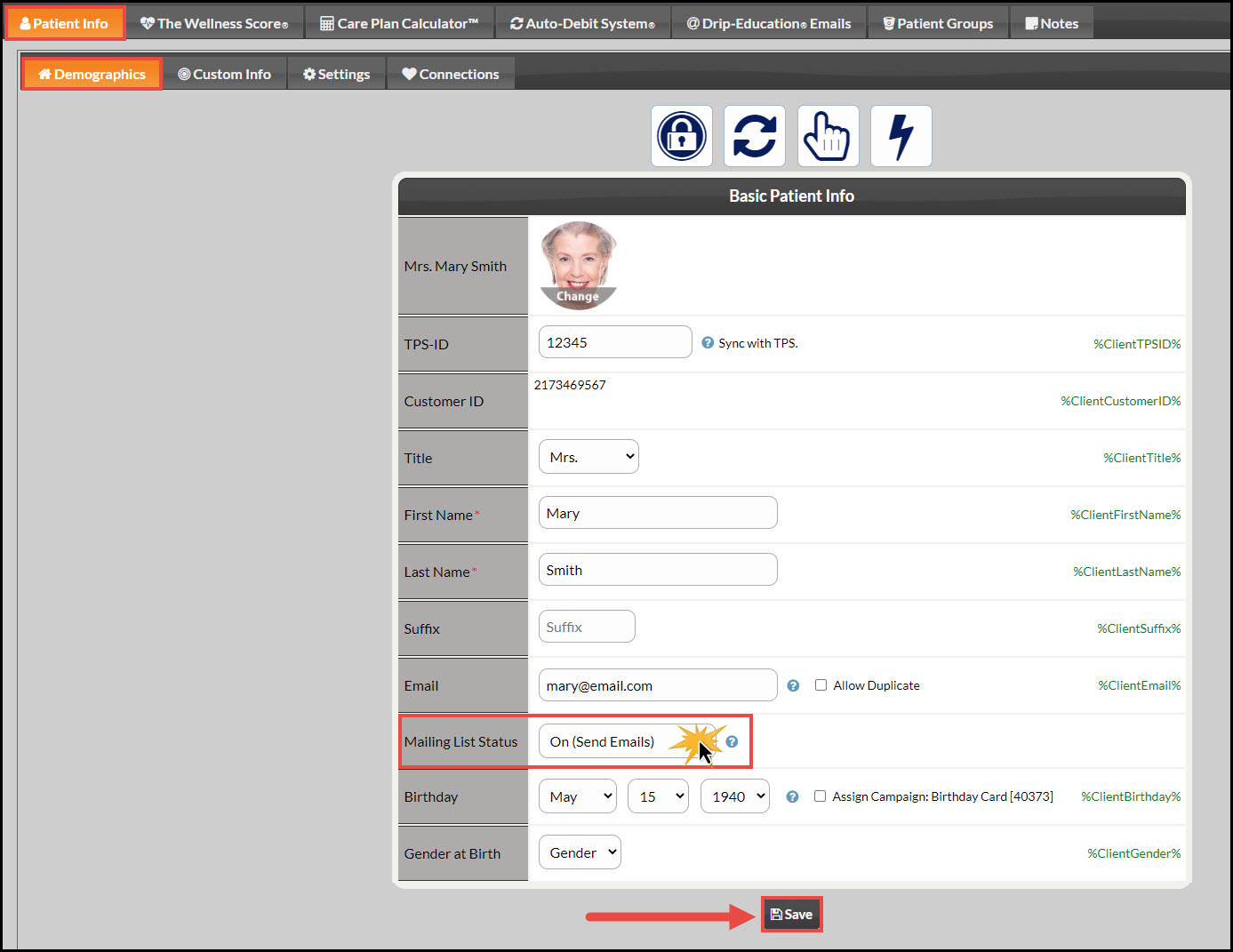
Step 5: If any changes were made to the [Mailing List Status], click the [Save] button at the bottom of the Patient Record.