

NOTE: If you are using an integrated EHR the patient records must be in both the EHR & Cash Practice in order for this to work.
Getting Started:
How to link a patient account:
Step 1: From the top-right side of your Dashboard in your Cash Practice account, go to [Search Patient], type the name of the person you are looking for, and select their name from the drop-down menu. This will then redirect you to the patient account.

Step 2: Once the patient accounts loads:
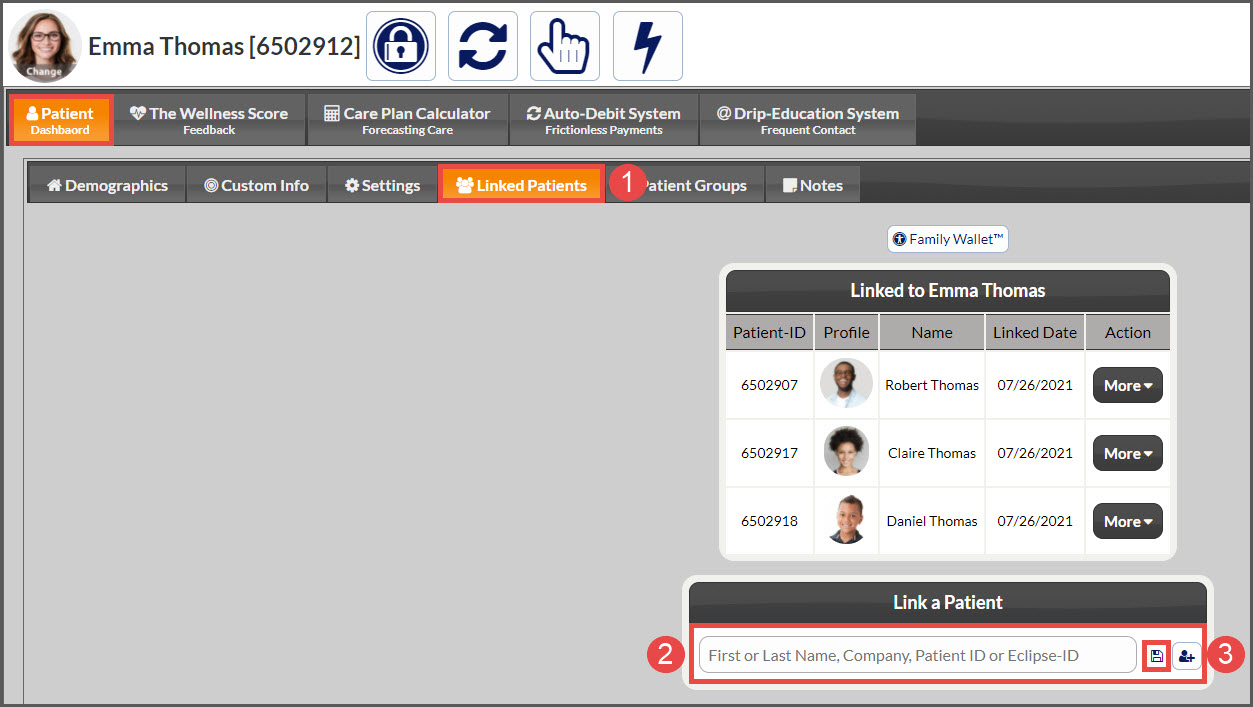
Click the [Linked Patients] tab
Type the name of the patient needing to be linked. Select their name from the drop-down menu
Click the [Save] icon to the right
IMPORTANT! If the patient you are meaning to add is not already in Cash Practice, click HERE for instructions. Be sure to add in their correct TPS ID number as well (details HERE).
How to unlink a patient account:
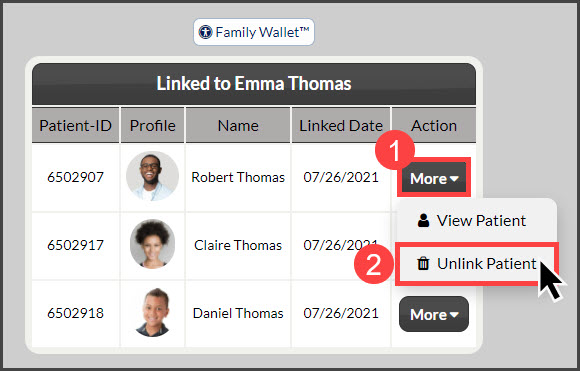
Click on the [More] drop-down menu for the patient account you want to unlink and select [Unlink Patient].
Optional: To allow patients to share billing information click HERE for instructions.