

If you're running low on patient storage space, you have two options:
Manually inactivate patients who haven't had any activity in the past 30 days.
Upgrade your account to increase your storage space.
With this new feature, you'll be able to save time by automatically inactivating patients! Our system will check all patient accounts daily and inactivate those that qualify.
Getting started:
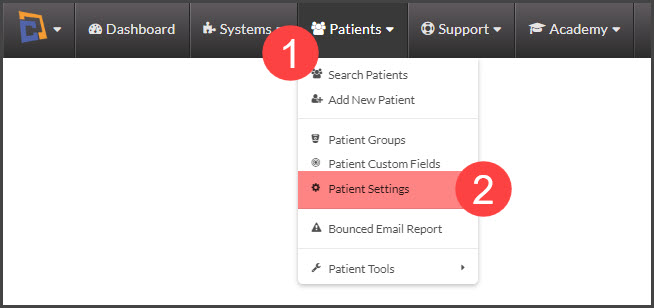
Step 1: From the Dashboard, hover over the [Patients] menu near the top-left → click on [Patient Settings].
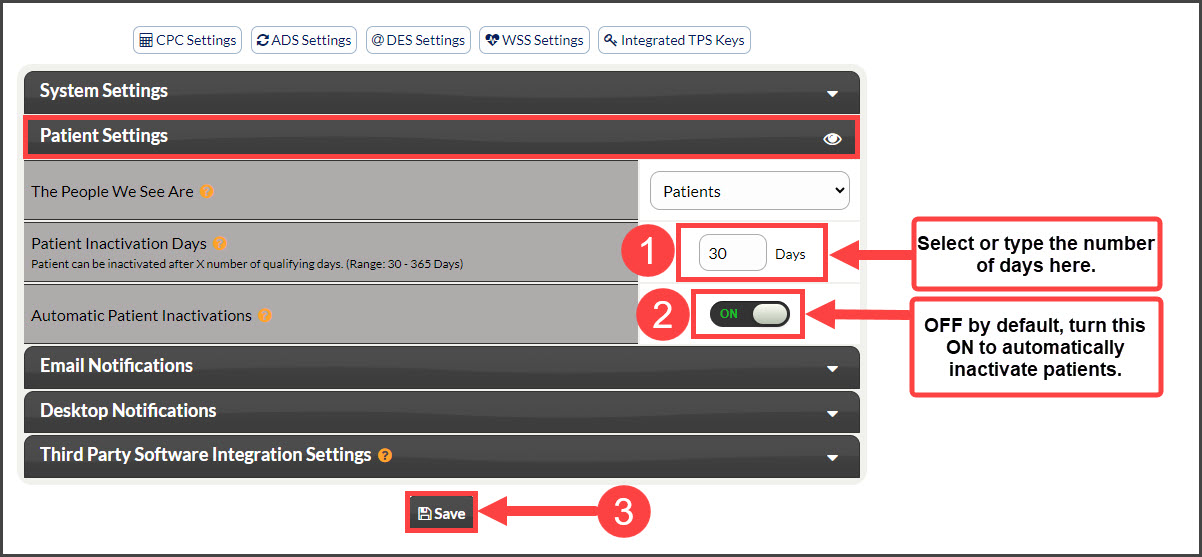
Step 2: The [Patient Settings] section will be open by default.
The minimum is to select the number of days for a patient to be inactivated after - 30 days.
Toggle the icon [ON] for the [Automatic Patient Inactivations] option
Click the [Save] button at the bottom of the screen.
NOTE: 500 patients will be checked per day. If you have a large list of active patients, it may take a number of days for all patients to be inactivated that qualify. EX) If a member has 3,000 active patients, it will take 6 days to inactivate all qualifying patients once this feature has been turned on.
(3,000 active patients / 500 per day = 6 days to complete).
Not all Account Users have permission to access these settings. If you need access, contact the Owner/Admin of your Cash Practice Account and have them follow the instructions HERE.