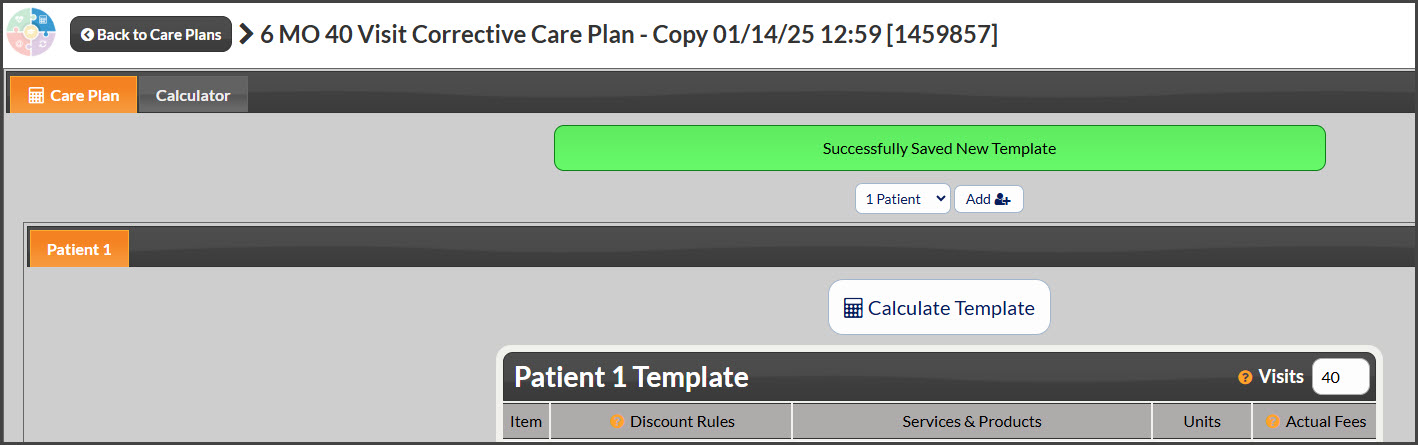
Making templates is the most efficient way to make and use plans with the Care Plan Calculator®. The instruction below walks through the steps of transitioning an existing plan into a new template that can be used over and over again for your patients and patients.
Getting Started:
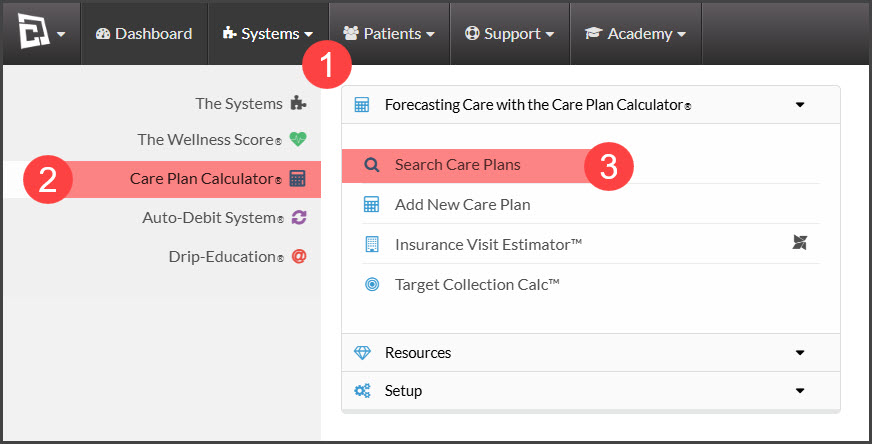
Step 1: Hover your mouse over the [Systems] menu, select [Care Plan Calculator®] then click on [Search Care Plans].
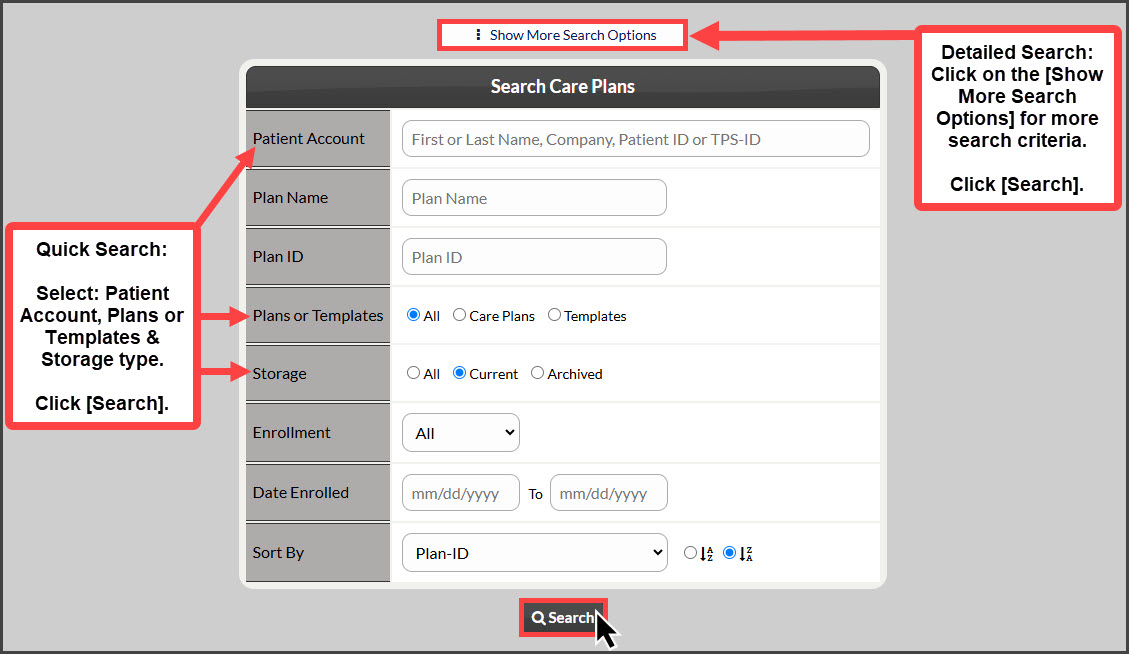
Step 2: From the Search Care Plans page, enter specific search criteria for the plan you are looking for. For additional search criteria, click on the [Show More Search Criteria] field. Click the [Search] button at the bottom of the page.
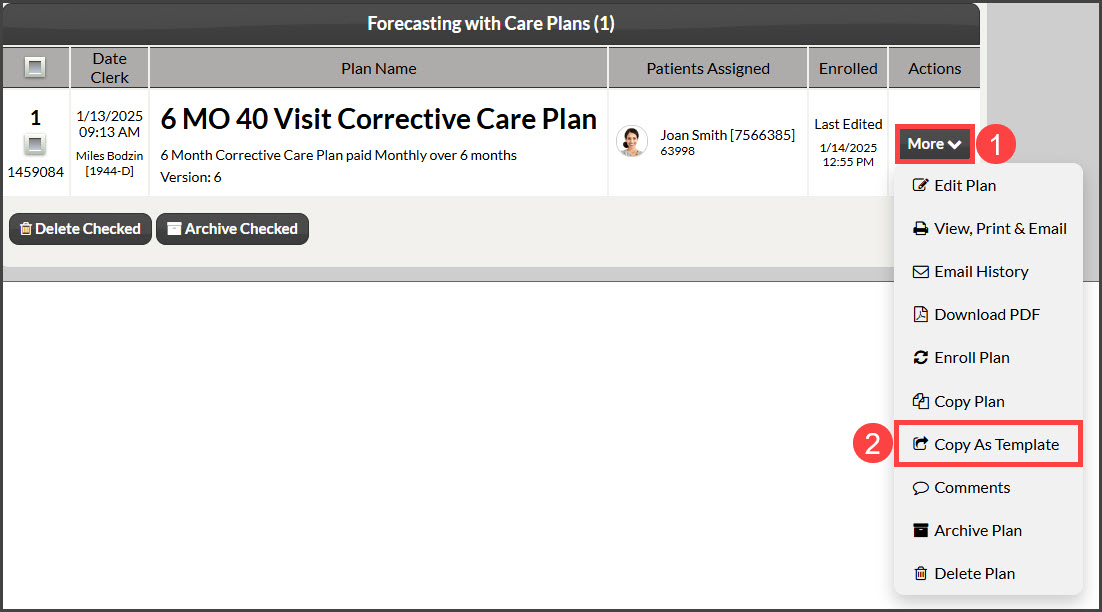
Step 3: From the search results page, click on the [Actions] button for the plan you want to make a template. From the drop-down menu, click [Copy as Template].
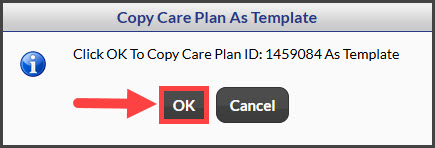
Step 4: Click the [Ok] button to complete the action.
Step 5: This will then bring you to the newly copied plan for any additional editing or plan changes. If no updates need to be made, head back to the Dashboard or Systems menu.