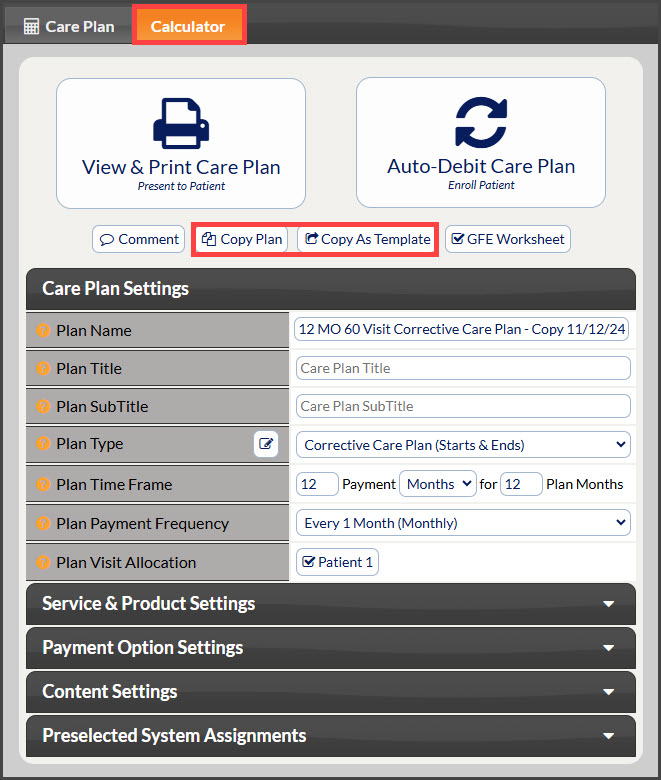
To get started, follow the sequence below.
A: Hover over [Systems]
B: Click [Care Plan Calculator®]
C: Click [Search Care Plans]
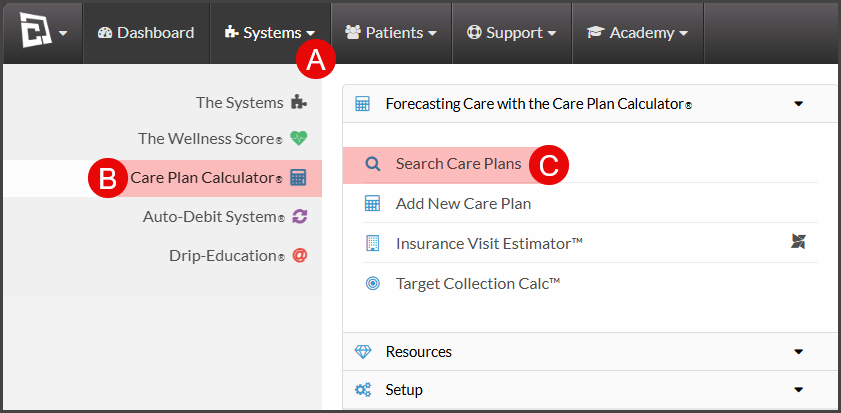
Step 1: On the [Search Care Plans] page, narrow your search by entering as little or as much information about the plan that you are looking for, OR click the [Search] button at the bottom of the page to view all [Current] Care Plans.
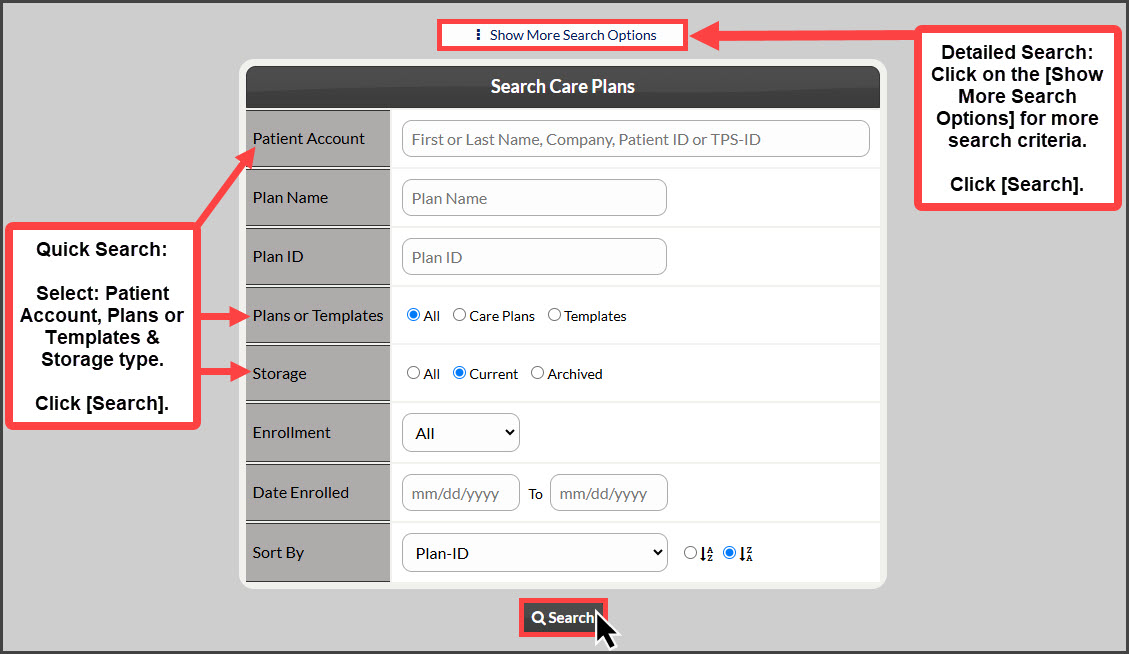
Step 2: From the search results, click on the [More] drop-down menu and then select [Copy Plan].
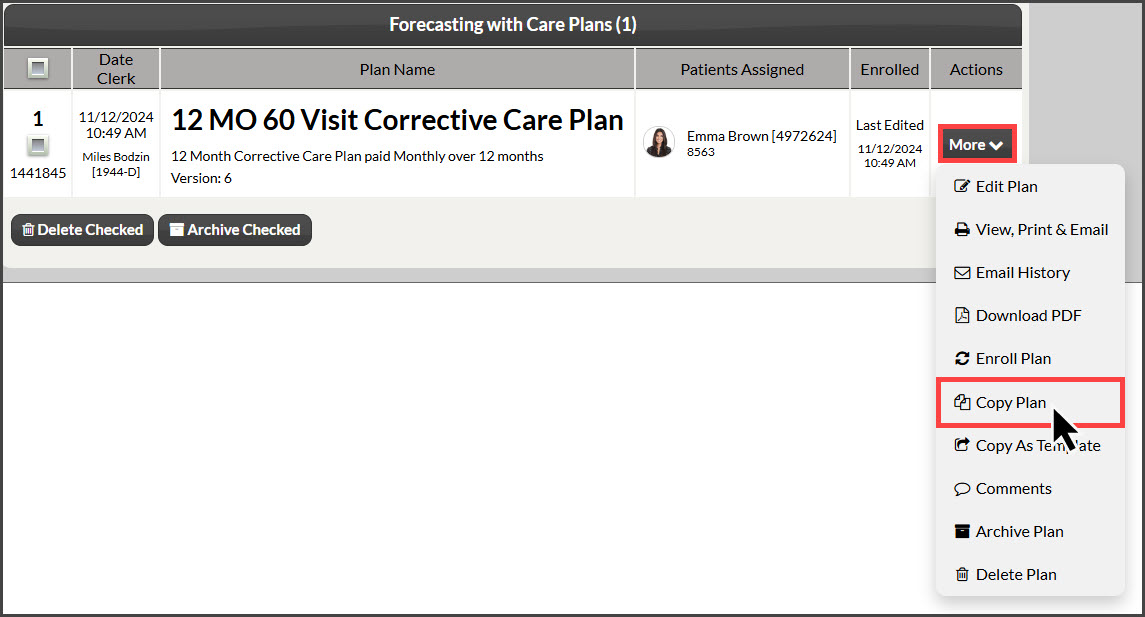
Step 3: Edit the copied plan by making changes to any of the services/products, and the number of visits. etc.
Step 4: After making and saving any changes to the [Care Plan] and [Calculator] tabs of the plan editor, you are able to View & Print the Care Plan, Auto-Debit Care Plan, Copy Plan, or Copy as Template, and apply additional care plan settings from each section drop-down menu. It is recommended to change the [Plan Name] to allow for easy identification in the future.