

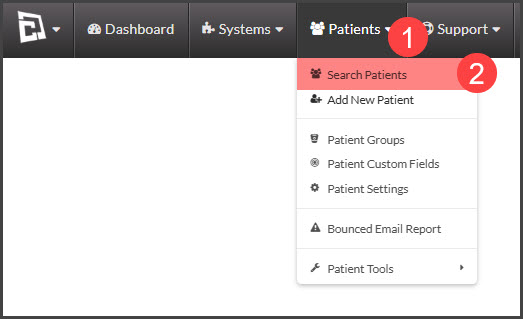
Step 1: Hover over the [Patients] menu → click [Search Patients].
Step 2: In the Search Options, select the [Campaigns] tab.
Step 3: Select "Include Patients Assigned" from the first blank drop-down menu next to the campaign in which you are looking to find patients already assigned.
Step 4: Specify if you are looking for patients on "Active Subscriptions", "All Subscriptions", "Completed Subscriptions", etc... from the second drop-down menu.
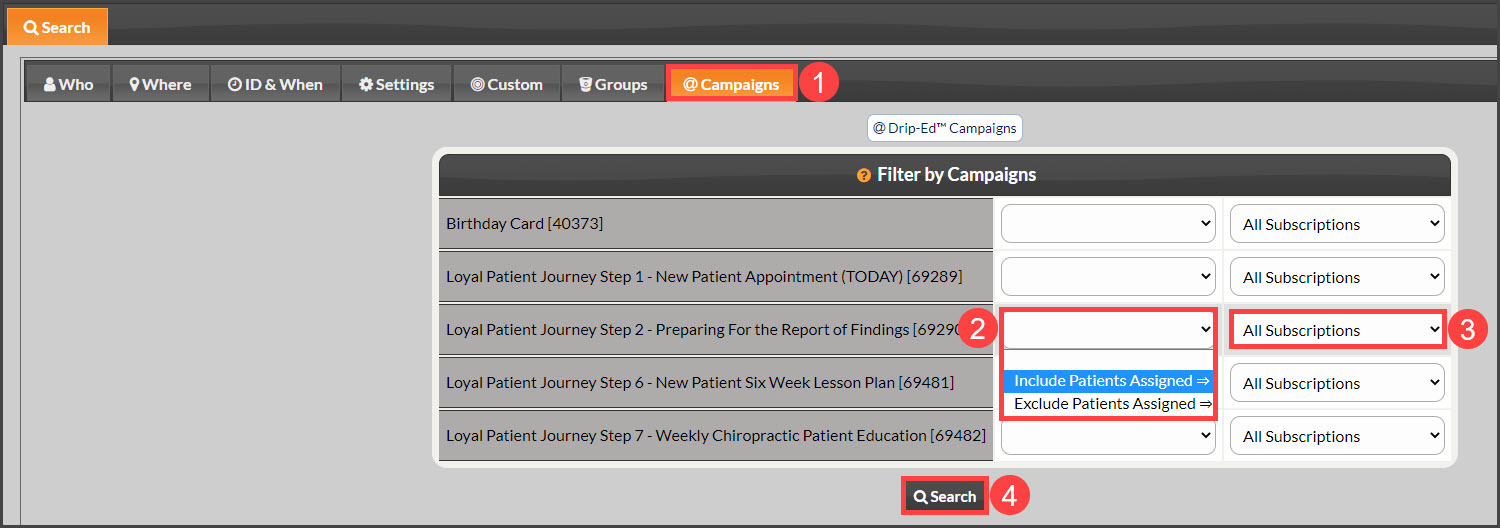
Step 5: Click [Search]. You will then receive the results of all patients "Actively Subscribed" to your Drip-Ed™ Campaign.
You can also find a list of patients assigned to your campaigns in the Campaigns & Broadcasts section of your account!
Step 1: Hover over the [Systems] menu→ click on the [Drip-Education®] menu → click [Search Campaigns & Broadcasts].
Step 2: Narrow down your search by entering your search criteria, or click on the [Search] button at the bottom of the page to generate a list of all your campaigns & broadcasts.
Step 3: Click on the [More] drop-down menu and select [Patients Assigned].
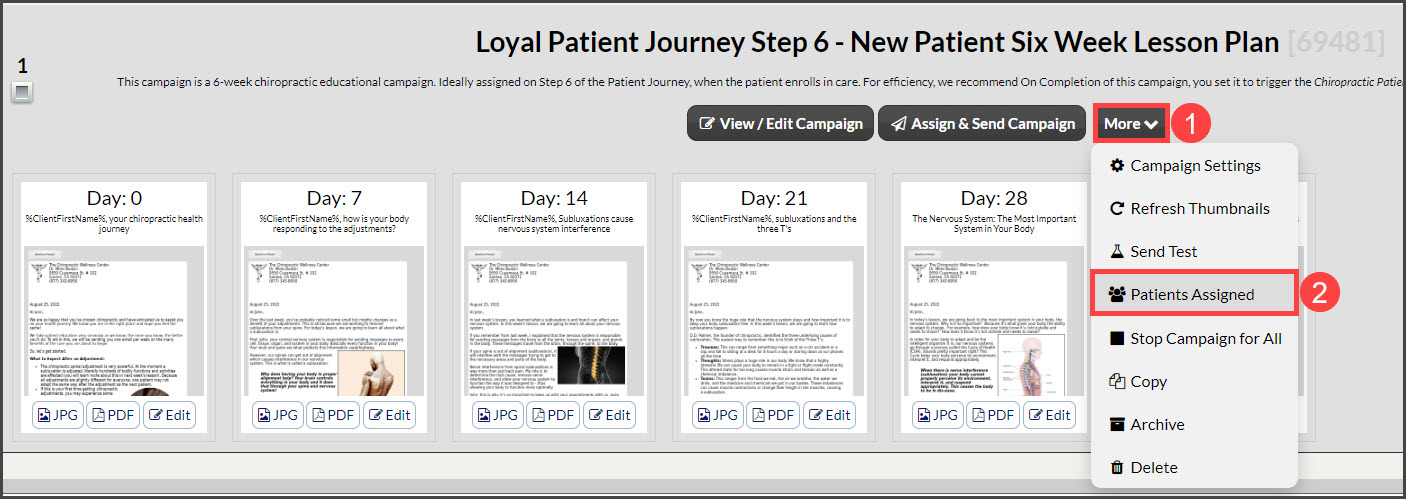
This will take you to the patient search results, showing a list of patients that have been assigned to that campaign (active or not). If your list of patients takes up more than one page, switch the "Results Per Page" view to [ALL].