

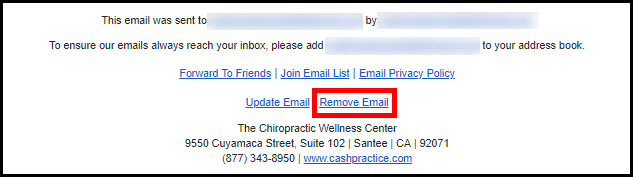
Every email sent has a [Remove Email] button at the bottom. When a recipient clicks the link, they are given the opportunity to update their email address or remove themselves from your list. If a patient removes themselves from your Drip-Ed™ email list, you will be notified in an email in case you may need to make changes in any other system you have their information in. If the recipient removes themselves, their email is not deleted from your Drip-Education®Subscriber list; instead their "Mailing List Status" is set to "Removed." This way you do not accidentally re-enter them into the system.
You also have the ability to remove your patient from your mailing list manually, if for some reason they are unable to do it themselves within the emails they have received.
Options #1
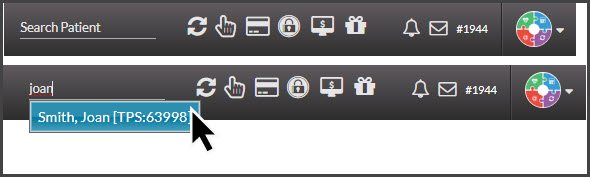
Step 1: In the top-right corner of your Dashboard, type your patient's first or last name in the [Search Patient] bar and select their name in the drop-down menu to access their patient record.
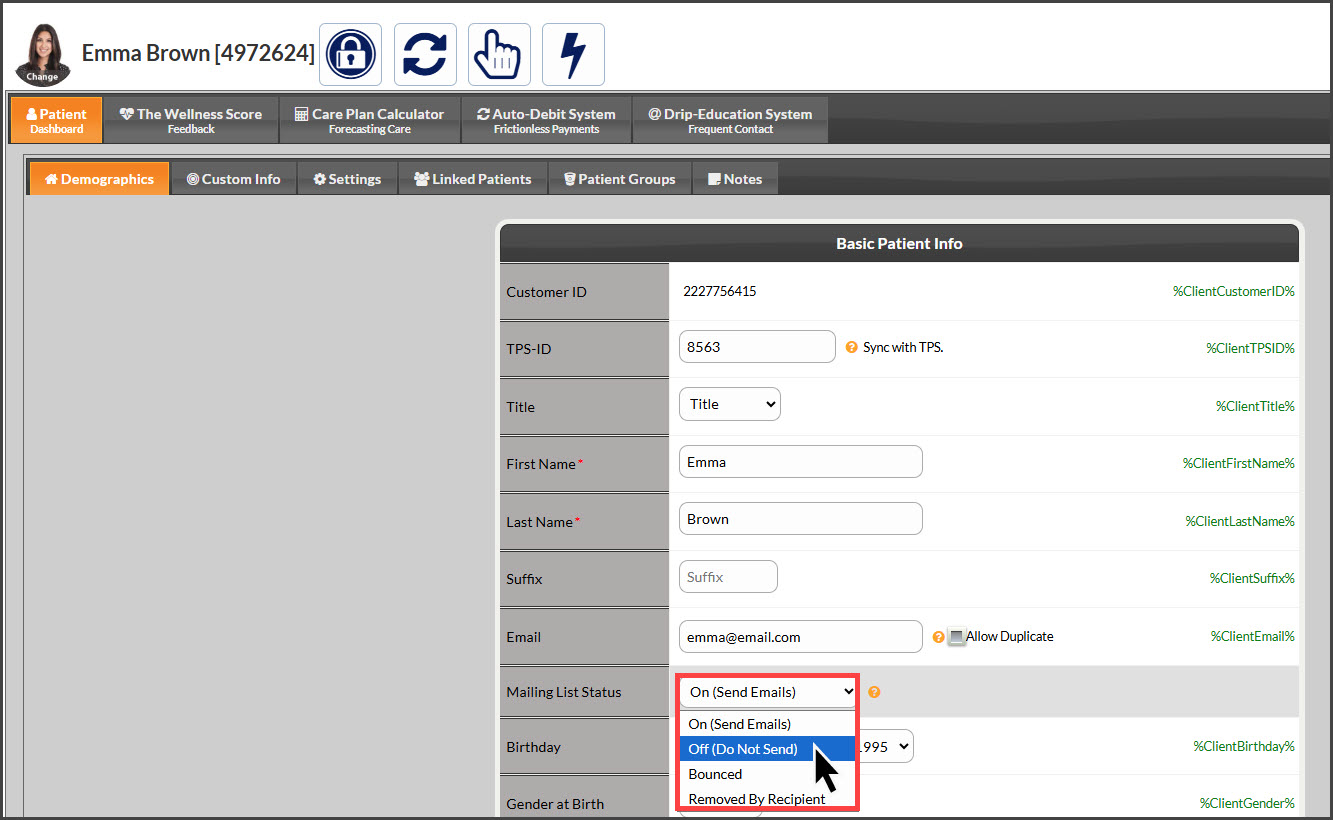
Step 2: Scroll down to the [Mailing List Status] field, select OFF (Do Not Send), and click [Save] at the bottom of the page.
Option #2
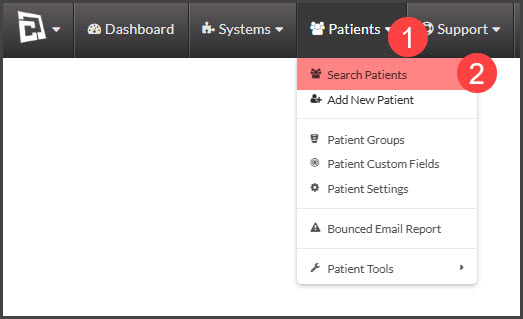
Step 1: Hover over the [Patients] menu → click [Search Patients].
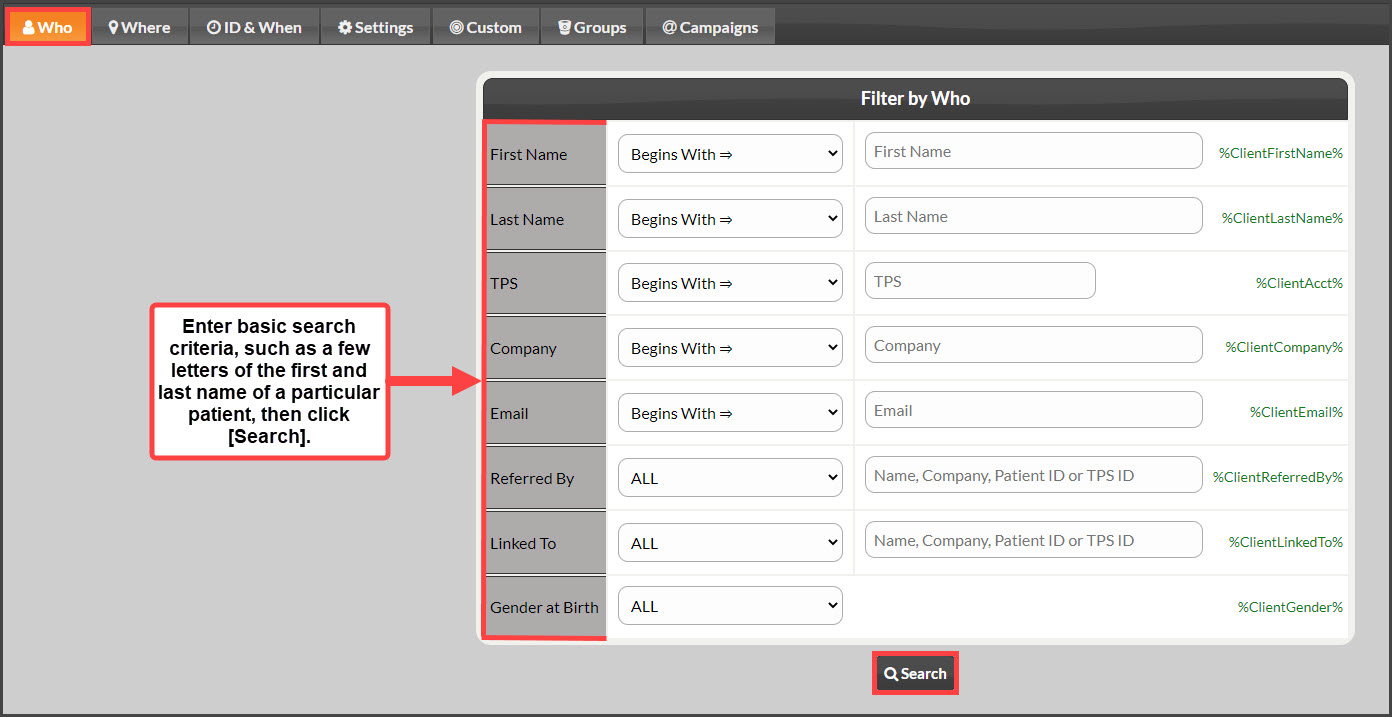
Step 2: Enter as many search criteria that are necessary in order to narrow your patient search results, and click [Search].
Step 3: Click on the patient's bolded name to access their patient account.

Step 4: When the patient's account opens, scroll down to the [Mailing List Status] field, select OFF (Do Not Send), and click [Save] at the bottom of the page.
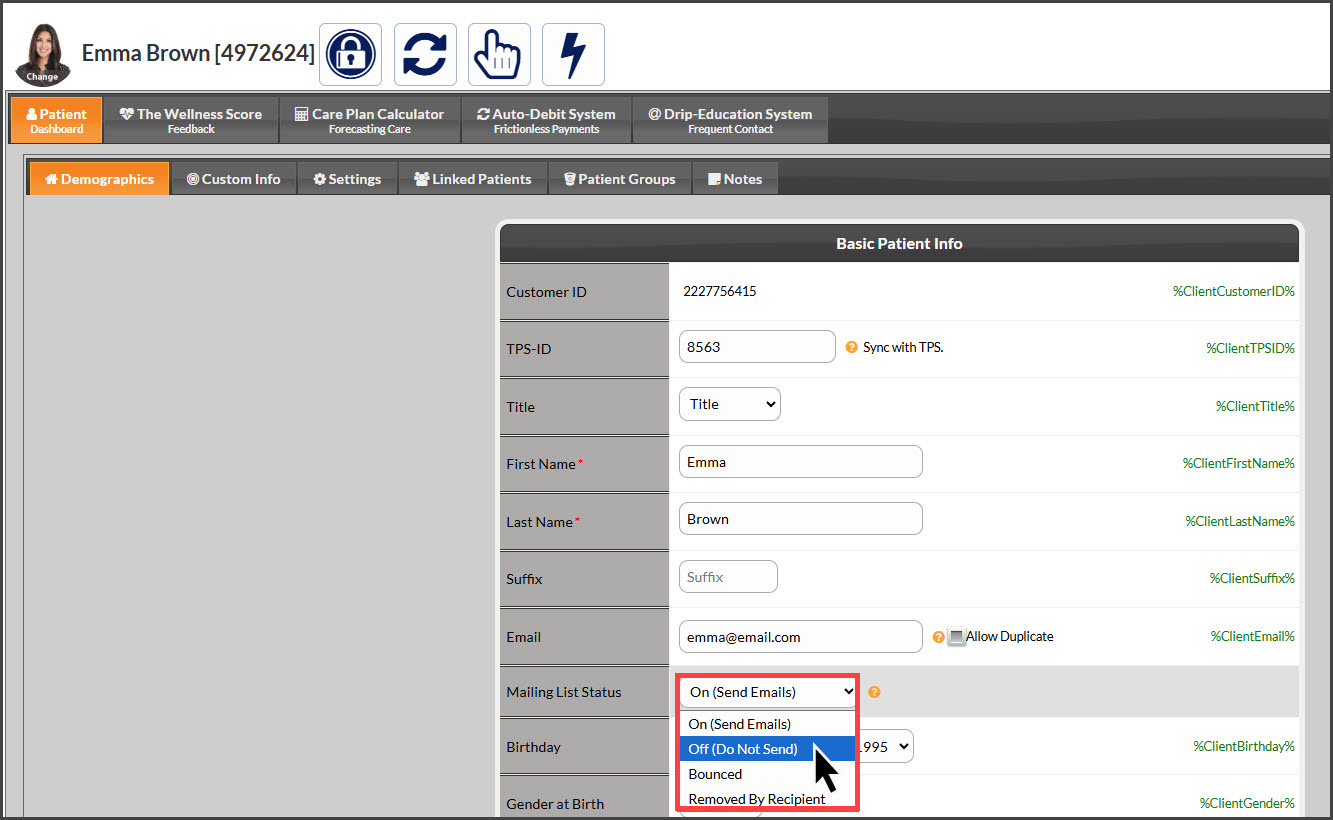
This will remove the patient from your mailing list entirely.