
Logo

Cash Practice® Systems Help Center

Search our knowledge base to get answers to your questions, access video training & more!

Managing Assigned Campaigns: How to stop multiple campaigns at once

Drip-Education® Email Marketing System (Frequent Contact)

Managing Assigned Campaigns: How to stop multiple campaigns at once

Last updated on 13 Sept, 2025

Getting started:

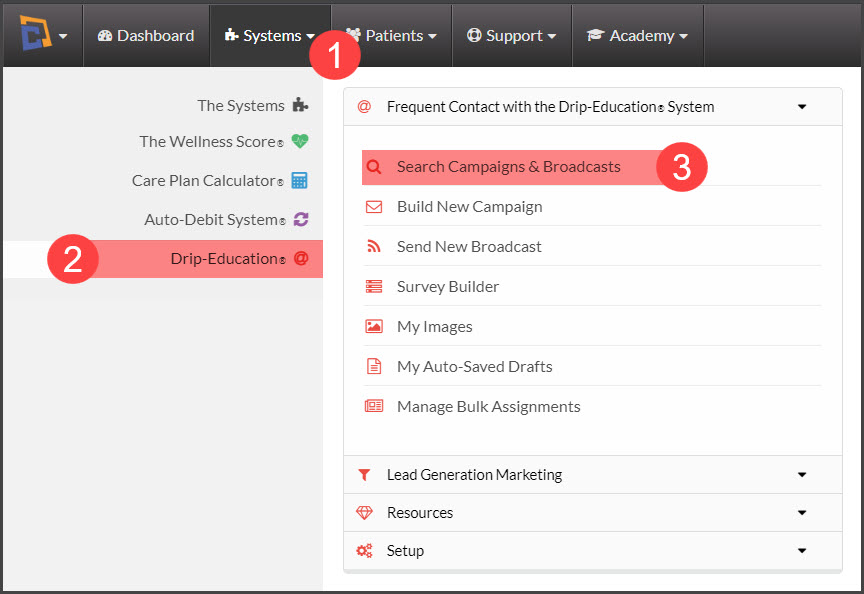
Step 1: Go to the [Systems] menu→ [Drip-Education®]→ click [Search Campaigns & Broadcasts].
Image

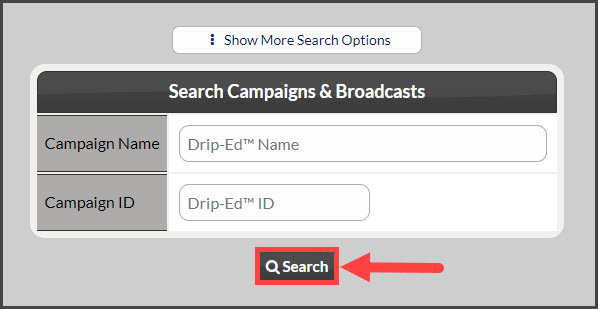
Step 2: Use the search options to refine the campaigns you are looking to stop→ click the [Search] button. 
Image

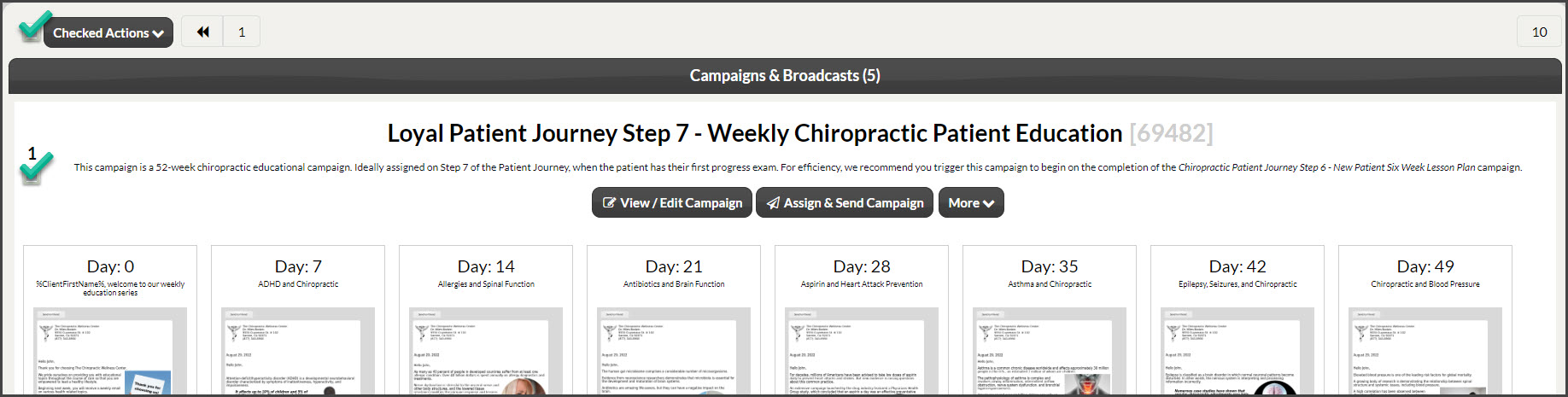
Step 3: Once the results load, select the boxes next to the multiple campaigns that you'd like to stop.
Image

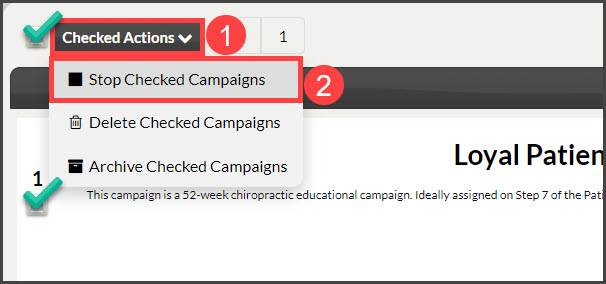
Step 4: Once selected, click the [Checked Actions] drop-down and choose [Stop Checked Campaigns].
Image

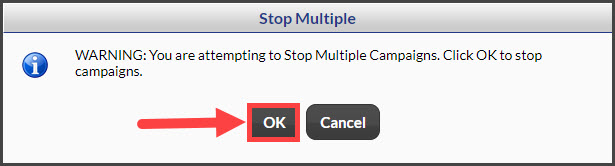
Step 5: A warning box will appear, click the [OK] button to proceed.
Image

Did you find this article helpful?
Previous

How do I edit my campaign's settings?

Next

© 2026 Cash Practice Systems. All rights reserved.