

Please click HERE for instructions on how to Create a Survey.
Follow the instructions below on how to generate the code snippet to embed the Survey on your website.
Getting started:
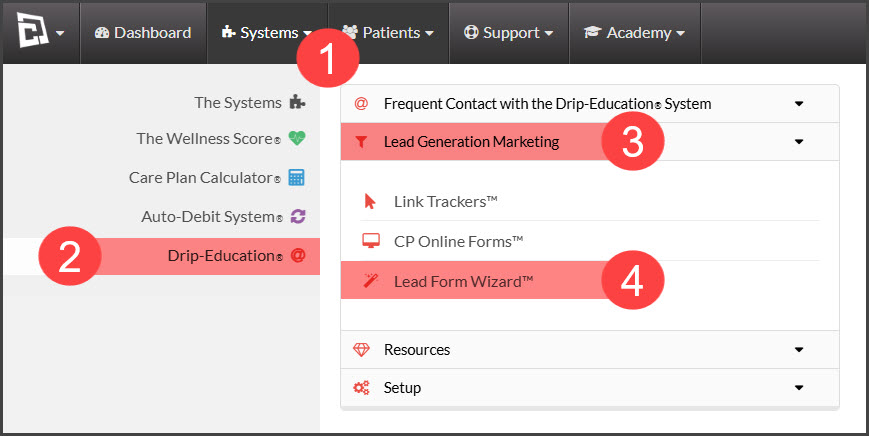
Step 1: From the [Systems] menu → select [Drip-Education] → click on [Lead Generation Marketing] → choose [Lead Form Wizard™].
Step 2: Edit the Lead Form
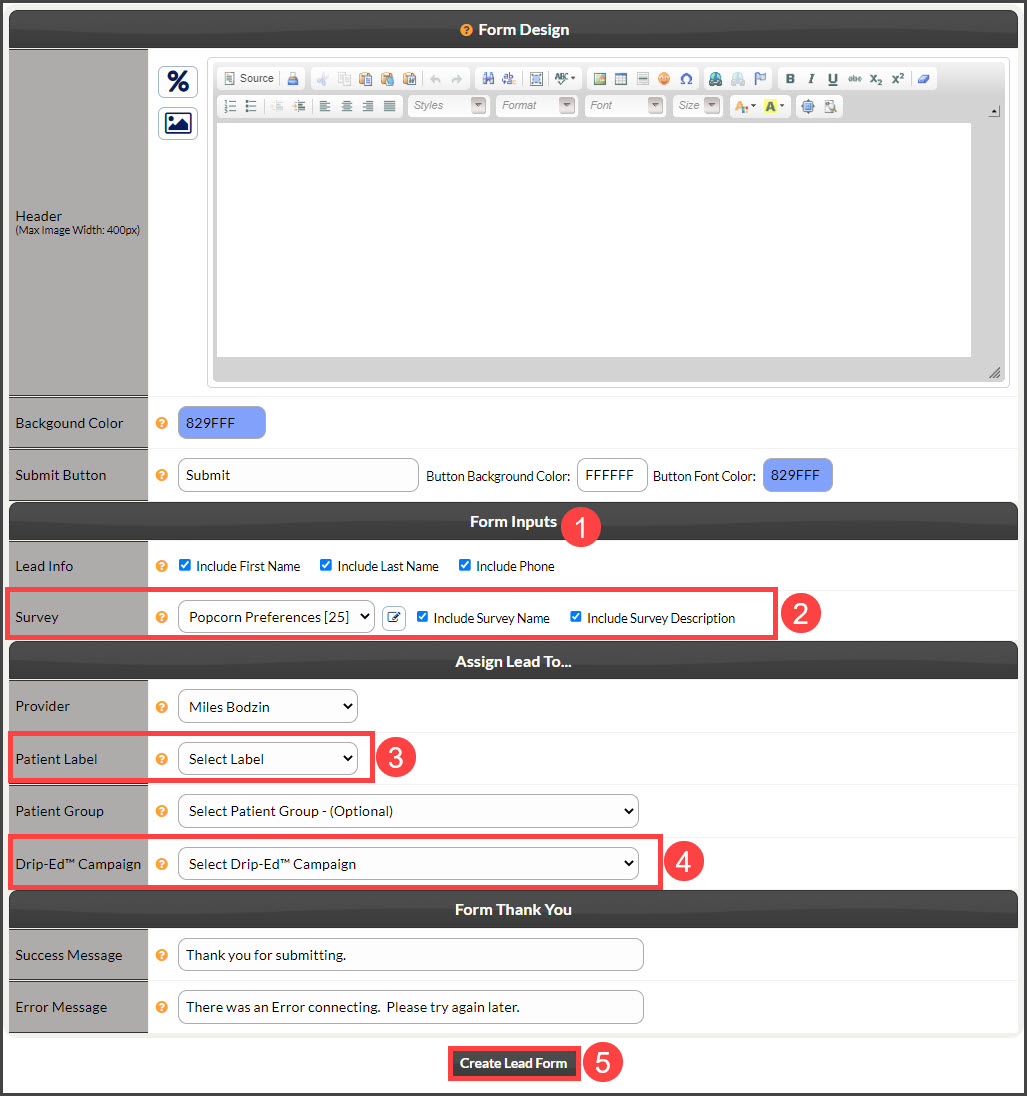
Head down to the "Form Inputs" section
Survey:
Select the desired survey to include on the form from the drop-down menu.
Check the boxes to include or not include the Survey's name for the patient to see, as well as the survey's description
Drip-Ed™ Campaign: Select the email campaign that will be assigned to this lead once they complete the form. This could be educational content or more information about your office. Click HERE to learn more about how to create your own custom campaign emails
Select the Label you want to assign the patient when they submit the Opt-In Form. The Label is a good way to identify your patients vs. leads vs. prospects
Click [Create Lead Form] to save the changes
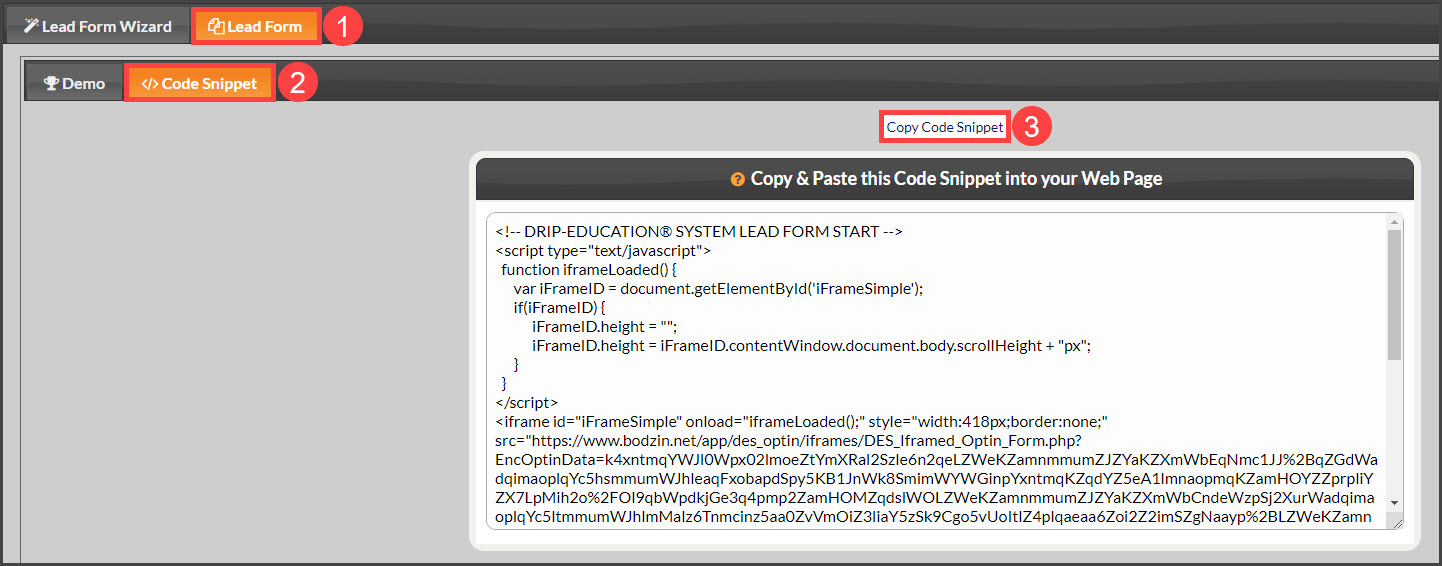
Step 3: Click the [Code Snippet] tab. The code that displays on this page is the HTML code that you will place on your website to use the lead form. Use the [Copy Code Snippet] button at the top of the page to select all of the code, then right-click to copy.
Place these Lead Forms anywhere you can place HTML.
For full instructions on how to edit the Lead Form Wizard, click HERE.