

My Virtual Reports works best with Chrome or Edge. If you are experiencing trouble (ie: links / drop-down menus not working), please try another browser before contacting us. If you have a MAC - Firefox is the recommended browser to use when accessing this site.
Click HERE to access the My Virtual Reports New Merchant Registration page:
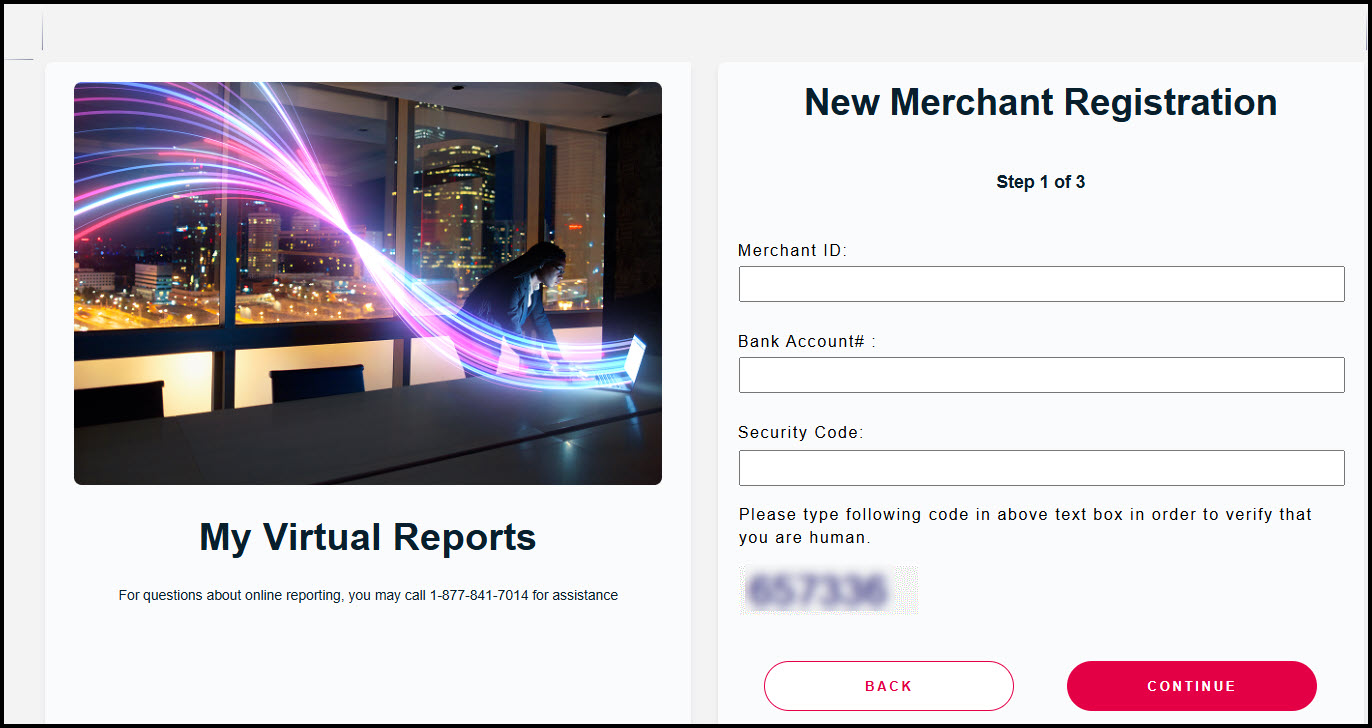
Step 1 of 3:
Enter your Primary Merchant ID number, business bank account number, the numeric security code, and click [Continue].
If you need your Merchant ID number, click HERE or contact the Merchant Services Department at (877) 343-8950 x 105 or MerchantAccounts@CashPractice.com
Step 2 of 3:
Click [I Agree] for the Terms of Agreement. Then click [Continue]
Step 3 of 3:
Create a username and a password (this does not have to be the same as your Cash Practice® account)
My Virtual Reports Password Policy:
Password must be between 8 and 12 characters
Passwords must contain at least 1 numeric character
Passwords must contain at least 1 alpha character
You may not use any of your previous 4 passwords
3 consecutive failed login atempts will result in your account being locked
IMPORTANT: Instructions for accessing your statements once you have registered with My Virtual Reports are HERE. (Start on STEP 2)
You will only have access to the last 18 months of your merchant statements via My Virtual Reports, so be sure to save your merchant statements to your computer or print them out.