

Getting started:
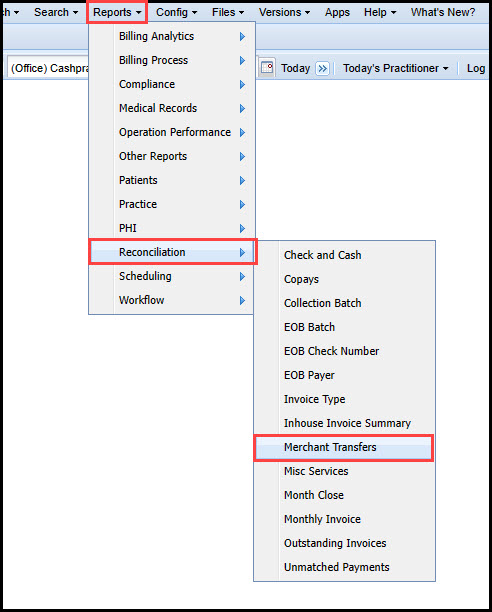
Step 1: In ClinicMind®, go to [Reports] →[Reconciliation] → [Merchant Transfers].
Step 2: Locate the "Load Status" column and check for any FAILS (transactions not loaded successfully).
Step 3: If you have fails, locate the load error column, this column will tell you why the transaction did not post.

Step 4: Next, you must take action by doing one of the following:
Retry: Select the [Retry] checkbox to attempt loading the transaction again. Retrying will require you to correct the reason the transaction didn’t sync correctly.
Clear: Select the [Clear] checkbox to mark them as reviewed & manually post into the patient ledger.
To save changes, you will need to navigate to the top of the screen and select [Save Changes] to finalize. Please allow 10 minutes for the transactions to post.
In order for your Posted Payment Report Generator™ to sync to ClinicMind®, you must complete your ClinicMind® Integration, and you must enter your patients' ClinicMind® IDs into their Cash Practice® patient accounts
For instructions on how to set up your ClinicMind® integration, CLICK HERE.
For instructions on how to enter the ClinicMind® ID number into your Cash Practice® patient accounts, CLICK HERE.
This integration will post alerts to ClinicMind® in the Workbench → Tasks (Office View) section and the Quick Stop (Patient View)
Should you need additional assistance, you must open a support ticket within ClinicMind® so they can assist in resolving the matter.