

The Posted Payment Report Generator™ will post transactions instantly to your ClinicMind® patient ledgers once a payment has been processed.
At the end of the day match the ClinicMind® Reconciliation Report to the Cash Practice® Posted Payment Report Generator™
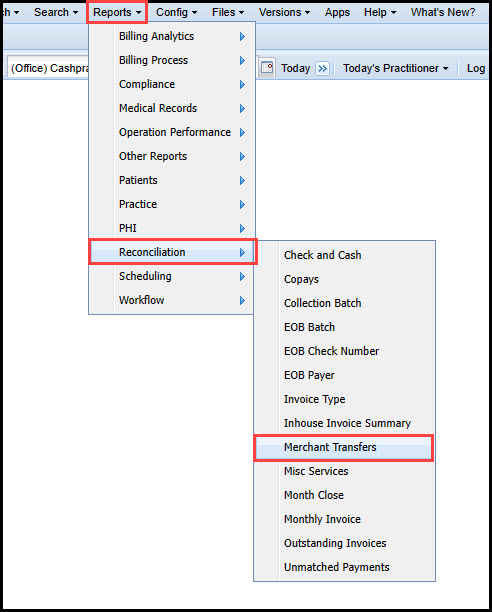
Step 1: In ClinicMind®, go to [Reports] →[Reconciliation] → [Merchant Transfers]
Step 2: Locate the [Load Status] column and check for any [FAILS] (transactions not loaded successfully).
Step 3: If you have [Fails] locate the [Load Error] column, this column will tell you why the transaction did not post.

Step 4: Next, you must take action by doing one of the following:
Select [Retry] (try loading again). Retrying will require you to correct the reason the transaction didn’t sync correctly.
Select [Clear] → click the [Save] button. (Manually post into the patient ledger.)
In order for your Posted Payment Report Generator™ to sync with ClinicMind®, you must complete your ClinicMind® Integration and you must enter your patients' ClinicMind® IDs into their Cash Practice® patient accounts
For instructions on how to set up your ClinicMind® integration, CLICK HERE.
For instructions on how to enter the ClinicMind® ID number into your Cash Practice® patient records, CLICK HERE.
This integration will post alerts to ClinicMind® in the Workbench → Tasks (Office View) section and the Quick Stop (Patient View)