

Your Cash Practice Dashboard Stats are designed to provide you with the data you need to help increase patient retention and cash collections. They're a goldmine of data that can transform your practice. By diving into your dashboard statistics, you unlock powerful insights that directly impact your revenue, efficiency, and patient relationships. Watch below for all the details:
Review the information below for more details!
Getting started:
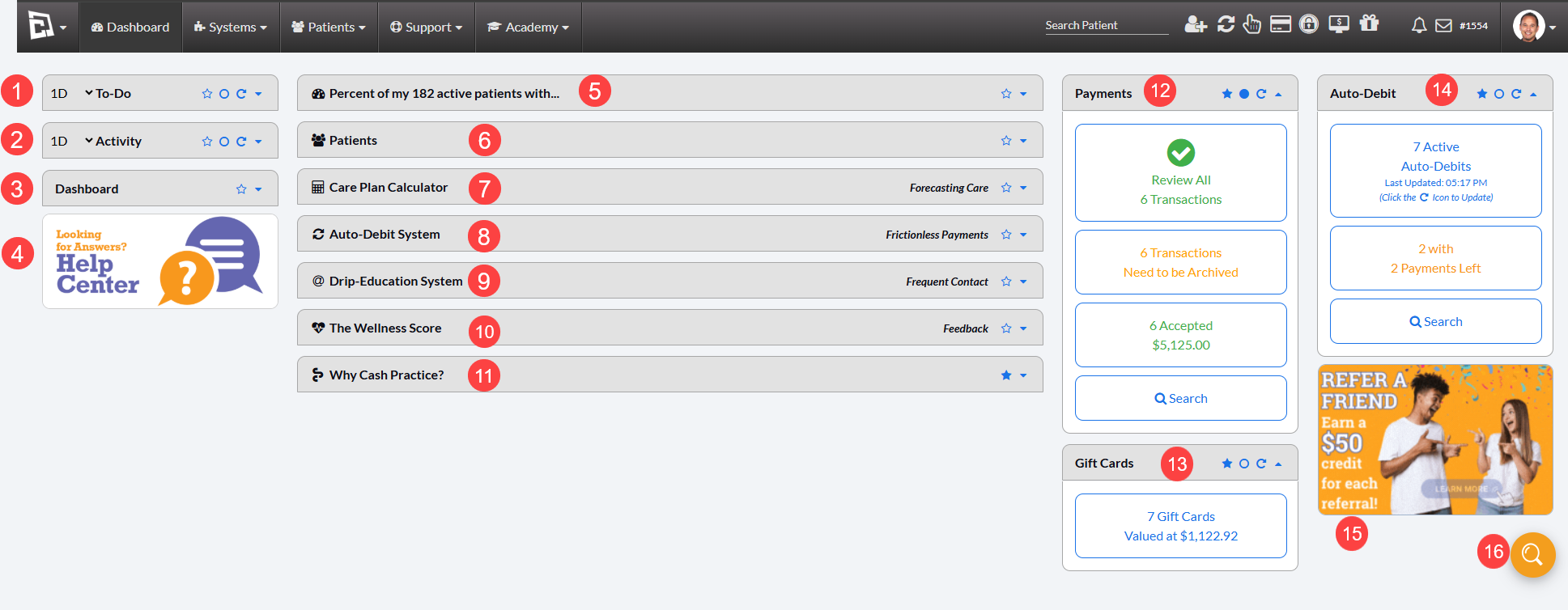
What are the Section Icons? The star, circle, refresh arrow, and carrot (arrow) turn on/off features for each section on your Dashboard. These selections are saved per account user based on each person's preferences.


Star (favorite):
Filled: The section will remain open
Empty: The section will remain closed unless opened
Circle (refresh):
Filled: Automatically refreshes the section if any data or reports are updated
Empty: The section does not automatically refresh if data or reports are updated
Refresh Arrow: Manually refresh each section
Carrot (triangular arrow): Open/close each section
[IMPORTANT]: The report last loaded in sections 6-10 will be saved and loaded first the next time the section is opened
1. To Do: This allows your office to see things that have gone missing, and generates a clickable list to review the associated information, using the specified number of days on the report.
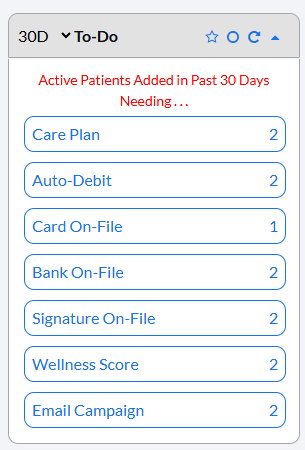
Days: Defaulted to 15, select the number of days you'd like to see missing information.
15 days
30 days
90 days
All Time
Care Plan: Number of patients without a care plan
Auto-Debit: Number of patients without recurring auto-debit payments
Card On-File: Number of patients without a stored card on file
Bank On-File: Number of patients without stored bank account information. If your office does not currently accept this and you're wanting to start processing payments with bank account information, please contact our Merchant Services Department at (877) 343-8950 x105 or email MerchantAccounts@CashPractice.com
Signature On-File: Number of patients without signatures saved on file. If interested in adding this feature, please click HERE for more information
Wellness Score: Number of patients that have not had a Wellness Score report run for them
Email Campaign: Number of patients who have not been assigned to an email campaign with the Drip-Education System
2. Activity: Review clickable lists that may help provide more insight into what your office may or may not be using.
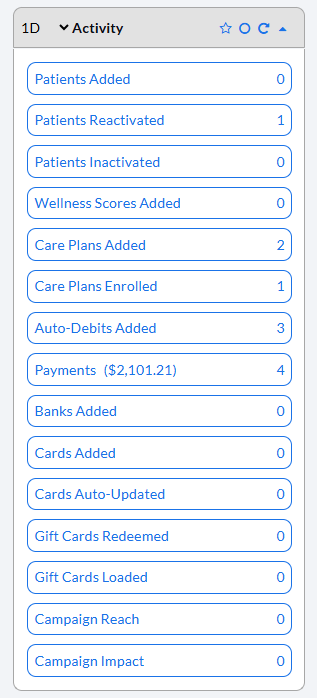
Days: Defaulted to 15, select the number of days you'd like to see missing information.
15 days
30 days
90 days
All Time
Patients Added: See new patients added to the account
Patients Reactivated: Review a list of patients who were reactivated recently; this usually occurs if they ran a payment with you, a new care plan was created for them, etc.
Patients Inactivated: This may be helpful if you are looking for a list of patients to complete recalls with
Wellness Scores Added: Generate a list of all recent Wellness Score reports run
Care Plans Added: Review all recently created care plans
Care Plans Enrolled: See a list of care plans and patients assigned, where a patient said yes to a particular payment option and the payments were set up or collected through Cash Practice with the Auto-Debit System. Click HERE for full instructions
Auto-Debits Added: Number of scheduled recurring payments recently set up
Payments ($0.00): Total amount collected through the Auto-Debit System. This includes cards, bank accounts, cash, and check
Banks Added: Shows a list of newly stored bank account information. If your office does not currently accept this and you're wanting to start processing payments with bank account information, please contact our Merchant Services Department at (877) 343-8950 x105 or email MerchantAccounts@CashPractice.com
Cards Added: Displays a list of newly added stored cards on file
Cards Auto-Updated: For our offices using the Auto-Card Updater, this will display the number of cards updated over the selected period of time. Click HERE for more information
Gift Cards Redeemed: View a list of all gift cards redeemed, meaning the cardholder came in and used some or all of its value
Gift Cards Loaded: Review all gift cards loaded with value
Campaign Reach: See the number of patients who were sent emails per month. This is different from [Sent] as your office may send multiple emails per month to the same list of patients
Campaign Impact: See a list displaying the number of patients who opened the emails over the selected period of time
3. Dashboard: Turn ON/OFF certain sections appearing on the Dashboard.
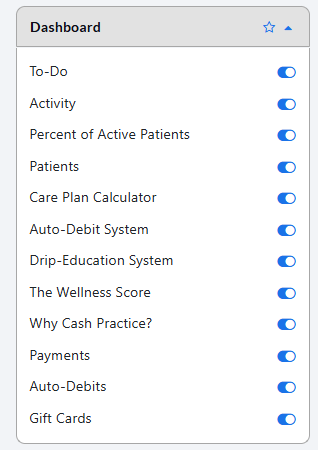
To Do
Activity
Percent of Active Patients
Patients
Care Plan Calculator
Auto-Debit System
Drip-Education System
The Wellness Score
Loyal Patient Journey
Payments
Auto-Debits
Gift Cards
4. Help Center: Quick access to our online Help Center for all things Cash Practice. View our library of videos and written instructions with step-by-step images guiding you along the way.
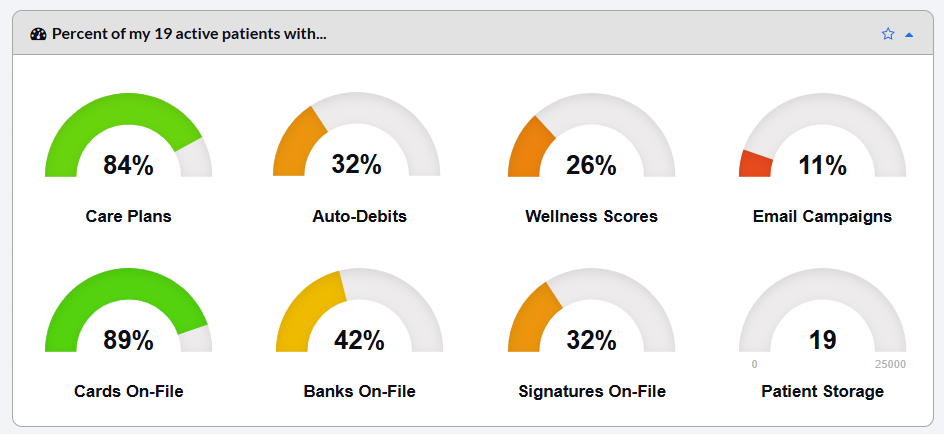
5. Gauges for "Percent of my # active patients with..." generates a clickable list to review the associated information. Ideally, all gauges should be green.
Care Plans: Percent of patients with a care plan
Auto-Debits: Percent of patients with recurring auto-debit payments
Wellness Scores: Percent of patients that have had a Wellness Score report run for them
Email Campaigns: Percent of patients who are currently assigned to an email campaign with the Drip-Education System
Cards On-File: Percent of patients with a stored card on file
Banks On-File: Percent of patients with stored bank account information. If your office does not currently accept this and you're wanting to start processing payments with bank account information, please contact our Merchant Services Department at (877) 343-8950 x105 or email MerchantAccounts@CashPractice.com
Signatures On-File: Number of patients with a signature saved on file. If interested in adding this feature, please click HERE for more information
Patient Storage: Number of active patients in the account. If this is orange or red, we recommend inactivating patients to help make room for new people to be added to the account; instructions are HERE. You may also change your membership to allow for more space for active patients; instructions HERE
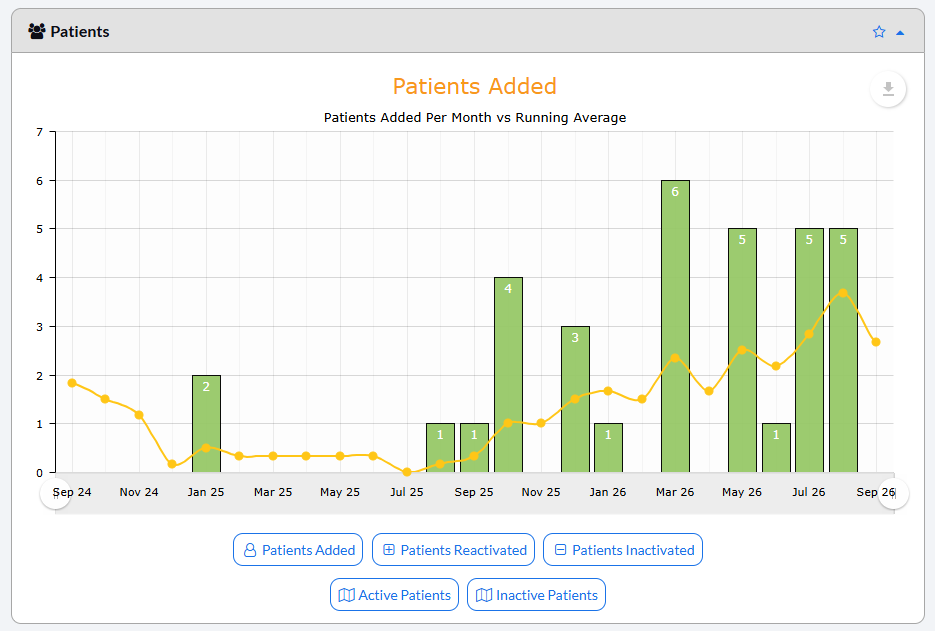
6. Patients: The yellow line shows the running average
Patients Added (graph): Review how many patients were added over the displayed period of time
Patients Reactivated (graph): Review how many patients were reactivated. For offices that have inactivated patients in the past, this reflects patients who came back to the practice and processed a payment, a new care plan was created for them, opened an email campaign, or a Wellness Score report was run for them
Active Patients (map): The map displays where your patients live, which is helpful if working on marketing efforts to target areas where a majority of your patients are from or areas where you could improve marketing impact
Inactive Patients (list): This generates a list of all inactive patients. This may be helpful if you are looking for a list of patients to complete recalls with
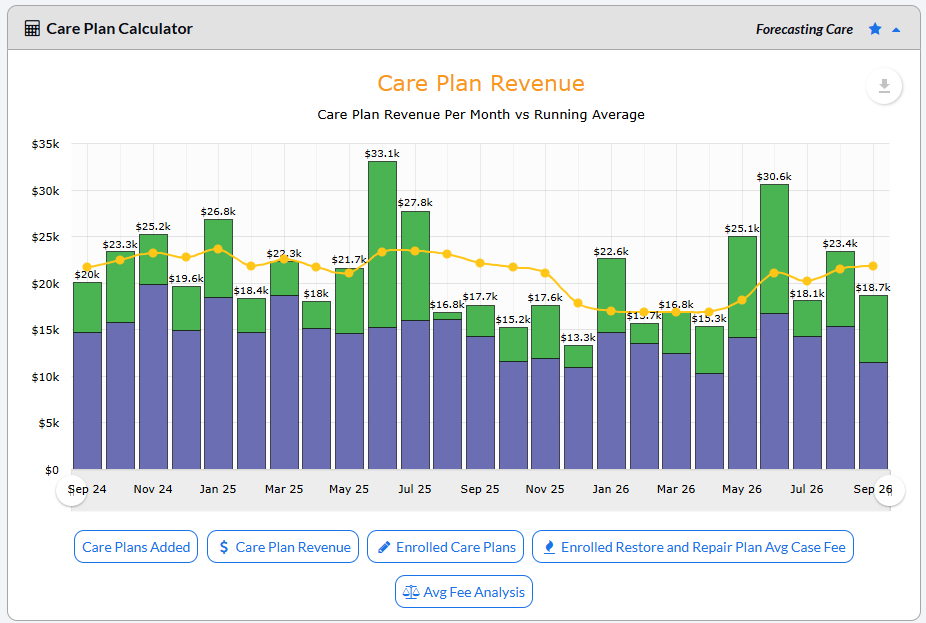
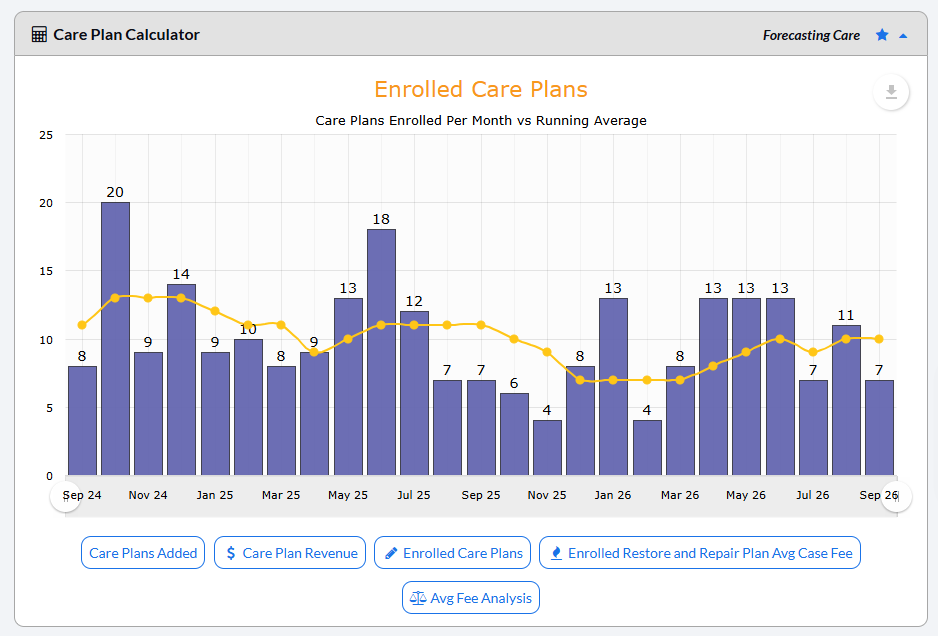
7. Care Plan Calculator: The yellow line shows the running average.
Care Plans Added (graph): Review how many care plans were added over the displayed period of time
$ Care Plan Revenue (graph): Review the care plan revenue by type:
Green: Shows the amount collected either from the initial payment from a plan or the patient paid in full
Purple: Reflects collections from care plans that are corrective/have a start and end date
Gold: Reflects collections from care plans that are wellness/indefinite
Enrolled Care Plans (graph): Review how many patients were enrolled in care plans over the displayed period of time. This only shows data if the office has the Auto-Debit System and is actively enrolling patients into care plans with our enroller
[NEW] Enrolled Corrective Care Plan Avg Case Fee (graph): Displays the average amount collected in total for enrolled Corrective Care Plans (plans with start and end dates)
Avg Fee Analysis (table): See the average fees calculated for patients without a plan, is on corrective care, or are enrolled in a wellness plan
[NEW]
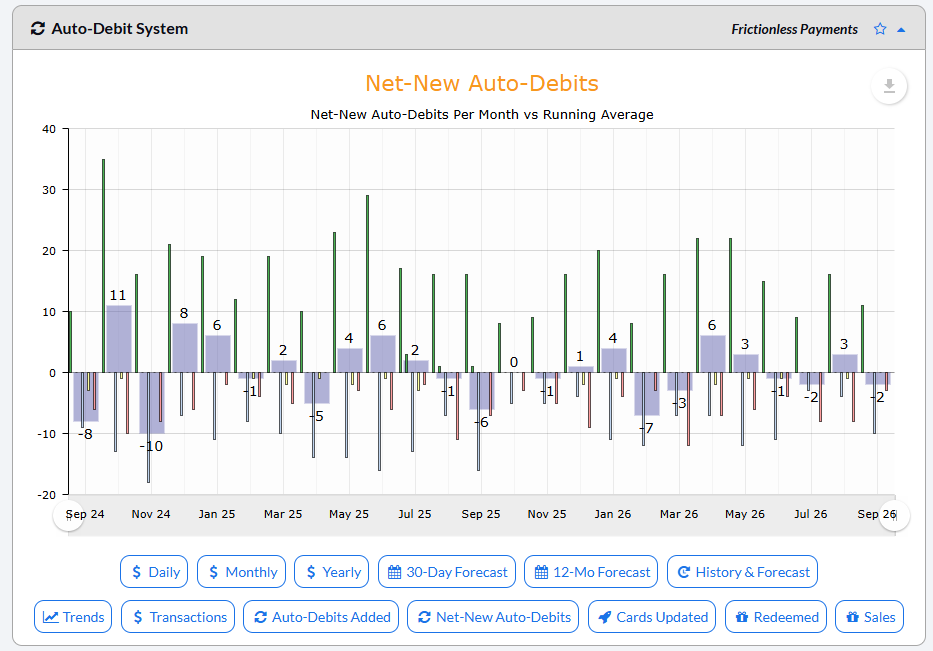
8. Auto-Debit System: The yellow line shows the running average.
Daily (graph): Display the daily totals over the time shown
Green: Collections from all one-time payments
Purple: Collections from auto-debits/recurring payments that have an end date
Gold: Collections from auto-debits/recurring payments scheduled indefinitely
Monthly (graph): Review the monthly collection revenue
Green: Collections from all one-time payments
Purple: Collections from auto-debits/recurring payments that have an end date
Gold: Collections from auto-debits/recurring payments scheduled indefinitely
Yearly (graph): Review the annual collection revenue
Green: Collections from all one-time payments
Purple: Collections from auto-debits/recurring payments that have an end date
Gold: Collections from auto-debits/recurring payments scheduled indefinitely
30-Day Forecast (graph):
Purple: Projected collections from auto-debits/recurring payments that have an end date
Gold: Projected collections from auto-debits/recurring payments scheduled indefinitely
No green, as our system cannot project collections from one-time payments
12-Mo(nth) Forecast (graph):
Purple: Projected collections from auto-debits/recurring payments that have an end date
Gold: Projected collections from auto-debits/recurring payments scheduled indefinitely
No green, as our system cannot project collections from one-time payments
History & Forecast (graph): Past and future revenue per month
Green: Collections from all one-time payments
Dark purple: Collections from auto-debits/recurring payments that have end dates
Purple: Collections from auto-debits/recurring payments that end soon
Gold: Collections from auto-debits/recurring payments scheduled indefinitely
Trends (table): View trends in collections like Same Day Last Year, Last Week to Date, and Month to Date
Transactions (graph): Transactions per month vs the running average
Green: Collections from all one-time payments
Purple: Collections from auto-debits/recurring payments that have an end date
Gold: Collections from auto-debits/recurring payments scheduled indefinitely
Auto-Debits Added (graph): Transactions per month vs the running average
Purple: Auto-debits/recurring payments that have an end date
Gold: Auto-debits/recurring payments scheduled indefinitely
[NEW] Net New Auto-Debits: Unlike the Auto-Debits Added report that just shows what's been added, this report takes into account auto-debits Restarted, Paused, Completed, and Stopped
Cards Updated (graph): For our offices using the Auto-Card Updater, this will display the average number of cards updated over the displayed time. Click HERE for more information
Redeemed (graph): Displays the collections for redeemed gift cards
Sales (graph): Displays gift card sales totals over the time shown

[NEW]
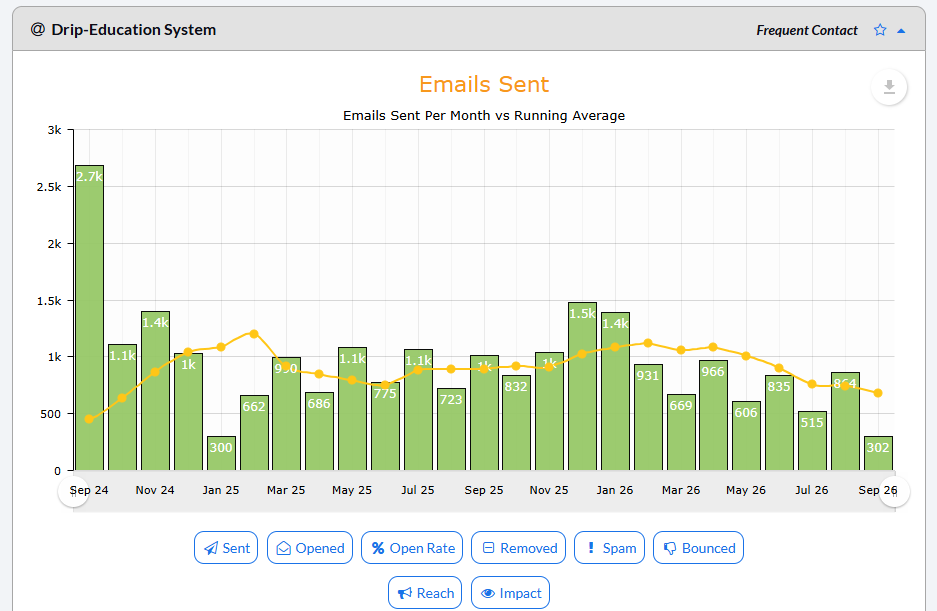
9. Drip Education System: The yellow line shows the running average.
Sent: Review how many emails were sent per month
Opened: See the number of emails opened each month
Open Rate: An overview of how many emails were opened each month. A good open rate is about 28% for medical offices. Click the link HERE for the open rate % for individual campaigns
Removed: Review how many patients removed/unsubscribed from your emails
! Spam: See the number of patients who reported these emails as spam
Bounced: An overview showing the number of bounced email addresses. Click HERE for instructions on how to manage bounced patient emails
Reach: Displays the number of patients who were sent emails per month. This is different from [Sent] as your office may send multiple emails per month to the same list of patients
Impact: Review the number of patients who opened the emails per month
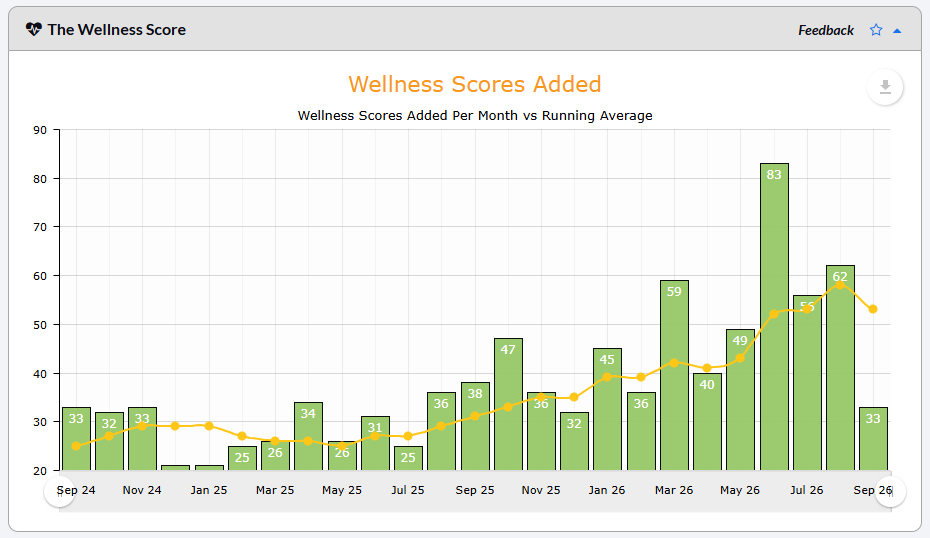
10. The Wellness Score: Displays the number of Wellness Score Reports run each month. The yellow line shows the running average.
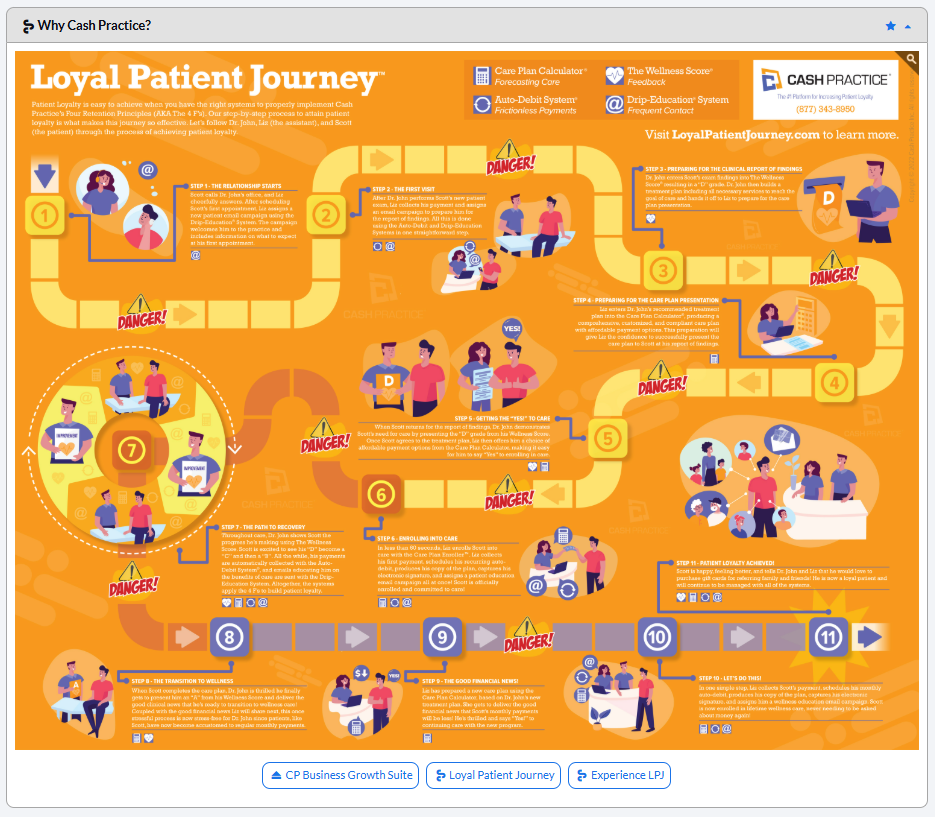
11. Why Cash Practice? AKA the Loyal Patient Journey: Review and zoom in on the Loyal Patient Journey. Patient Loyalty is easy to achieve when you have the right systems to properly implement Cash Practice’s Four Retention Principles (AKA The 4 F’s). Our step-by-step process to attain patient loyalty is what makes this journey so effective.
Follow Dr. John, Liz (the assistant), and Scott (the patient) through the process of achieving patient loyalty.
12. Payments: The Payments section outlines all recent unarchived payment activity as well as payment-related actions that need managing. Click HERE for a detailed explanation of this section.
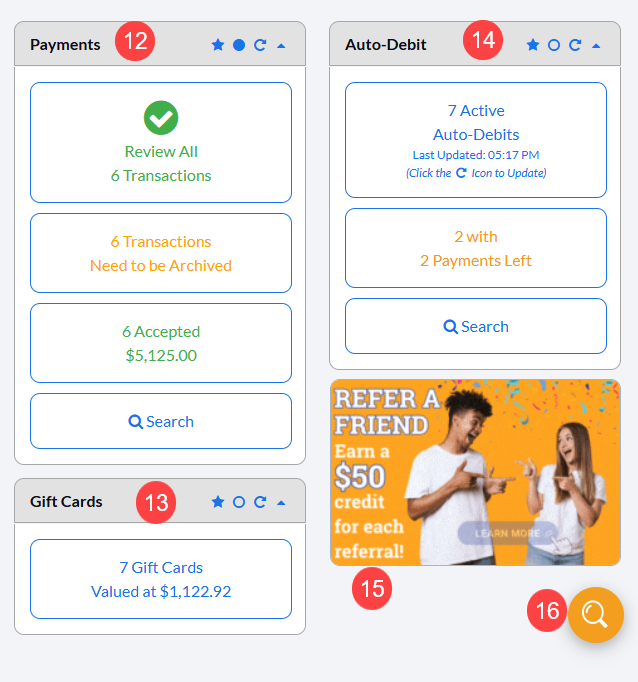
13. Gift Cards: At your fingertips, access a list of Gift Cards that are currently loaded with value.
14. Auto-Debits: The Auto-Debits section displays the number of all currently scheduled recurring payments, as well as those with action that needs to be taken. Click HERE for a detailed explanation of this section.
15. Rotating Banner: Here our company displays important information regarding referral rewards, Power Hour, upcoming events information, and more!
16: Self Help Widget: Click this icon to use our interactive self help widget. This will give you step-by-step, hands-on guidance directly on your screen to help you finish your task.