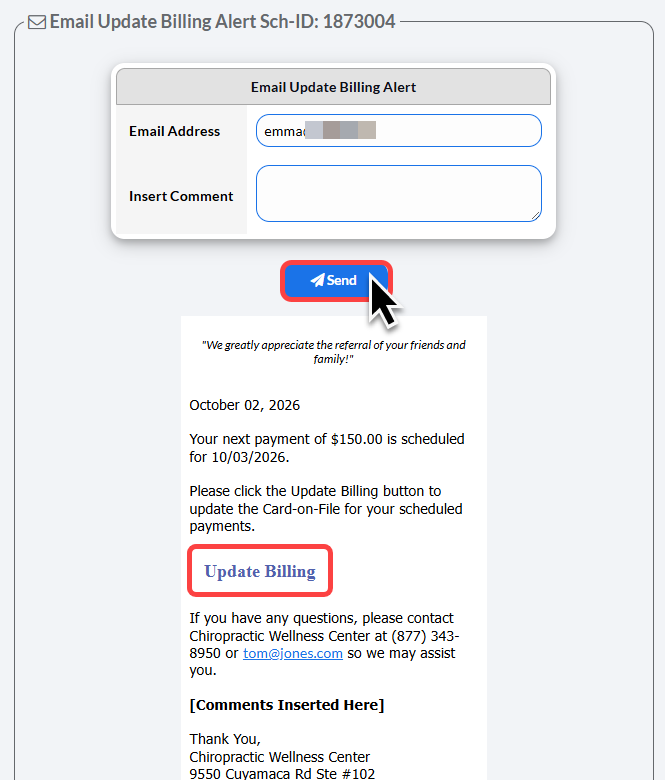
Auto-Debit System® Email Notifications:
The Auto-Debit System® email notifications are a powerful tool that can be used to either collect missing payments from patients or to update the billing information on file for scheduled Auto-Debits. This versatile tool helps to cut down on time spent following up on these types of transactions, leaving you and your staff more time to focus on patient care.
For Automatic Email Alert Notifications settings, CLICK HERE.
There are two ways you can manually send ADS email notifications. The first is from the Posted Payments Report™ for declined payments and the second is the [Update Billing] form from the Auto-Debit Report™.
If you would like to email a past receipt from a patient, refer to this article: How do I manually send a past receipt to a patient?
Follow the instructions for each below:
Access declines from the Posted Payments Report:
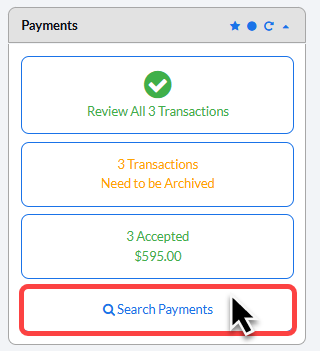
Step 1: From the Dashboard, select the [Search Payments] button on the right, under the "Payments" section.
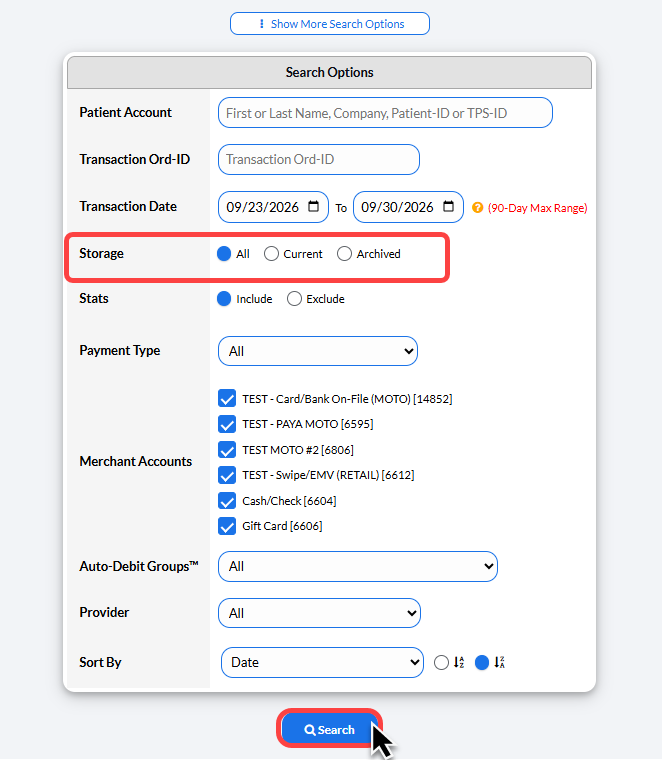
Step 2: From the [Search] options page, define your search for the transaction(s) you are looking for.
If you are not sure if the transaction has been archived or not, select [All]
Click [Search] at the bottom of the page.
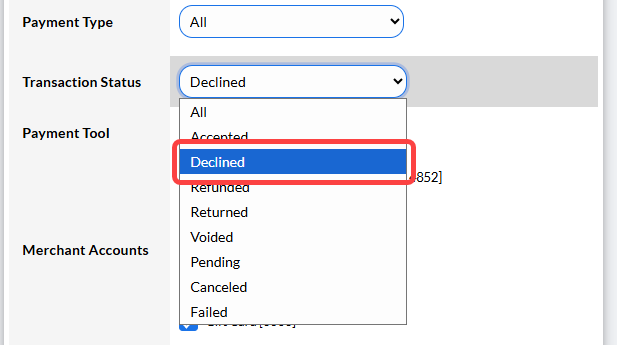
Tip: Select [Show More Search Options] at the top of the search page, then under [Payment Tool] select "Declined", to filter your search by declined transactions only.
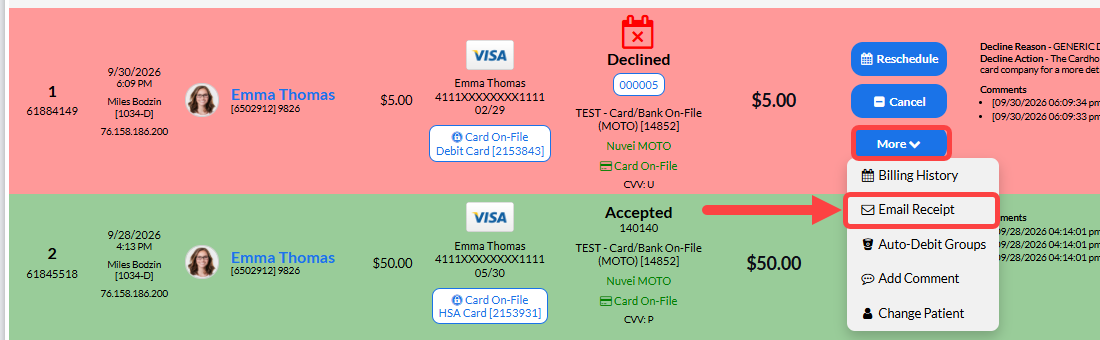
Step 3: In the search results, locate the transaction you want to manually send an email notification to. Click on the [More] drop-down menu on the right, then click on the [Email Receipt] button.
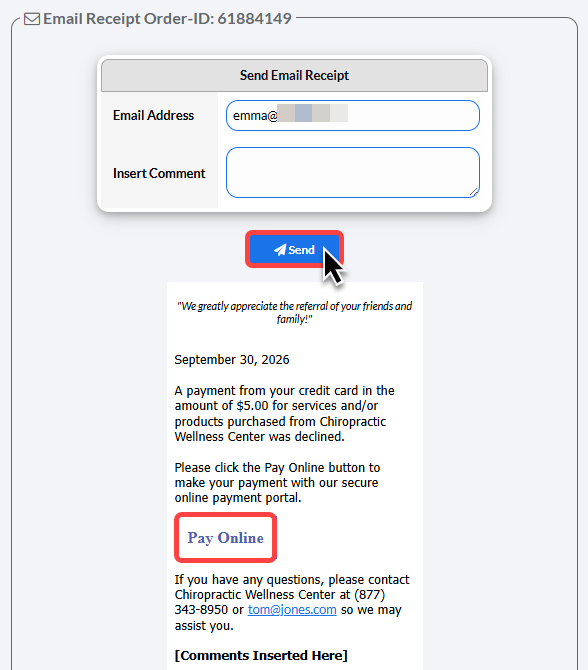
Step 4: A new window will open, loaded with the receipt, which summarizes the declined transaction and includes the [Pay Online] button.
Confirm the email address field contains the patient's email, add an optional comment, and click [Send].
Update Billing Form from Auto-Debit Report Generator:
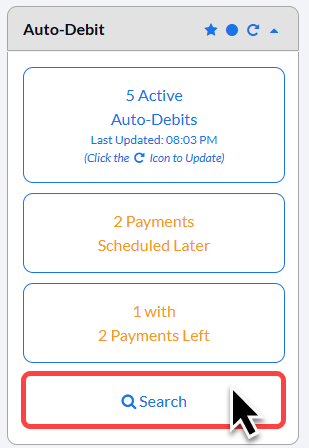
Step 1: From the Dashboard, click the [Search] button on the right under the "Auto-Debits" section.
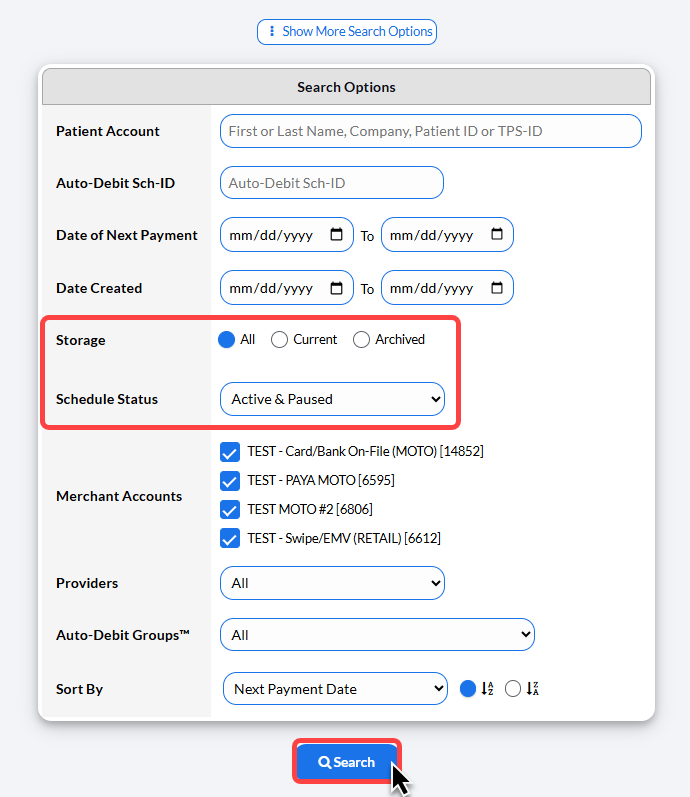
Step 2: From the [Search] options page, define your search for the scheduled payment(s) you are looking for.
To display more search criteria, click [Show More Search Options]. You may also set the [Storage] field to All if you aren't sure if the Auto-Debit is archived.
Click [Search] at the bottom of the page.
Step 3: In the search results, locate the scheduled payment to which you want to manually send an email notification.
Click on the [More] drop-down menu on the right, then click on the [Email AD Billing Update Form] button.
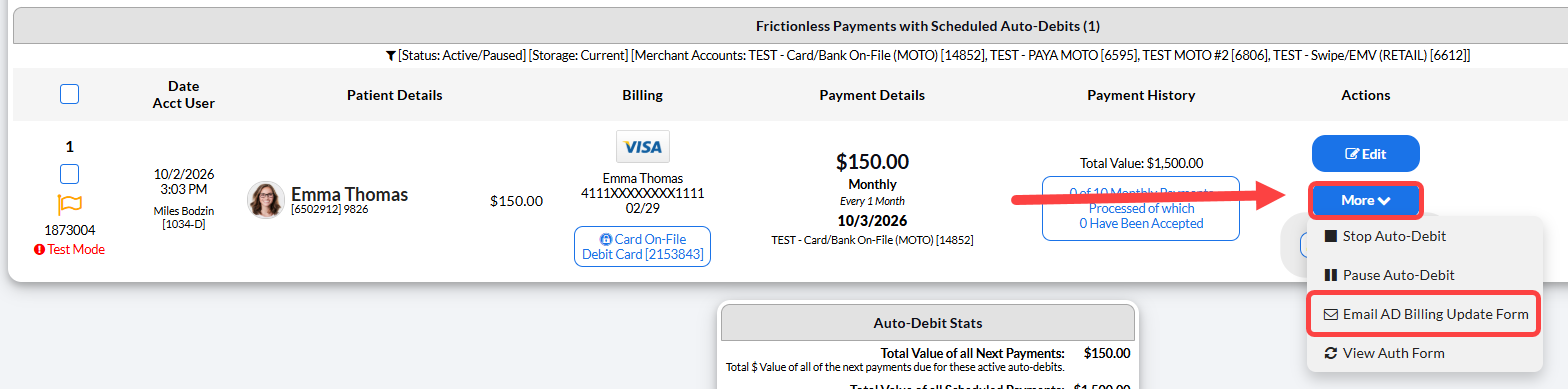
Step 4: A new window will open, loaded with the [Email Update Billing Alert], which instructs the patient to update their billing and includes the [Update Billing] button.
Confirm the email address field contains the patient's email, add an optional comment, and click [Send].