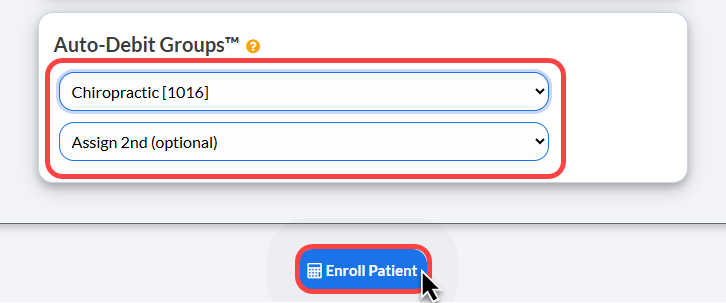
The Cash Practice® Auto Debit Groups™ is a powerful feature that allows you to categorize your payments into groups. For example, it allows you to track your Chiropractic Services, Massage Services, Products, Gym Memberships, etc. The instructions below outline a few different ways Auto-Debit Groups™ can be assigned when processing or scheduling payments
Virtual Terminal:
Step 1: Click on the Virtual Terminal icon from the top right side of your Cash Practice account.

Step 2: First, enter all of the necessary information for processing a transaction with the Virtual Terminal.
Then click the [Show Options] button, to expand your additional options.
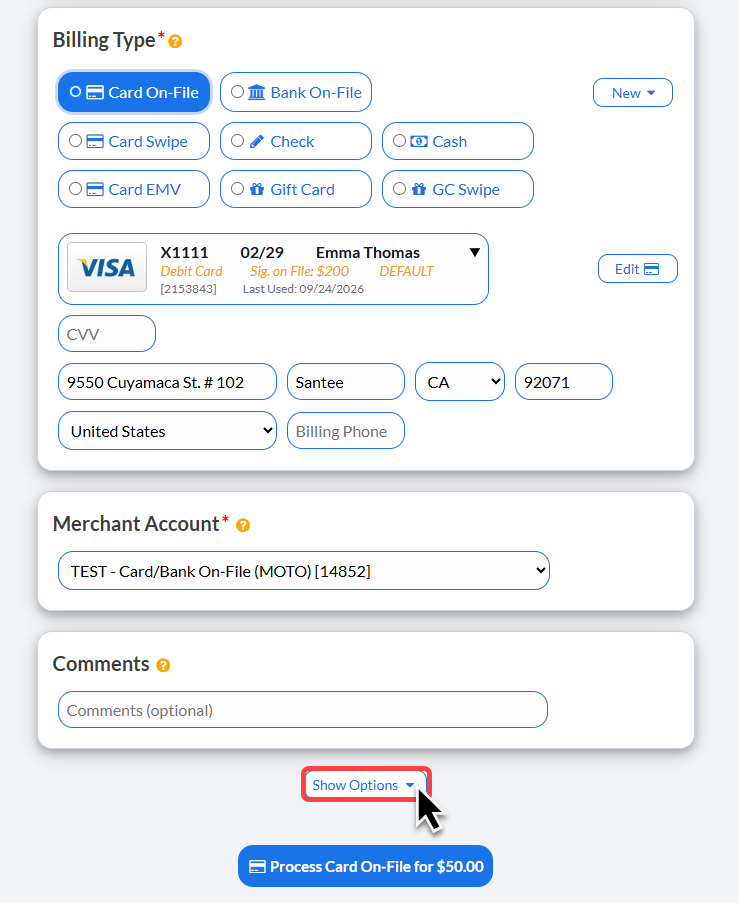
Step 3: Click on the drop down menu under [Auto-Debit Groups™] to select which group to assign this transaction to.
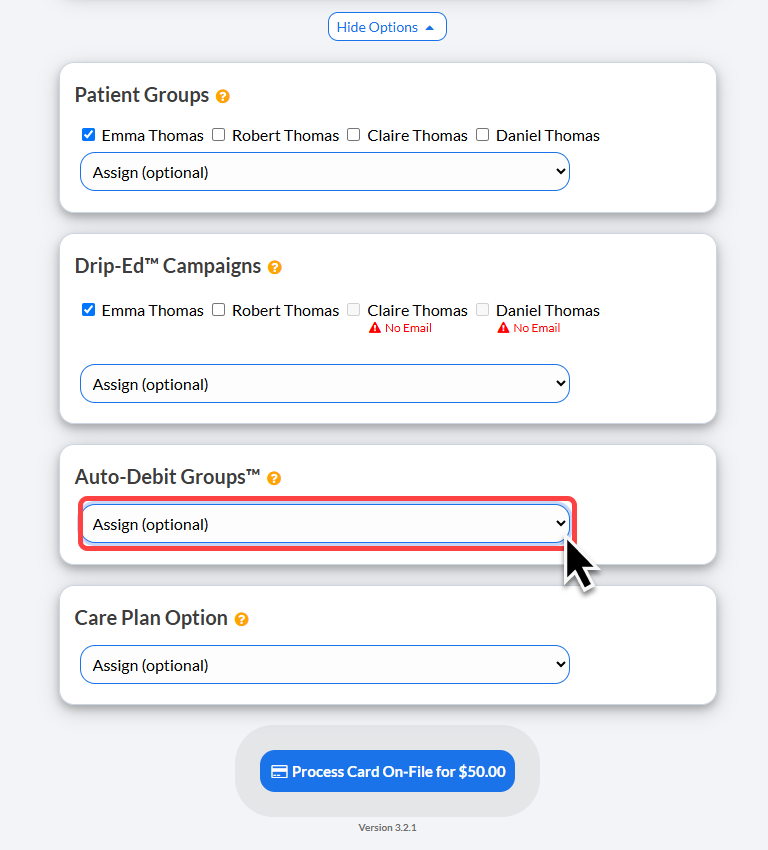
Step 4: After you have selected the Auto-Debit Group™ you will see your selection displayed under this section.
(Optional) You may also add this transaction to additional Auto-Debit Groups using the additional drop downs for this section.
Click [Process Card on File] to complete the transaction. Once the transaction is processed, it will be assigned to the Auto-Debit Group™.
Simple Swiper™:
Step 1: Click on the Simple Swiper icon from the top right side of the CashPractice.com website.

Step 2: When the screen loads, simply slide the card through your USB card swiper.

Step 3: First, enter all of the necessary information for processing a transaction with the Simple Swiper.
Then click the [Show Options] button, to expand your additional options.
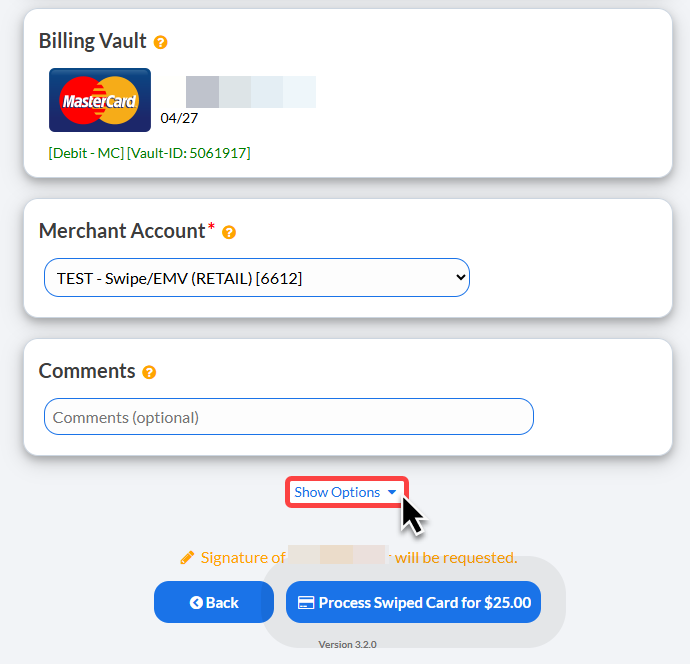
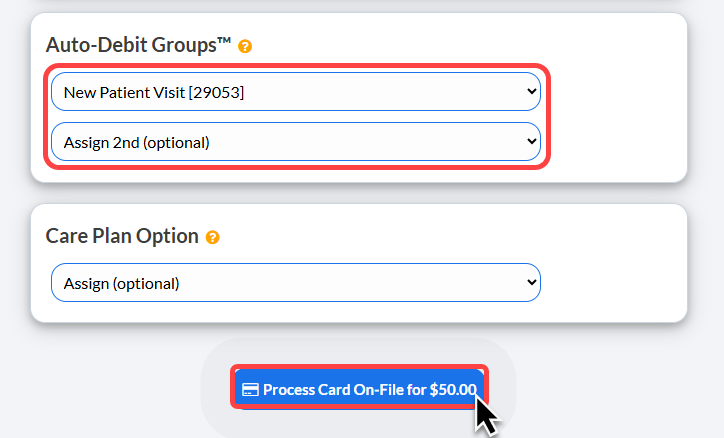
Step 4: Click on the drop down menu under [Auto-Debit Groups™] to select which group to assign this transaction to.
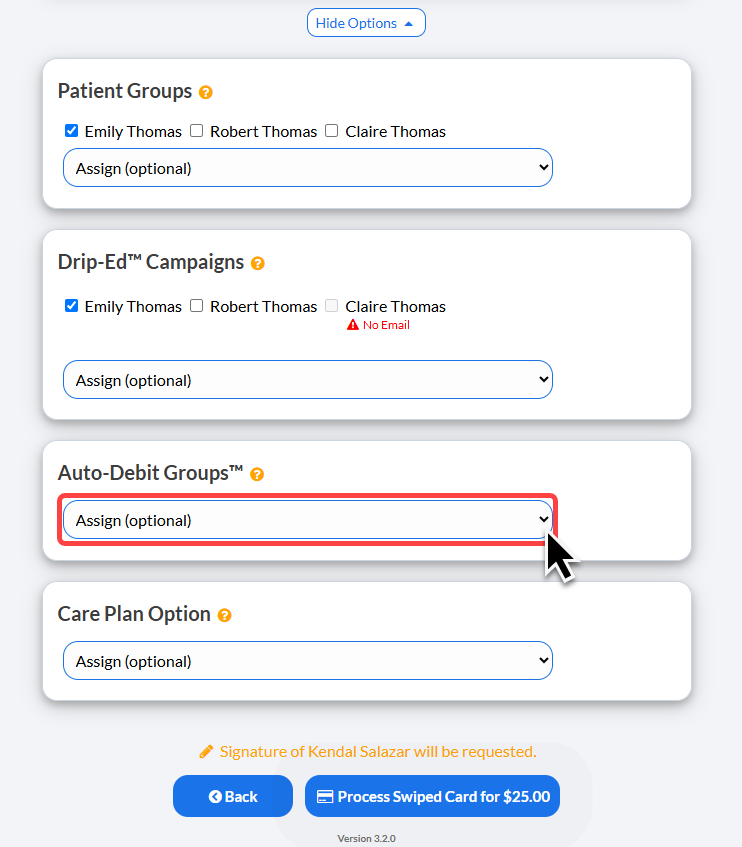
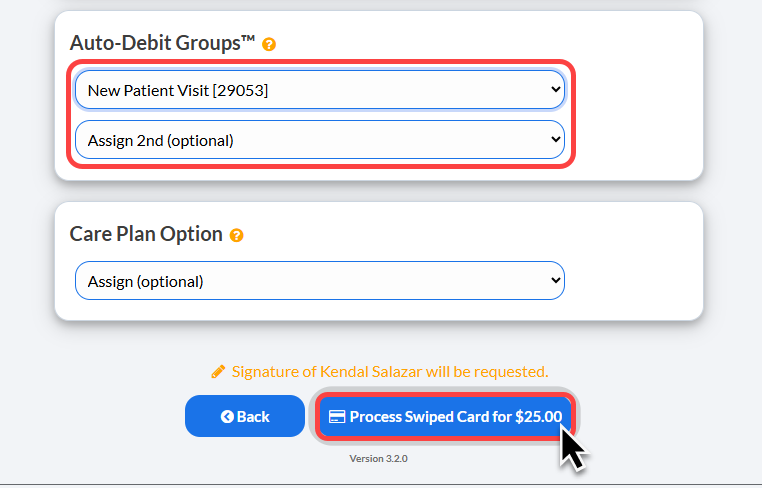
Step 5: After you have selected the Auto-Debit Group™ you will see your selection displayed under this section.
(Optional) You may also add this transaction to additional Auto-Debit Groups using the additional drop downs for this section.
Click [Process Swiped Card] to complete the transaction. Once the transaction is processed, it will be assigned to the Auto-Debit Group™.
Auto-Debit Scheduler™:
Step 1: Click on the Auto-Debit Scheduler™ icon from the top right side of the CashPractice.com website.

Step 2: First, enter all of the necessary information for processing a transaction with the Simple Swiper.
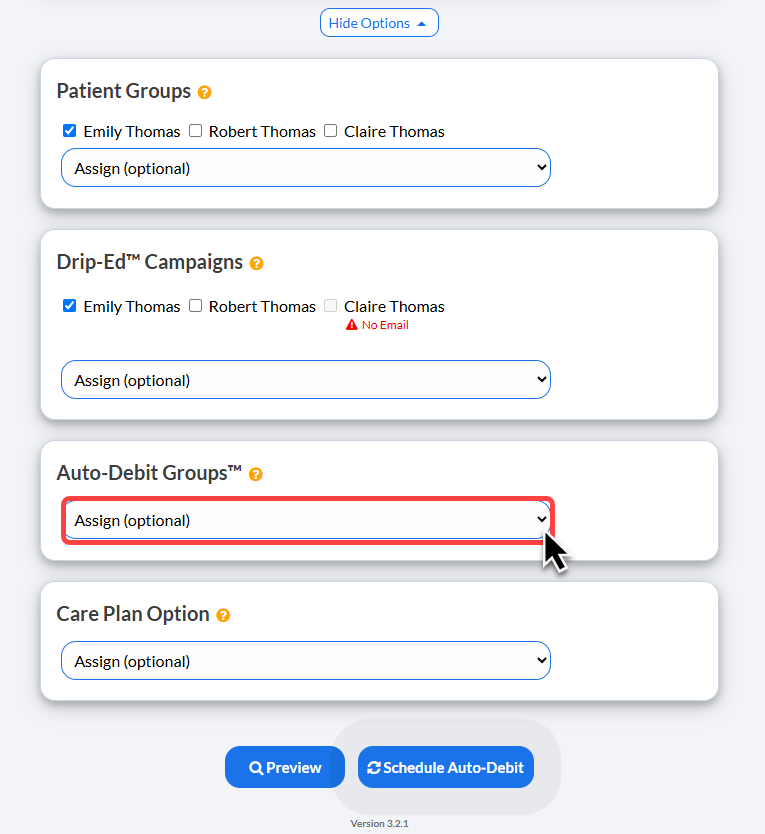
Then click the [Show Options] button, to expand your additional options.
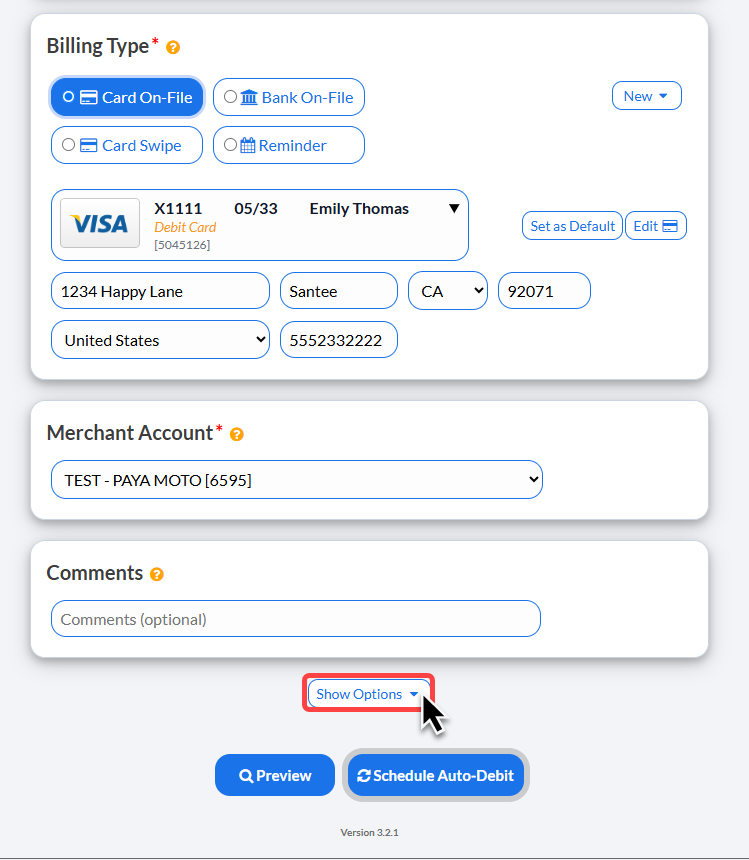
Step 4: Click on the drop down menu under [Auto-Debit Groups™] to select which group to assign this transaction to.
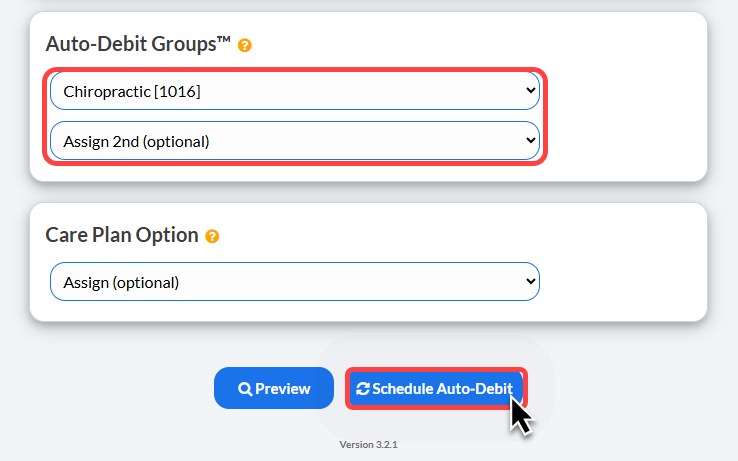
Step 5: After you have selected the Auto-Debit Group™ you will see your selection displayed under this section.
(Optional) You may also add this transaction to additional Auto-Debit Groups using the additional drop downs for this section.
Click [Schedule Auto-Debit] to complete. Once the Auto-Debit is scheduled, it will be assigned to the Auto-Debit Group™.
Care Plan Enroller™:
To learn how to access and schedule an auto-debit from a care plan, follow the instructions HERE.
Step 1: First, enter all of the necessary information for enrolling the patient in the Care Plan.
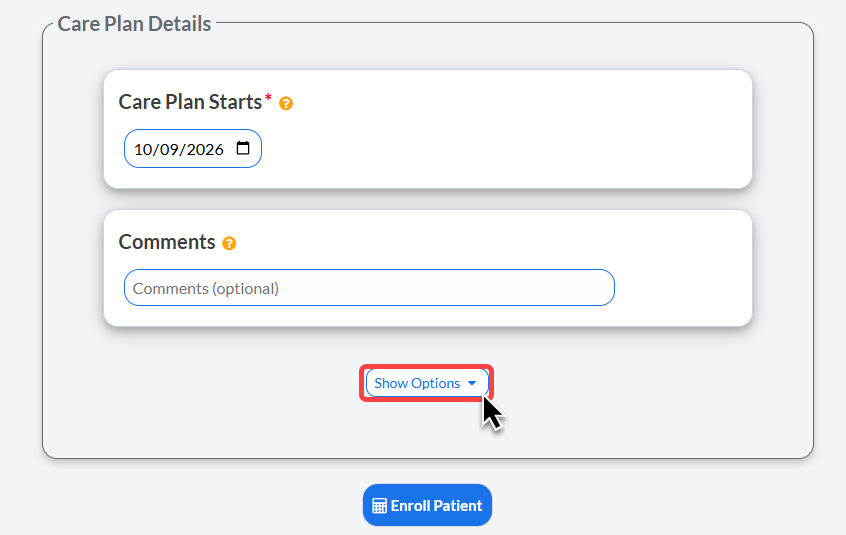
Then in the Care Plan Details Section, select [Show Options] to expand your additional options for the enrollment.
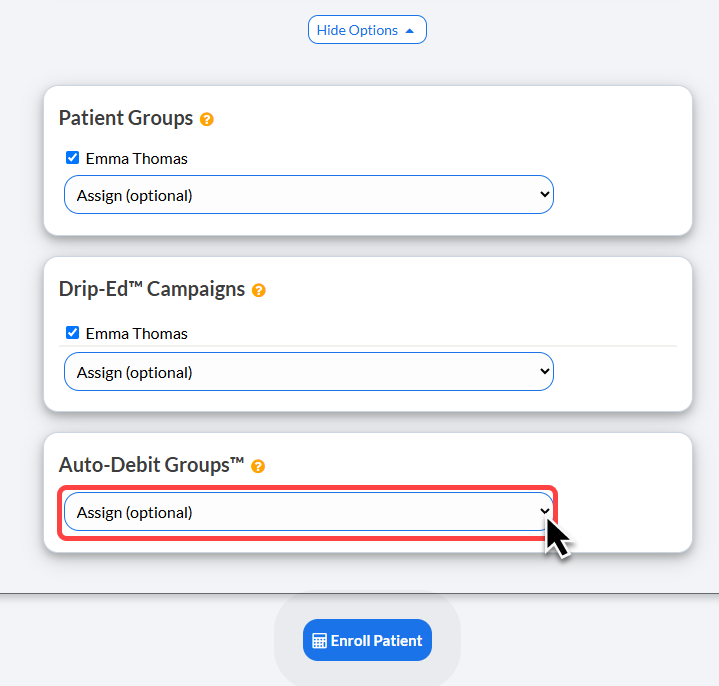
Step 2: Click on the drop down menu under [Auto-Debit Groups™] to select which group to assign this transaction to.
Step 3: After you have selected the Auto-Debit Group™ you will see your selection displayed under this section.
(Optional) You may also add this transaction to additional Auto-Debit Groups using the additional drop downs for this section.
Click [Enroll Patient] to complete. Once the care plan is enrolled, it will be assigned to the Auto-Debit Group™.