

Sometimes people walk into the office needing to purchase products or pay for services that we haven't seen before. Although rare, we have a solution with the Simple Swiper™.
Getting Started:
From the top of the navigation menu → select the Simple Swiper icon.

Step 1: Swipe their card using a Cash Practice USB card reader.
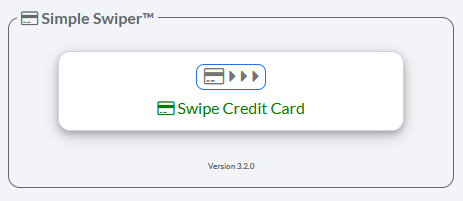
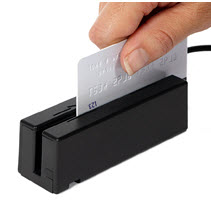
Step 2: Select the appropriate patient account:
Swiping a card with Simple Swiper automatically searches your database for matching patient accounts and preselects the most likely match under the Patient Account section.
For this example, you will select "Assign Walk-In Patient" from the drop-down menu → Type in the $ amount being charged → add an optional Comment.
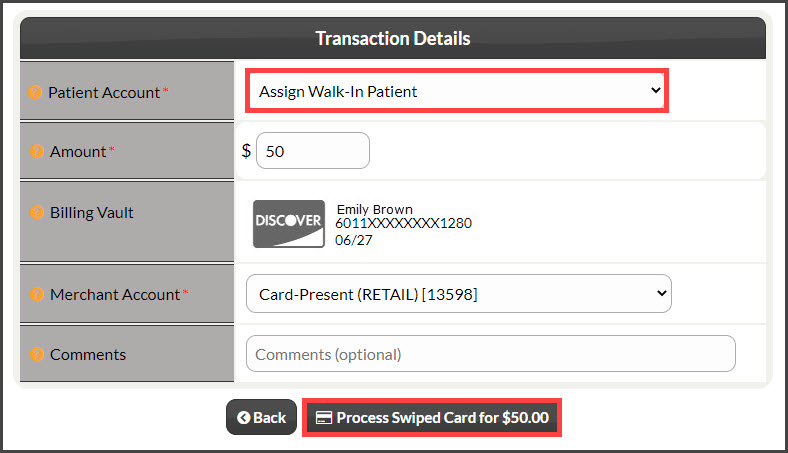
Step 3: Click [Process Swiped Card for $XX.XX]
A receipt will be produced that you can print or have them digitally sign. All transactions assigned to "Assign Walk-In Patient" can be searched through your Payments Report at any time.