

We recommend using the Scriptel Easy Script devices for electronic signatures over a Graphics Tablet. Click HERE for more information.
The requirement to have signed receipts is slowly but surely going the way of the dinosaur. If you use the CP Electronic Signatures, please note they are stored for 3 years, after which the signature is automatically deleted. The receipt itself is not deleted just the signature file.
Devices
The device needs to function the same as a mouse. If you are unsure, ask the sales company or manufacturer before you make your purchase.
Cash Practice DOES NOT PROVIDE ANY SUPPORT FOR THESE DEVICES. If you find a device is not working, you will need to contact the manufacturer.
>> Customer Tip: A device known to work based on our patients' feedback is the Huion 420
Have a device already? Be sure to adjust the settings if you're having trouble with the signature fitting in the window. See HERE.
ChiroTouch® and POS Users Please Read!
Signature pads like Topaz (commonly bundled with desktop software like ChiroTouch®) are not compatible with this system. Those devices only work with programs installed directly on your computer, whereas our application is web-based.
Instead, our built-in signature capture lets patients sign using any mouse input device.
Turn on Electronic Signatures for Graphics Tablet or Mouse:
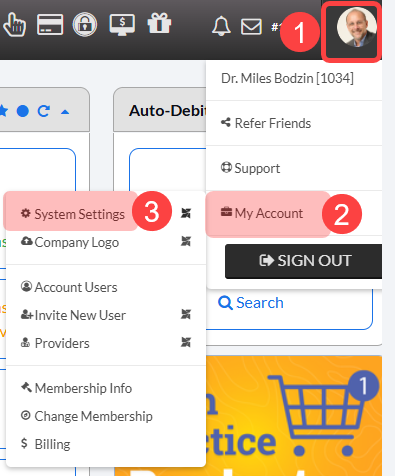
Step 1: Log in as the Admin/Account Owner. Then, follow the sequence below to open your [System Settings]:
Select the user profile menu.
Click [My Account].
Then, select [System Settings].
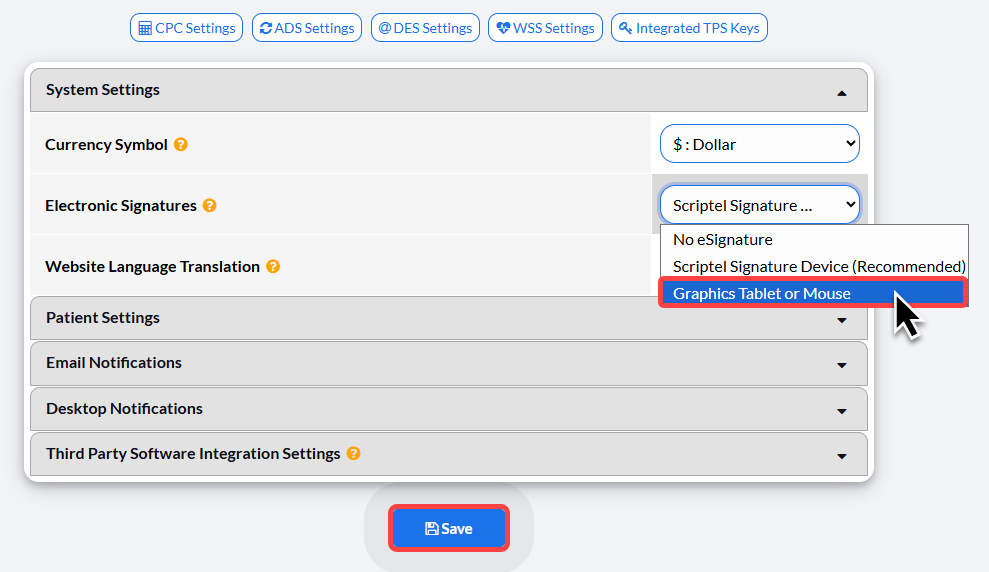
Step 2: From your System Settings menu under Electronic Signatures, select [Graphics Tablet or Mouse].
Then click [Save].
Electronic Signature of Transaction Receipt:
Step 1: Once you have processed the transaction, a signature screen will come up and the cursor will turn into a pen. If you would like to collect the electronic signature, your patient can sign via your electronic signature pad, computer mouse, or touchscreen monitor.
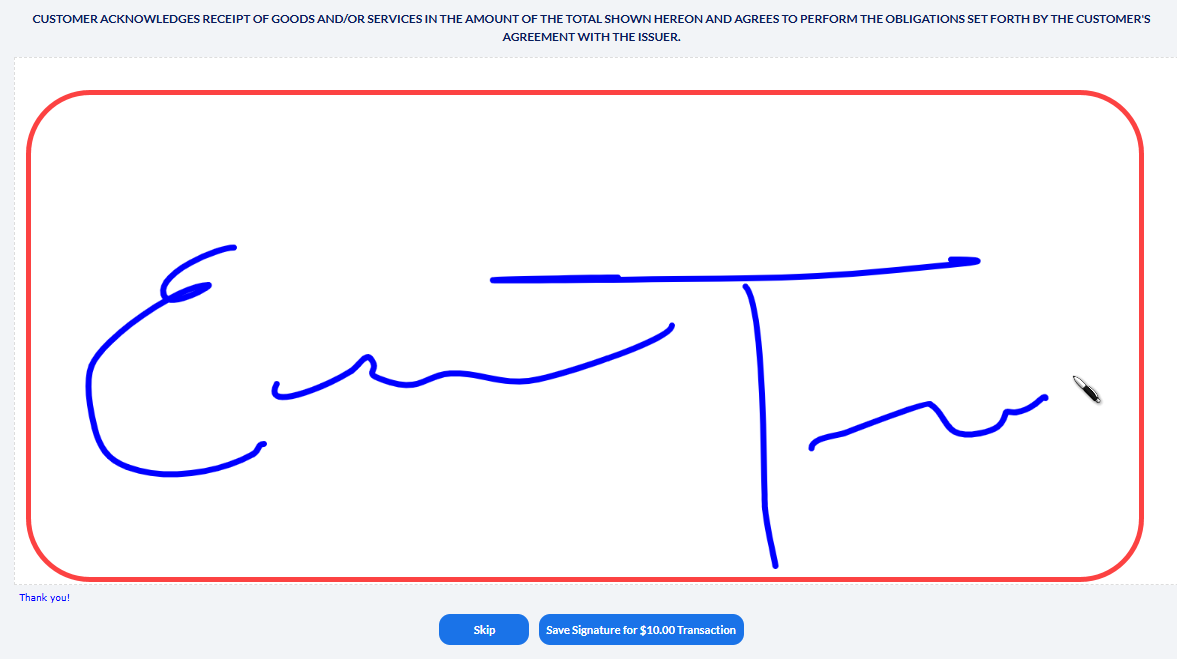
Select [Save Signature for Transaction] if the patient signs, or select [Skip] to bypass collecting a signature.

Step 2: Once the transaction is accepted, the receipt is automatically saved in Cash Practice.
Depending on how you share the receipt with your patient:
Printed Receipts: Opening the saved receipt will display the patient's signature, allowing you to print a signed copy for them.
Emailed Receipts: If auto-emailing is enabled, the patient receives a copy automatically. However, emailed receipts will not include their signature.
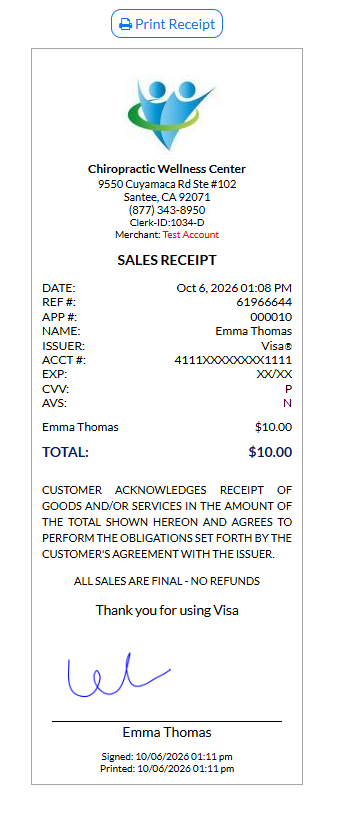
If you Skip the signature, the receipt will load with a place for the patient to sign the physical printed receipt.
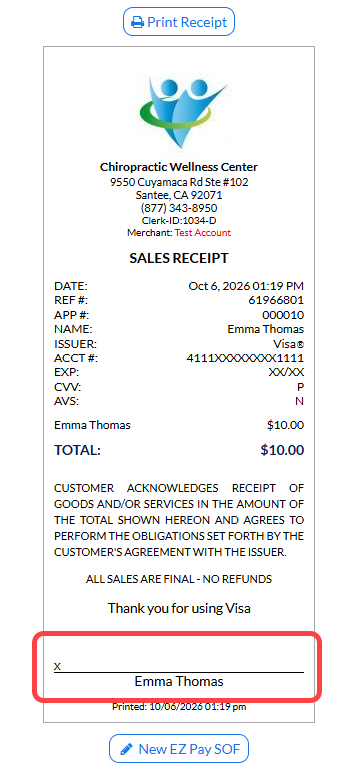
Step 3: Click the logo or the [Print Receipt] button if you would like to print the receipt.
Electronic Signature of Auto-Debit Authorization:
Step 1: Once you have clicked to schedule the auto-debit, a signature screen will come up and the cursor will turn into a pen. If you would like to collect the electronic signature, your patient can sign via your electronic signature pad, computer mouse, or touchscreen monitor.
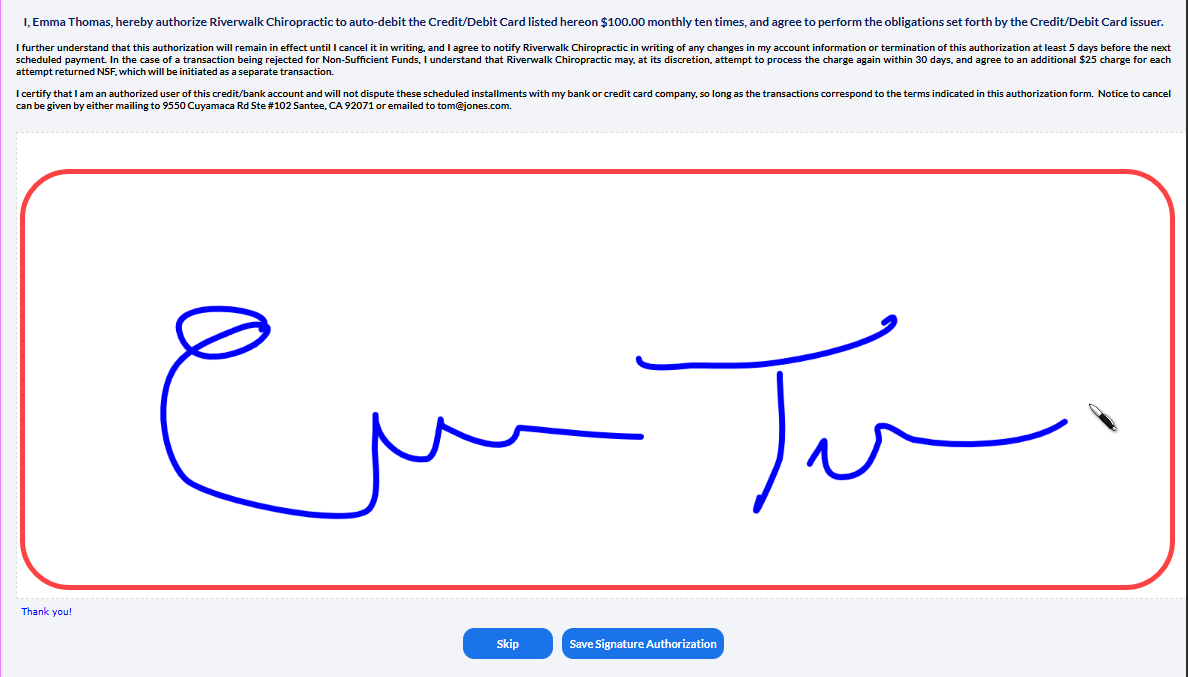
Step 2: Select [Save Signature Authorization] to apply the signature to the authorization form or select [Skip] to skip the signature.

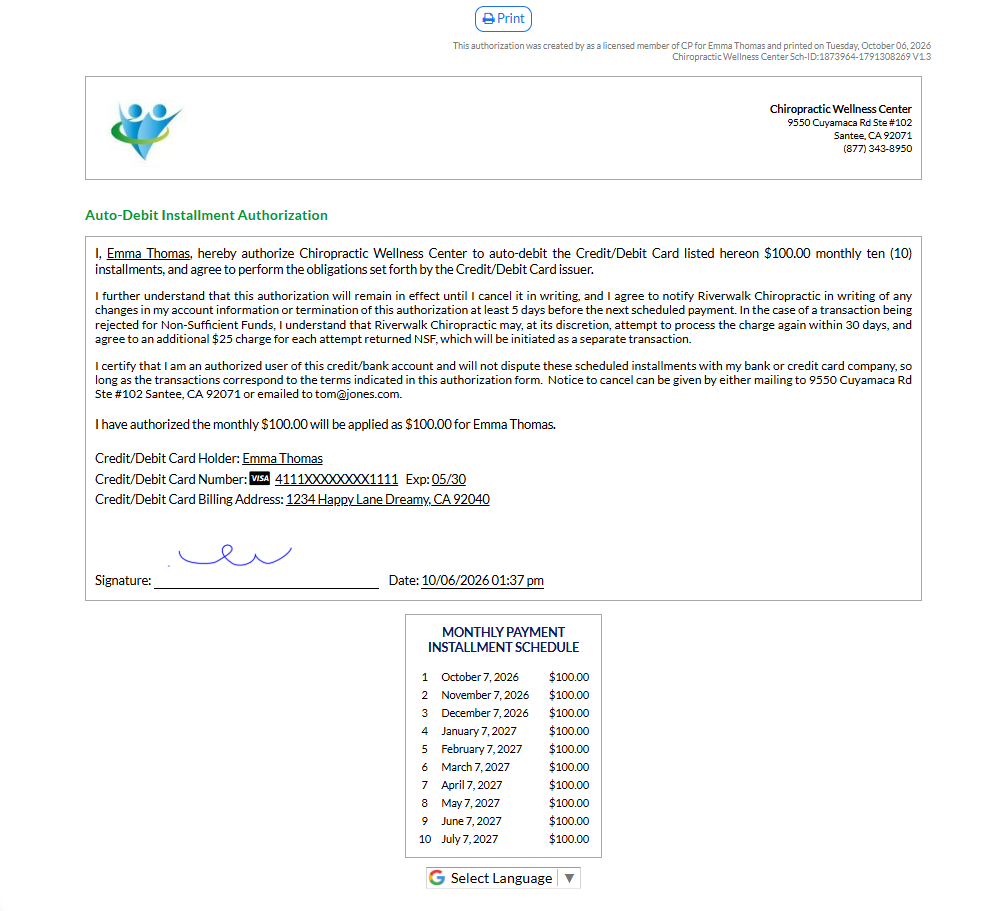
Step 3: If the authorization form was signed, it will load with the saved signature. You may print a copy for your patient by clicking on your logo or [Print] button at the top of the page.
If you Skip the signature, the authorization form will load with a place for the patient to sign on paper.
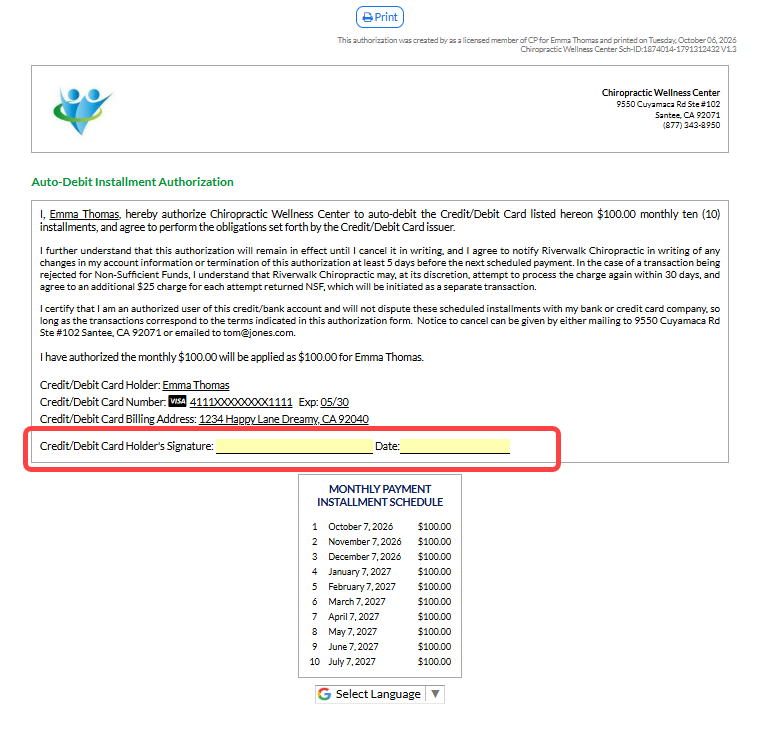
You may print a copy for your patient by clicking on your logo or [Print] button at the top of the page.