

Cash Practice® DOES NOT PROVIDE ANY SUPPORT FOR THESE DEVICES. If you find a device is not working with Cash Practice®, you will need to contact the manufacturer. ChiroTouch® users, this does NOT work with an Ipad or Topaz device. However here are a couple of settings you can check to make the device works nicely with E-Signature captures.
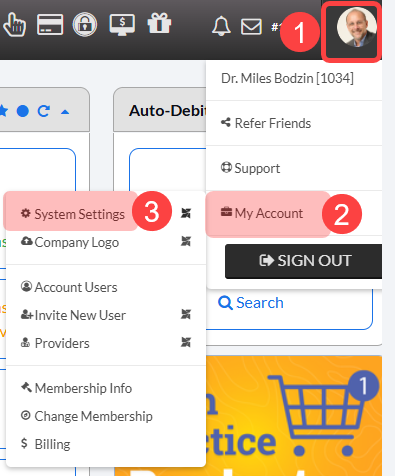
Step 1: Confirm the Electronic Signature setting is turned on in your CashPractice.com account. Step Log in as the Admin/Account Owner. Then, follow the sequence below to open your [System Settings]:
Select the user profile menu.
Click [My Account].
Then, select [System Settings].
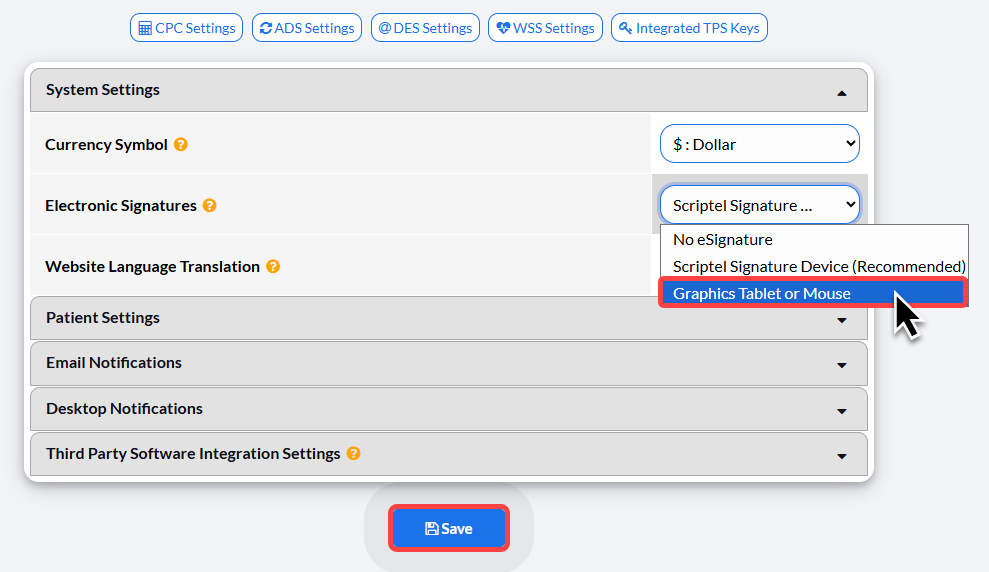
Step 2: From your System Settings menu under Electronic Signatures, select [Graphics Tablet or Mouse].
Then click [Save].
Step 3: Make sure that the device is plugged into a working USB port on the computer you're using.
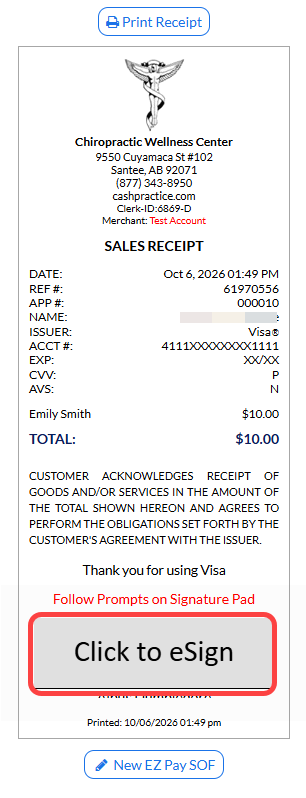
Step 4: To test, open an old receipt on your [Payments Report] and click on the blinking eSignature option at the bottom of the receipt.
To search for past transactions, refer to: How do I search for past transactions using my Posted Payment Report?
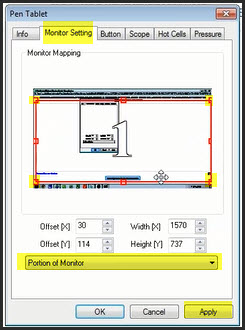
If needed, you can adjust the Signature Window for the device. This can be done by accessing the device settings. To access the device settings, locate the tablet icon next to your clock (usually at the bottom right of your PC window).
Double-click on the tablet icon and it will allow you to adjust monitor settings within the driver. Click and drag the red box (image below) to match the size of the receipt window, then click [APPLY].
If the device does not work, you will need to contact the manufacturer.
Helpful tip:
Parameter Settings for Huion 420 Device:
Monitor Offset: X 50 Width 1168
Offset Y 96 Height 780
Scope Width: X 4.11 Offset X .03
Height Y 2.34 Offset Y .00
Pressure: In the middle of light and heavy.