

The Posted Payments Report Generator™ is a report that allows you to manage all of your processed payments in one place! You can refund payments, review/print billing history, and email receipts.
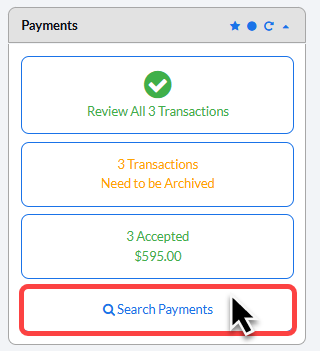
Step 1: Click the [Search Payments] button on the right side of your Dashboard.
Step 2: Use the search options to define which transactions you are looking for then click [Search] to pull your report.
When pulling payments by transaction date (not for a specific patient) a 90-Day Max Range is enforced.
Tip #1: Set the [Storage] selection to All to ensure all transactions are pulled, regardless if they have already been archived.
Tip #2: To pull complete Billing History for patient → First enter in the Patient Account (patient name) and the select [Storage] to All.
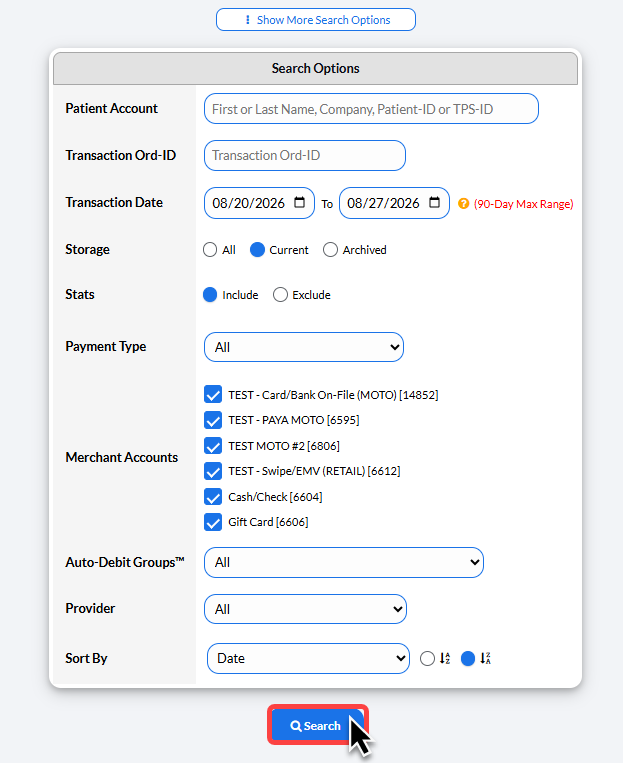
Patient Account: | Enter the patient account information to filter search results specific to a single patient. |
Transaction Ord-ID | This is the unique transaction number assigned to each transaction in Cash Practice |
Storage | All: Includes both current & archived transactions |
Stats | Include or Exclude the Stats report at the bottom of your Posted Payments Report. This summarizes your transactions by merchant account and transaction type. |
Payment Type | Select which payments you'd like included - all, one-time payments, recurring payments (Auto-Debits), and rescheduled payments |
Merchant Account | Select or deselect the merchant accounts you would like included on the report |
Auto-Debit Groups™ | Click the drop down menu to filter by Auto-Debit Groups. |
Provider | Click the drop down menu to filter by Cash Practice Provider |
Sort By | Choose how to sort your posted payments report |
For more search options, click on the [Show More Search Options] tab at the top:
Auto-Debit Sch ID | This is the unique ID assigned to a patient's Auto-Debit. |
CPC Plan ID | This is the unique ID assigned to a patient's Care Plan |
State | Filter by billing state |
Billing Type | Select to filter by individual payment type: Credit Card, Check, Cash, Bank EFT, Gift Card, or Reminder |
Credit Card Type | Select the type of card: Visa, Mastercard, Discover, or American Express |
Transaction Status | Filter by: Accepted, Declined, Refunded, Voided, Pending, Canceled, or Failed transactions. |
Payment Tool | Virtual Terminal™, Simple Swiper™, EZ Swiper™, Cash Practice Mobile™, CP Online Forms™, Auto-Debit Scheduler™, Care Plan Enroller™, or EMV Terminals |
CP Online Forms™ | Select to filter by a specific CP Online Form™ |
Patient Groups | Select a patient group to filter your report |
CPC Plan Option | Filters by payment collected using Care Plan Calculator Plan options 1, 2, or 3. |
Account Users | Filter payments processed by a specific account user |
Step 3: Click the [Search] button to load the defined report.
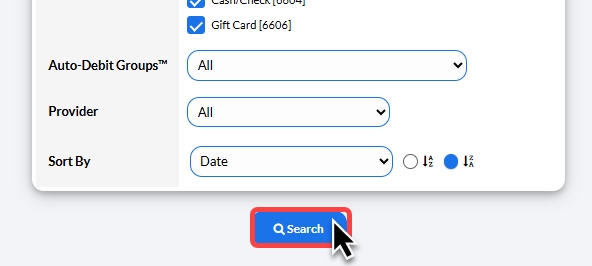
Not seeing what you expected? Try changing the [Storage] field (pictured above) to [ALL], as the transaction(s) you're looking for may be archived.