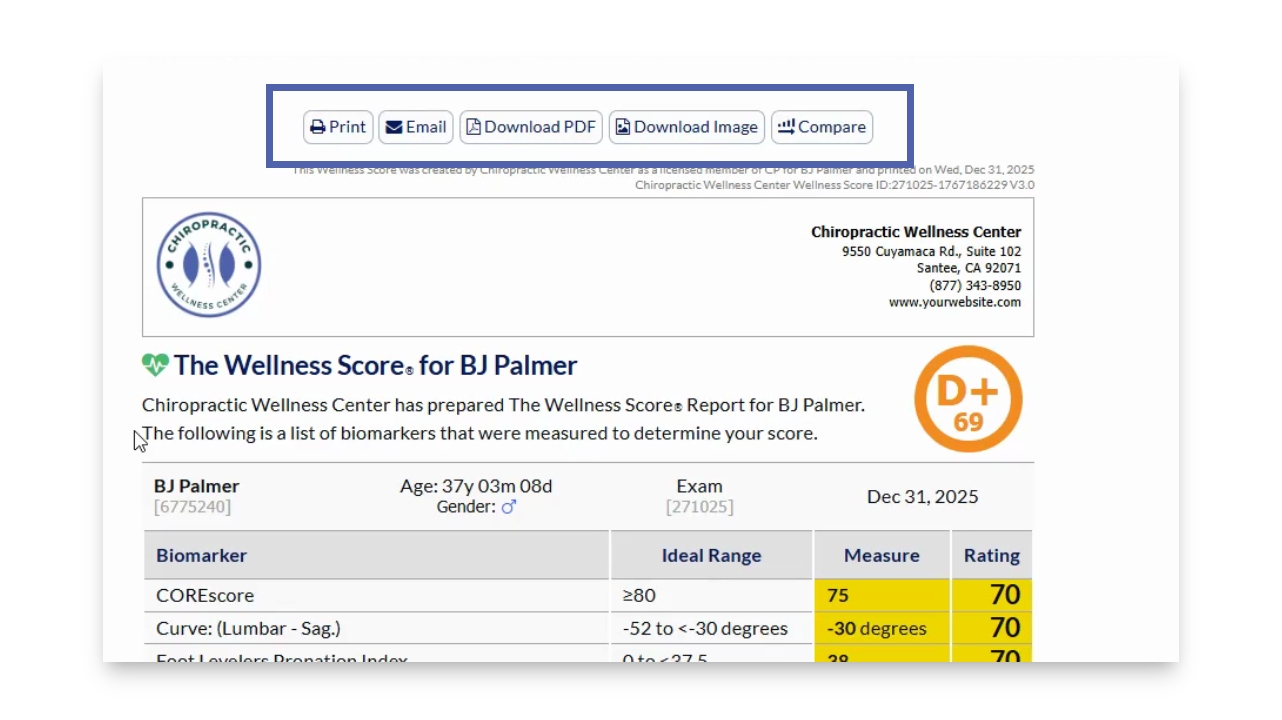
Step by step guide
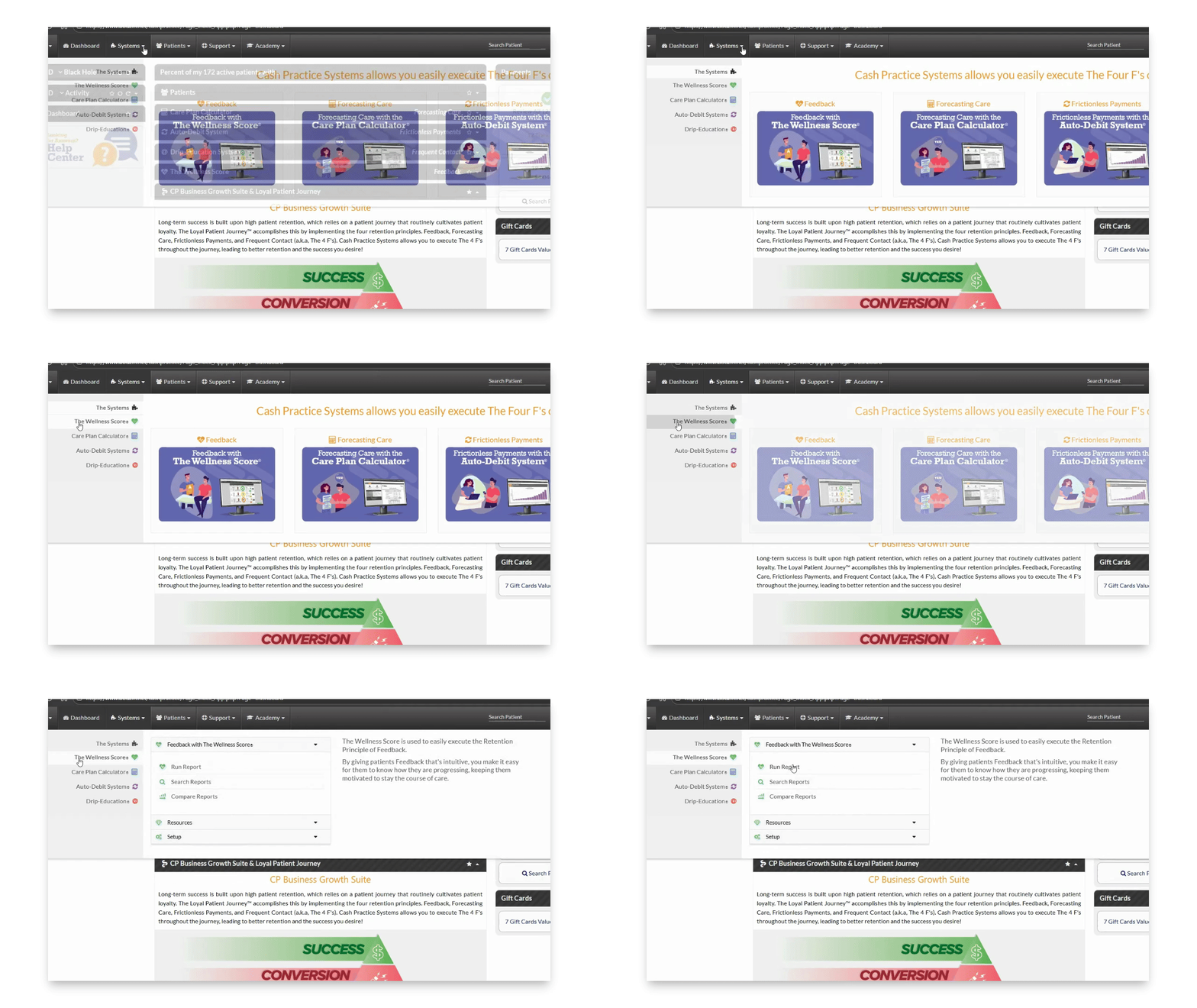
Step 1: Click Run Report
Go to Systems → The Wellness Score → click Run Report.
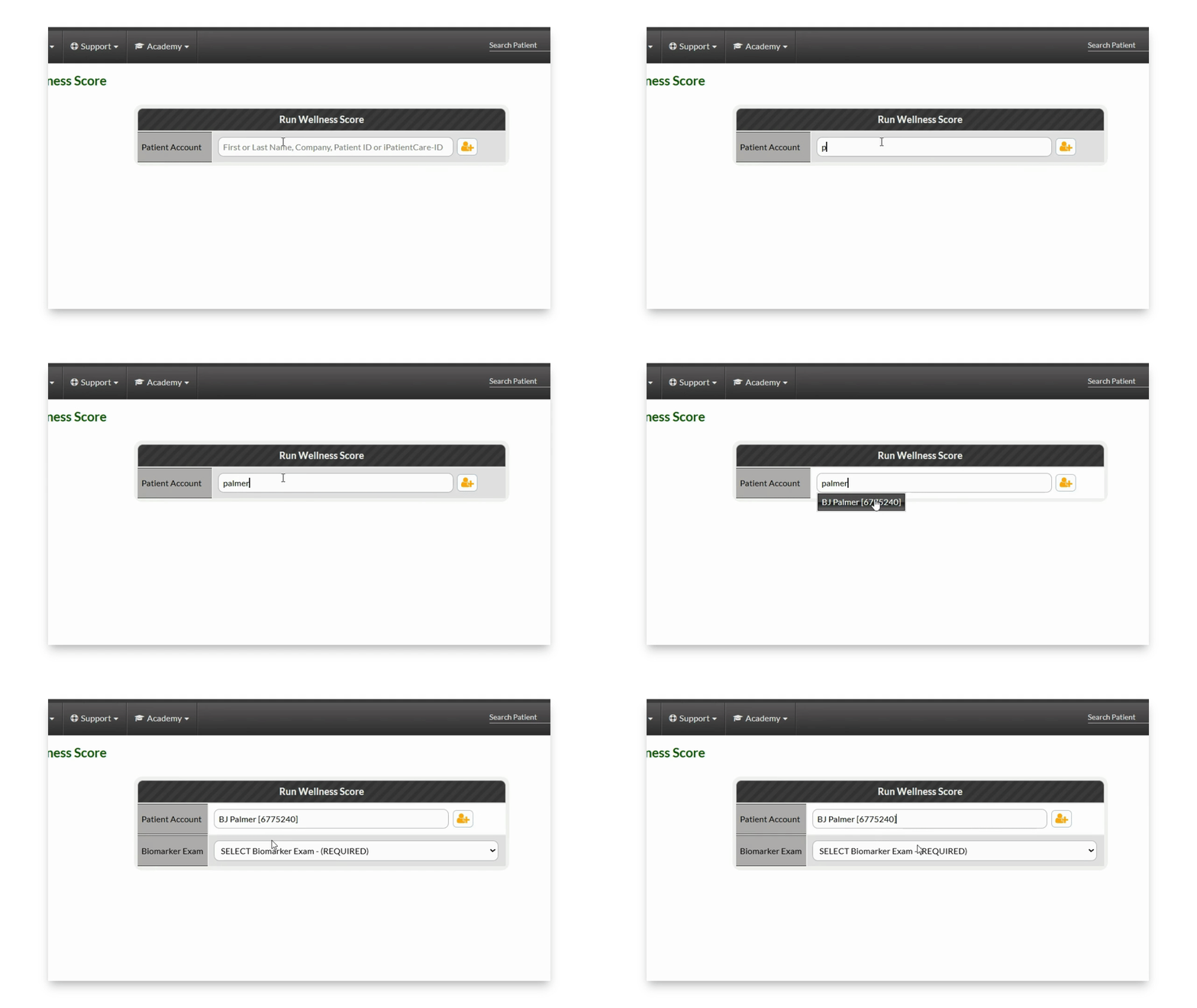
Step 2: Enter Patient Name
Type the patient's first or last name. If the patient is not already entered into the system click the icon to the right with the person and the + symbol.
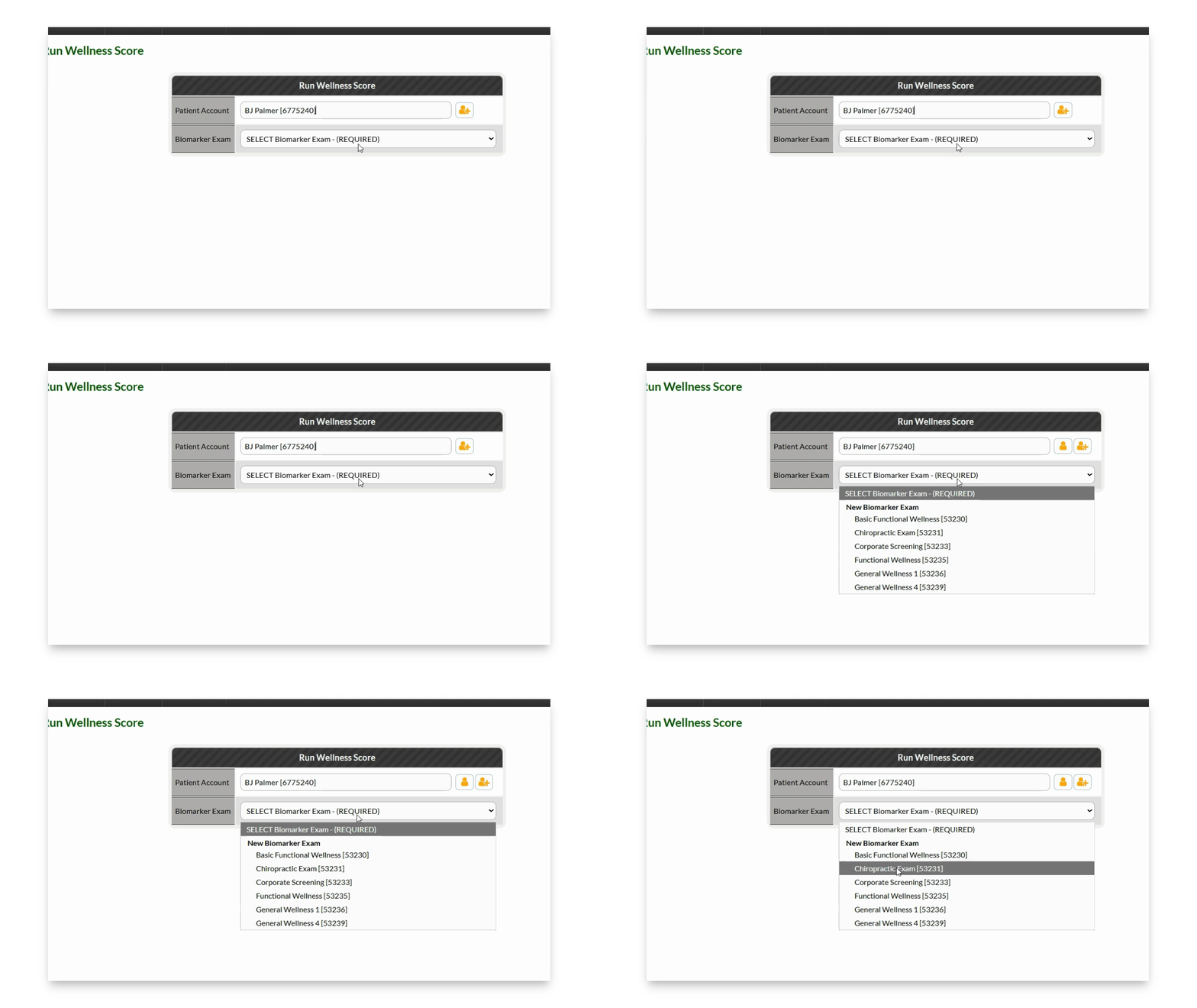
Step 3: Select the Biomarker Exam and Click Run
Choose the biomarker exam (parameter set) that you would like to run from the drop-down menu and click Run.
Step 4: Enter Data
Enter the data from your exam. Click [Tab] on your keyboard to quickly jump to the next data entry field.
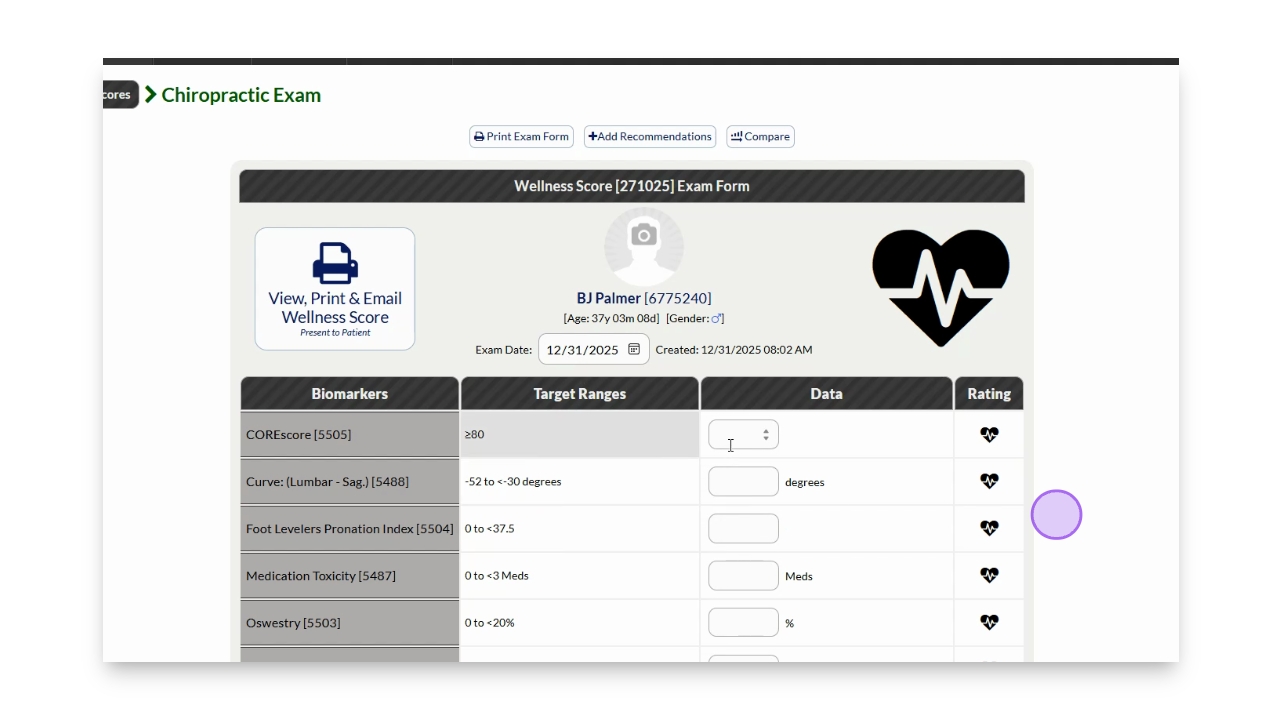
Step 5: Click View, Print & Email icon
Click View, Print, and email Wellness Score icon.
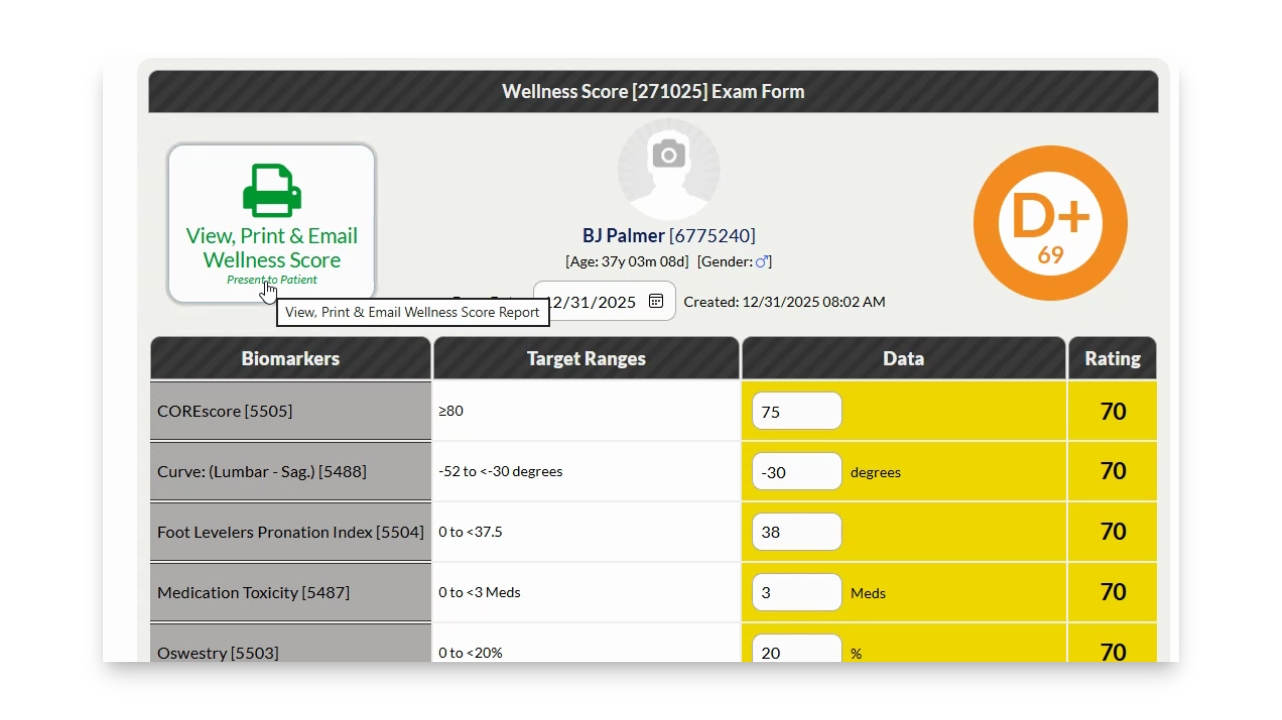
Step 6: Print the Report
Click Print to present the report to the patient. From here, you may also email, download the report as a PDF, download a HIPAA-compliant image of the report, or, compare this report.