

[Start Here] First you must turn on access to CP Mobile™ in your Cash Practice account. Follow the steps in this article, to get started:
How do I get started with the Care Plan Presenter? Setup Instructions for your CP Mobile App
Once you have completed the setup, proceed to the following steps:
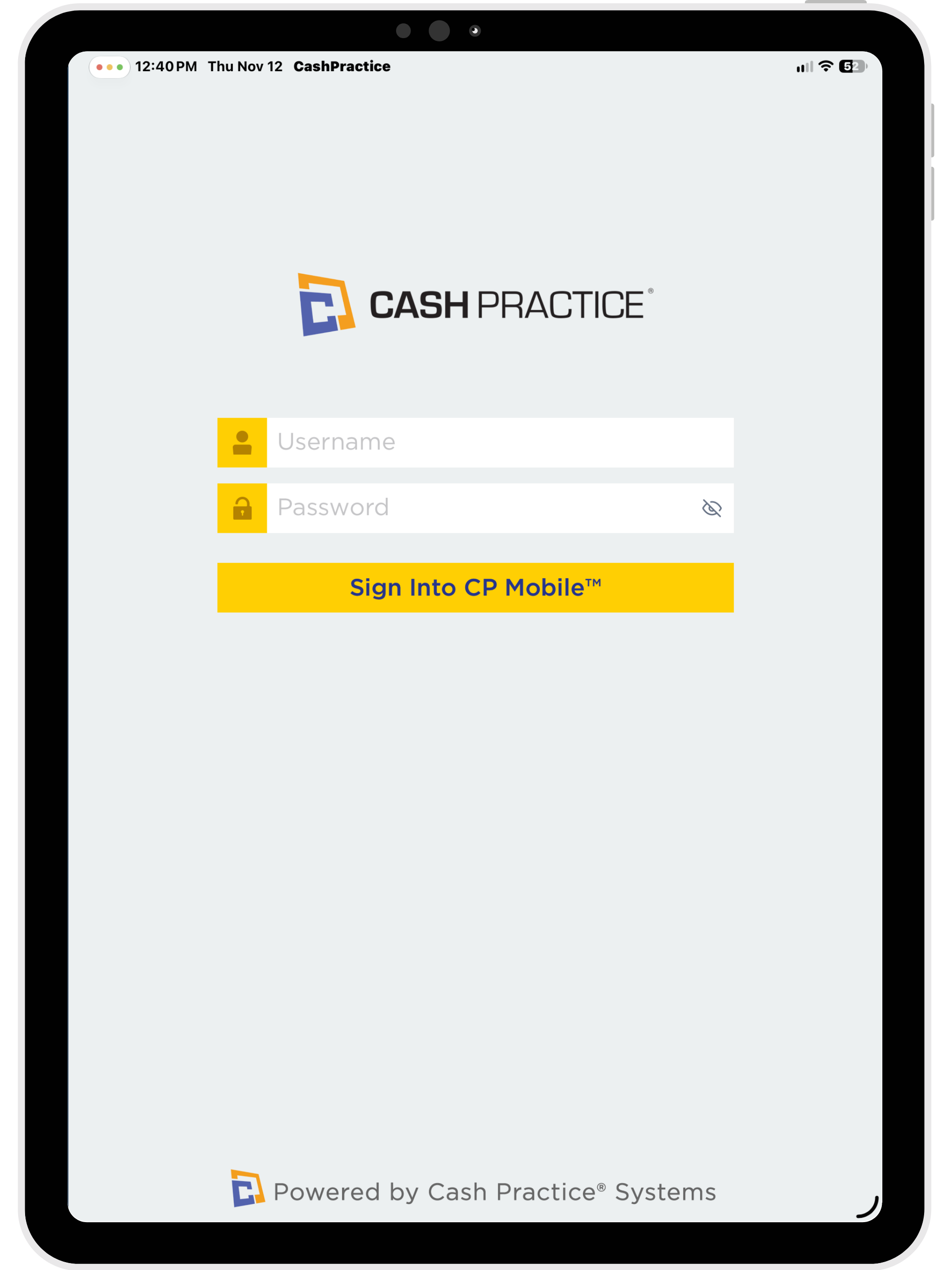
Step 1: Log in to your CP Mobile™ App by entering your normal username and password.
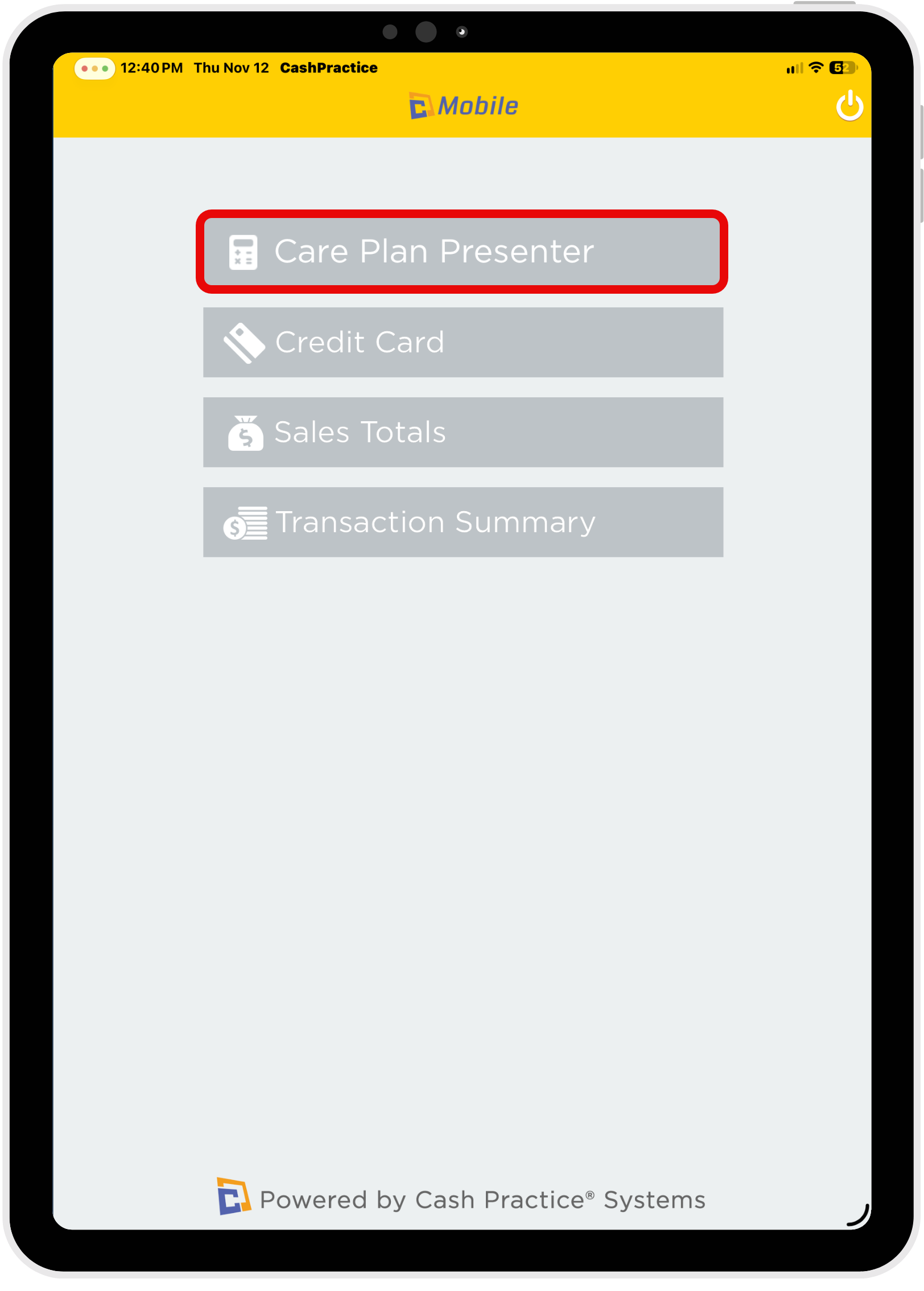
Step 2: Select the Care Plan Presenter to begin.
⚠️ If you have already installed the CP Mobile™ app and do not see the Care Plan Presenter option, please update the app from your device's app store.
IMPORTANT: You MUST first create the Care Plan within your Cash Practice Account to access it in the CP Mobile App. The Care Plan Presenter will only display and enroll Care Plans that have already been created directly in Cash Practice.
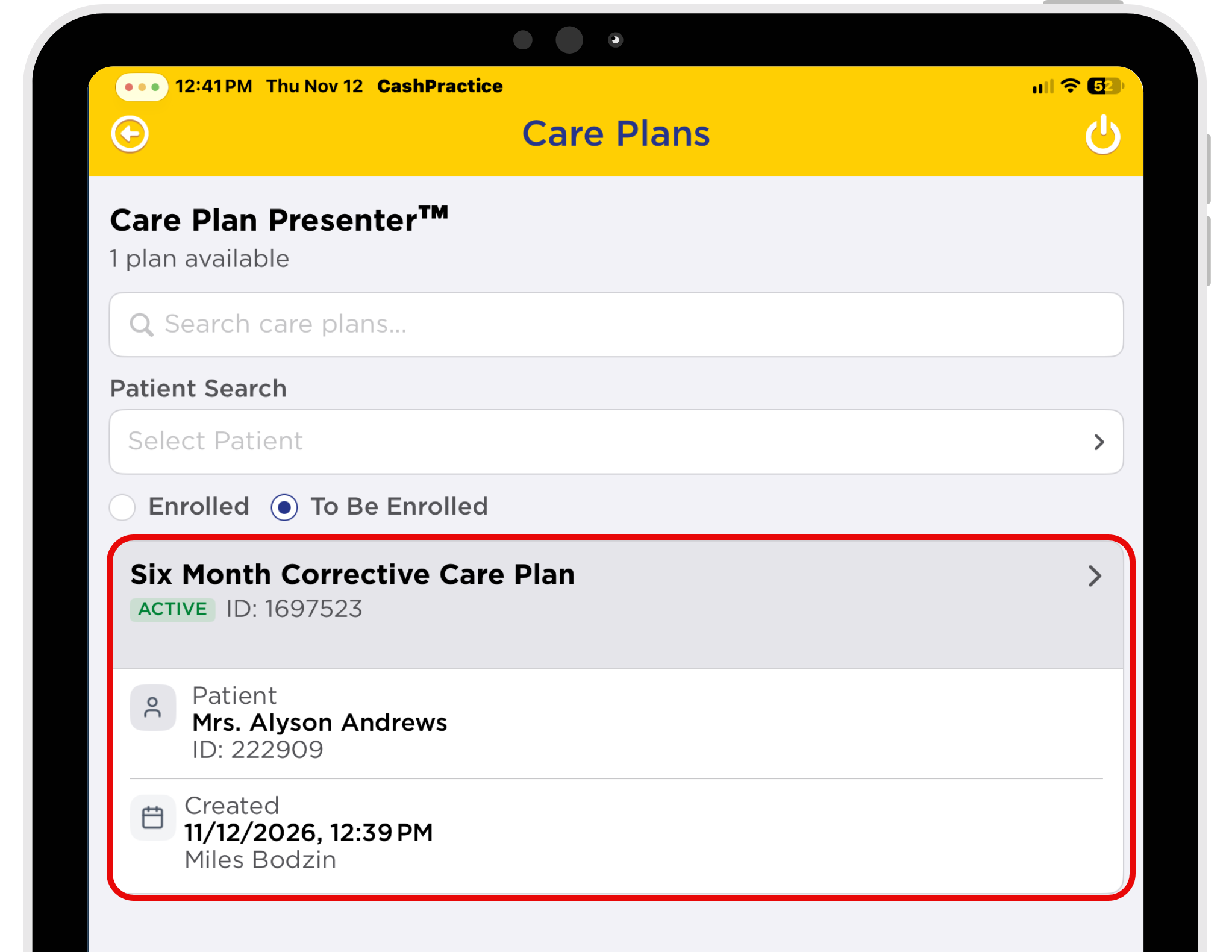
Step 3: Use the [Search Options] to find your desired Care Plan - search by Care Plan name or by Patient.
Select your desired Care Plan to present and/or enroll.
Tip: Select the [To Be Enrolled] option to search for Care Plans that have not yet been enrolled.
Step 4: