
Logo

Cash Practice® Systems Help Center

Search our knowledge base to get answers to your questions, access video training & more!

Drip-Education® Email Marketing System (Frequent Contact)

Surveys: How to edit a Survey

Last updated on 13 Sept, 2025

Getting started:

Step 1: From the [Systems] menu → select [Drip-Education] → Click on [Survey Builder].
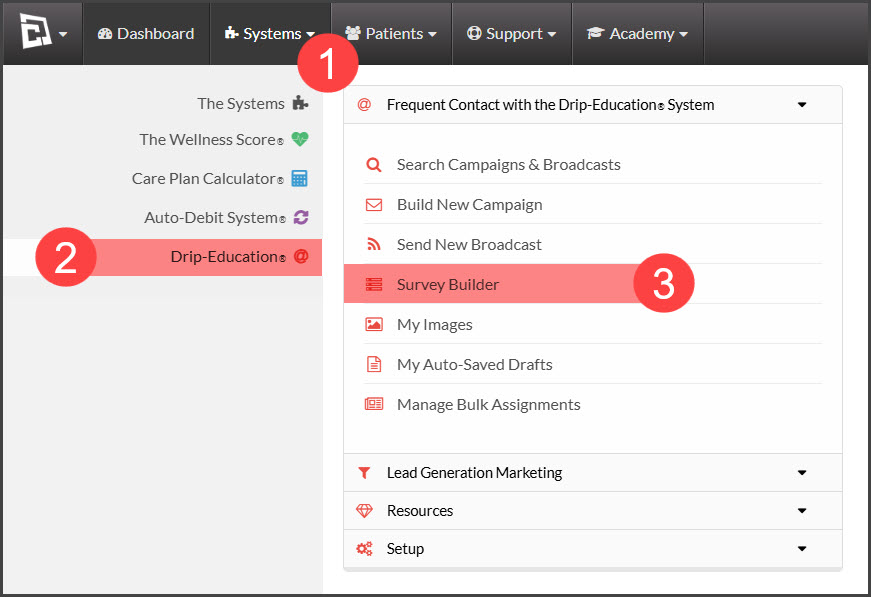
Image

Step 2: Locate the survey needing to be changed and click the [Edit] button to the right. 
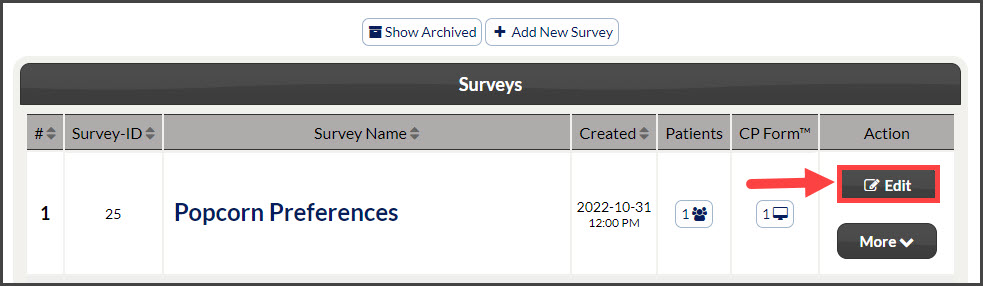
Image

Step 3: Make any edits/changes to the survey → click the [Save & Preview] button.
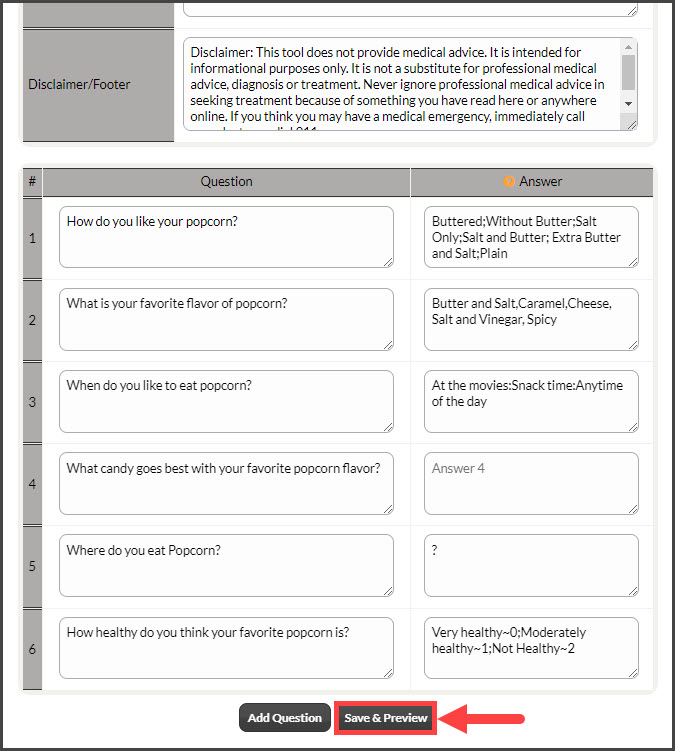
Image

Did you find this article helpful?
Previous

Surveys: How to Preview a Survey

Next

© 2026 Cash Practice Systems. All rights reserved.