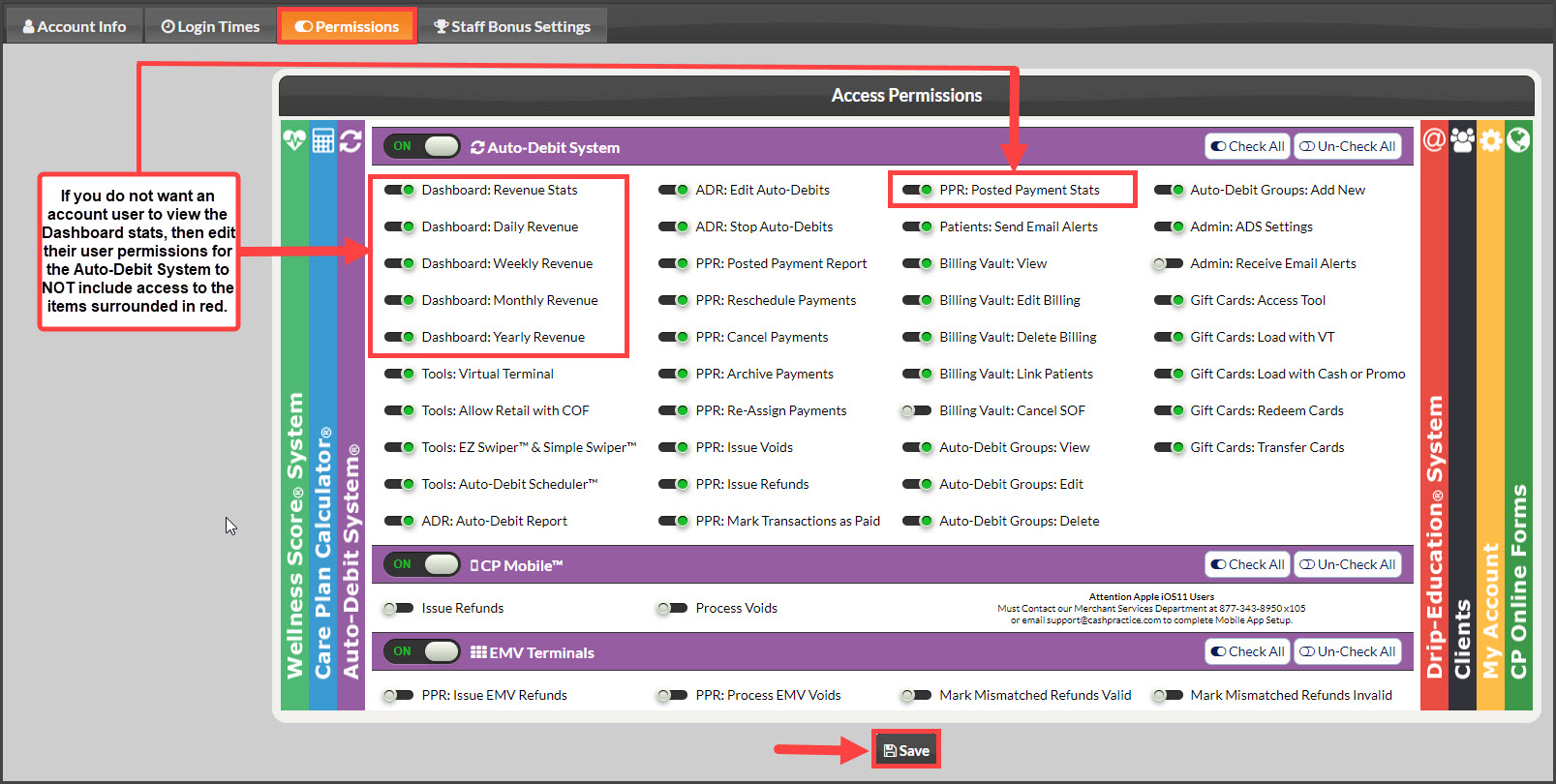
When creating an Account User, by default, the Auto-Debit System Revenue Stats are not included in the pre-selected permissions. These mainly display on the Dashboard of your account with us. To view/edit the permissions for an account user, follow these instructions.
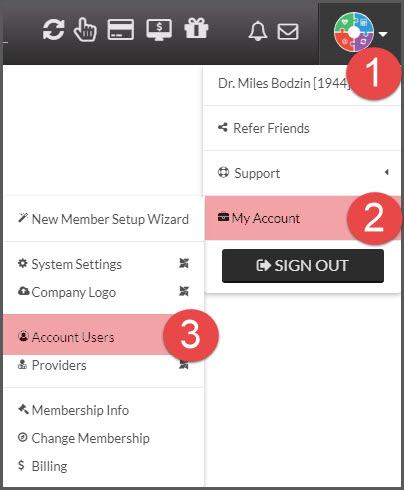
Step 1: Hover your mouse over the [User Profile] menu → hover over [My Account] → click on [Account Users].
Step 2: Click [Actions] → [Edit User] for the account user you need to access.
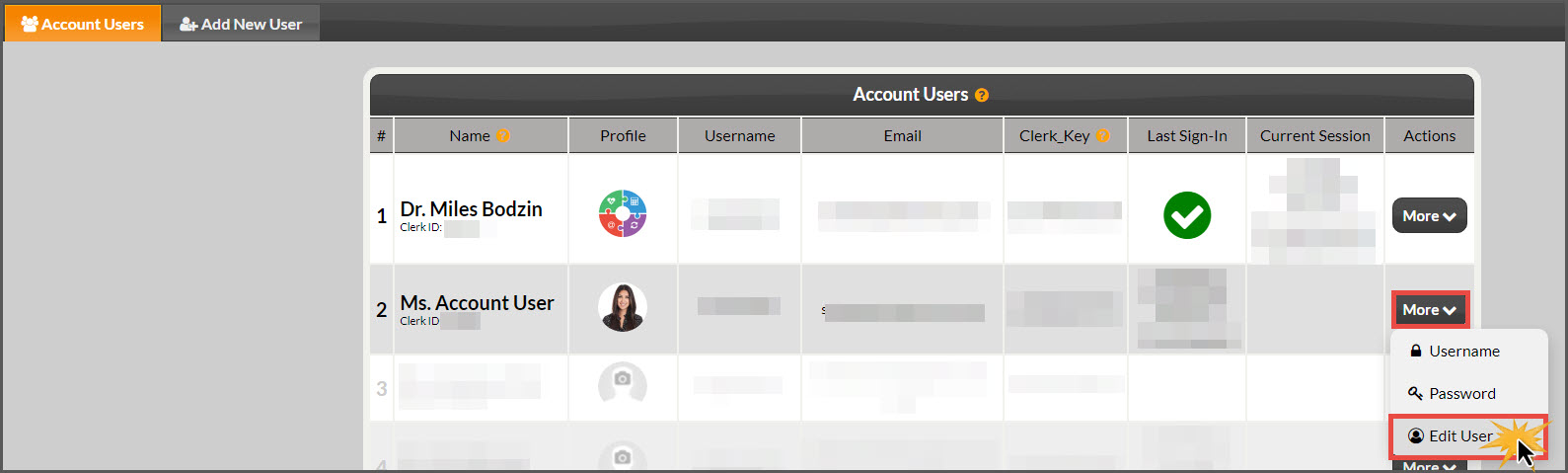
Step 3: Change Permissions → If you change any settings, be sure to [Save] before exiting.
Click the [Permissions] tab to change what the user has access to.
Under the permissions for the Auto-Debit System®, un-check the permissions for the [Dashboard: X] and [PPR: Posted Payment Stats] to turn off the permissions for the user. ALL must be unchecked in order to block access.
OR check the boxes to give the user permission to view the stats.
Click [Save].