

Why would I give my staff individual usernames and passwords?
It is highly recommended that you create separate & unique usernames and passwords for your account users and not just give them your admin username to use. The purpose is to maintain security and prevent those you give access to from accessing areas of CashPractice.com you do not want them to have access to. Their Clerk-ID will identify their activity for tracking usage. In addition, you can control what the account user can do and when they can log in.
Getting started:
Step 1: Log in to your account as a user that has already been given permission to create new users. (For more information on how to give a user account these permissions, click HERE)
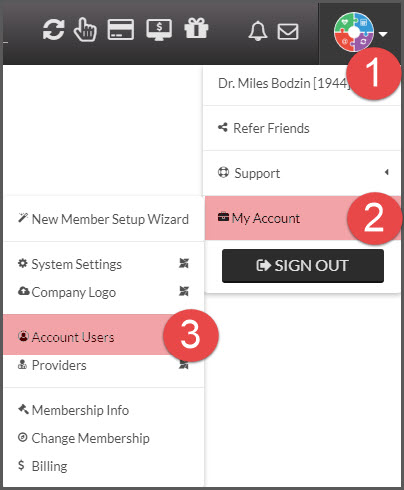
Step 2: Hover your mouse over the [User Profile] menu → hover over [My Account] → click on [Account Users].
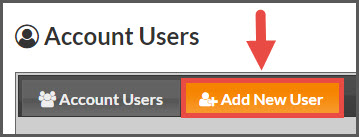
Step 3: Click the tab that says [Add New User].
Step 4: Complete all the required information (IE: Title, name, username, email, etc...) and click [Save New User].
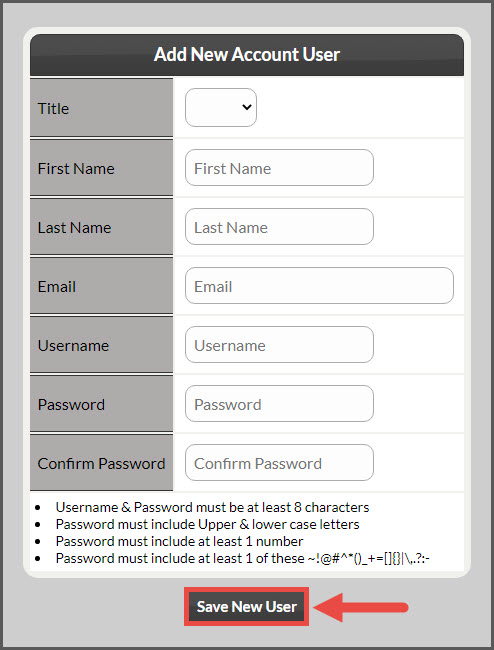
Note: The new user will automatically be created with the default permissions. You can leave it as-is from here or you can continue on to the next steps to customize the new user. This includes setting login times and permissions.
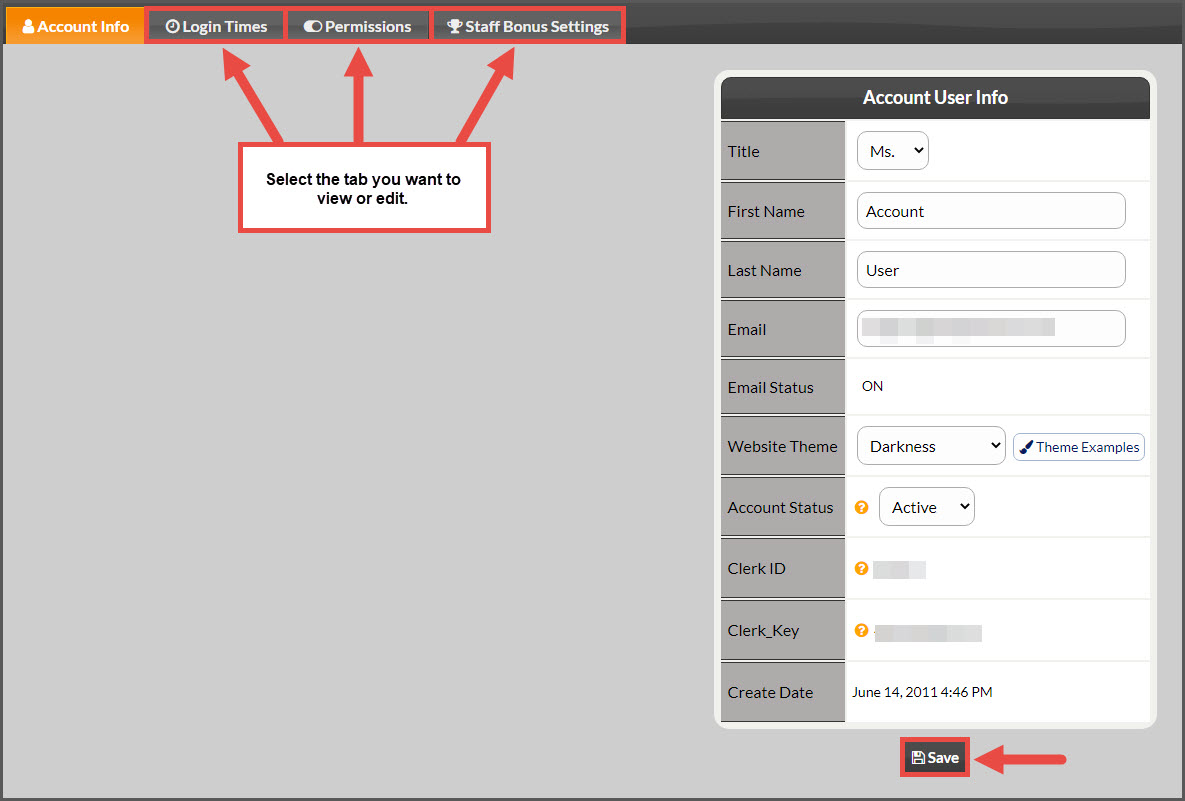
Step 5: (OPTIONAL) From the [My Account Users] list, select [Actions] →[Edit User] next to the new user's name or from the top of the screen.
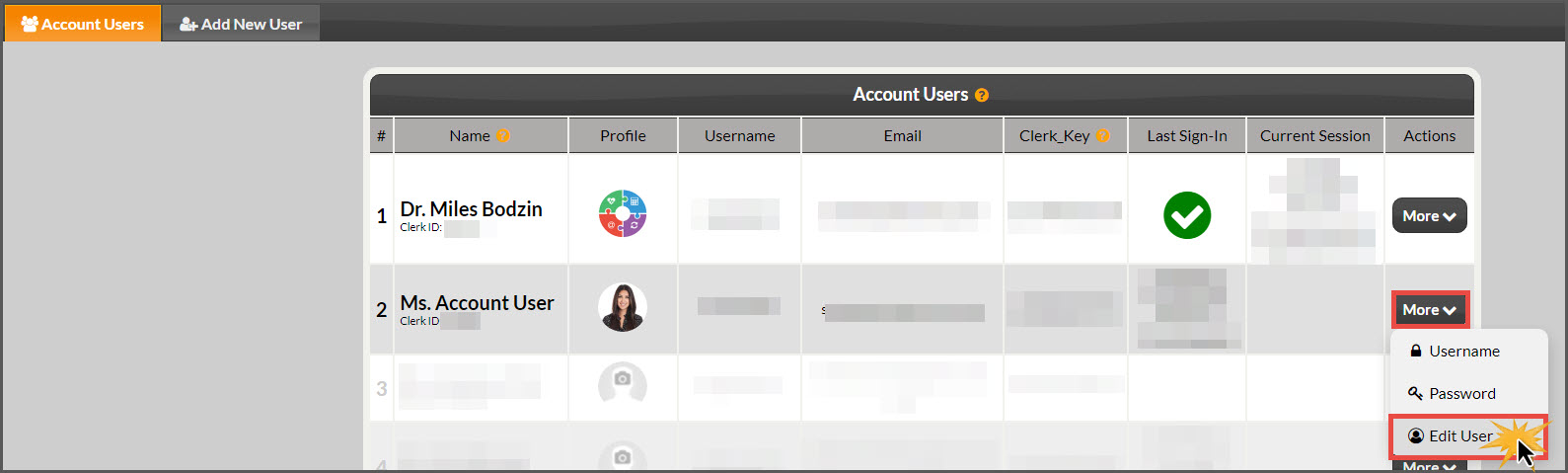
Step 6: (OPTIONAL) Change Permissions
Click the [Login] tab to change access days/times.
Click the [Permissions] tab to change what the user has access to.
Click the [Bonus Settings] tab to change bonus amounts.
Click the [Upload Photo] tab to upload/delete a photo of the user.
Some options will be pre-selected; you can toggle any options on or off. You can also select [Do Not Allow Access] to completely negate a user from being able to access a system or portion of the site. Click the [Save] button when done.
*Important* As an account user, you will only be able to assign permissions and login times that your user account has been granted.