

If you have multiple Associates or additional Providers that you would like to have added to your Cash Practice account and be assigned to patients, follow the instructions below.
Note: Not all memberships have the ability to add multiple Associates or Providers. Please see: Licenses: What are the different types of licenses I can have with my account? or CLICK HERE to change your membership!
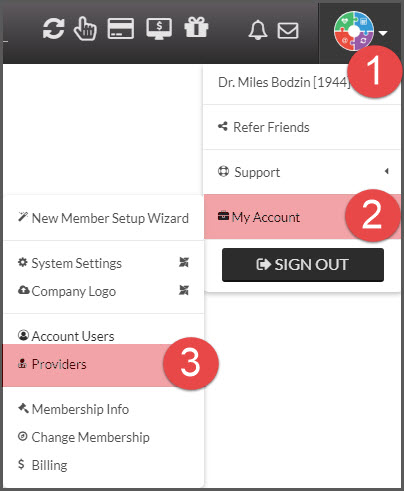
Step 1: Hover your mouse over your [User Profile]→ hover over [My Account] → click on [Providers].
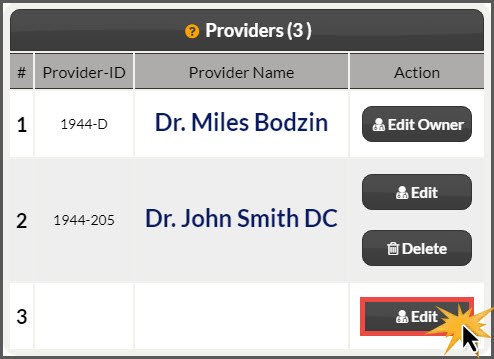
Step 2: Select the [Edit Provider] button to add the additional provider or associate.
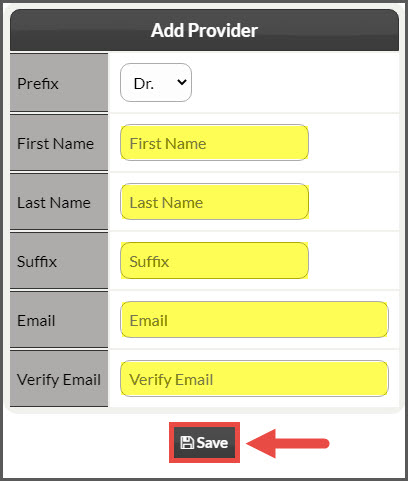
Step 3: Fill in the required fields, and click the [Save] button.
You will see a message that confirms you have successfully added the provider.