Part 1: Getting Started
Create a new template, instructions HERE
Create a new plan, instructions HERE
Edit an existing template/plan, instructions HERE
Part 2: Editing the Template or Care Plan
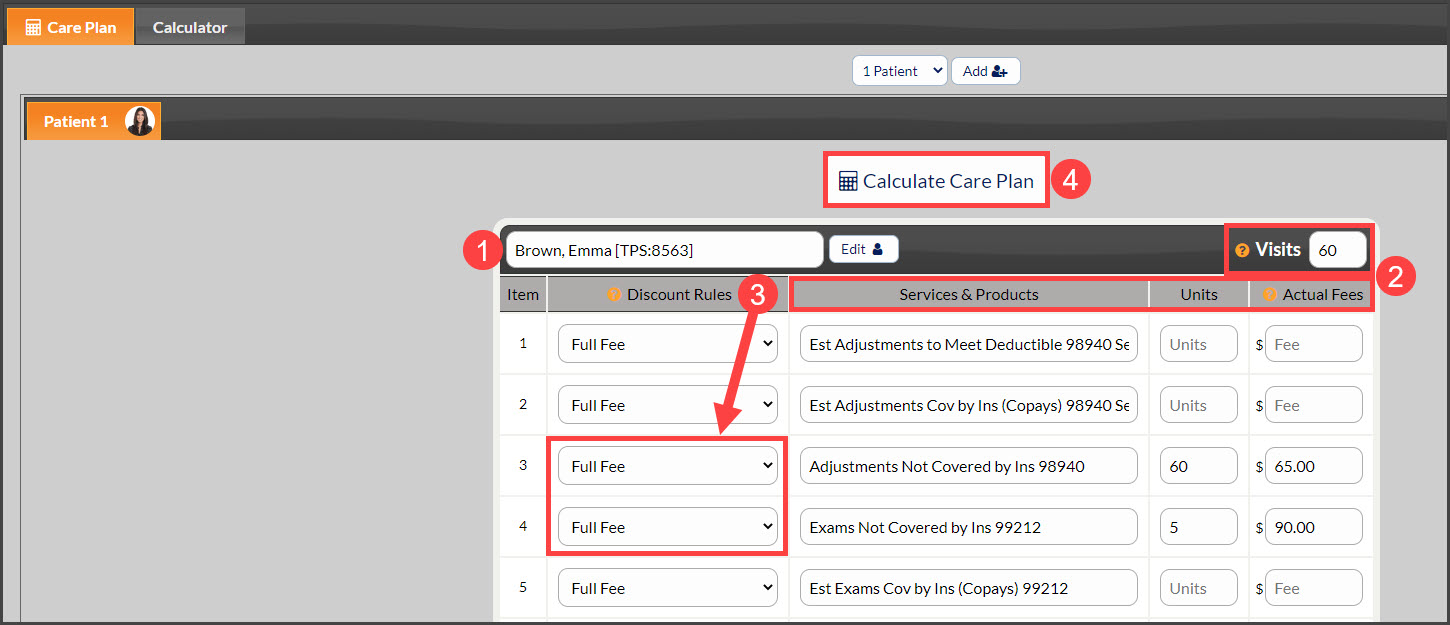
Assign a patient to the plan (not applicable for templates)
Complete adding in the total # of visits, add Services & Products, Units, and Actual Fees
Discount Rules: Select Discounting Rules for each service/product; these should all be set at "Full Fee"
When finished, click the [Calculate Care Plan] button at the top or bottom of the page
Part 3: The Calculator Settings
The page will be refreshed, and the plan preview will be displayed. On the left:
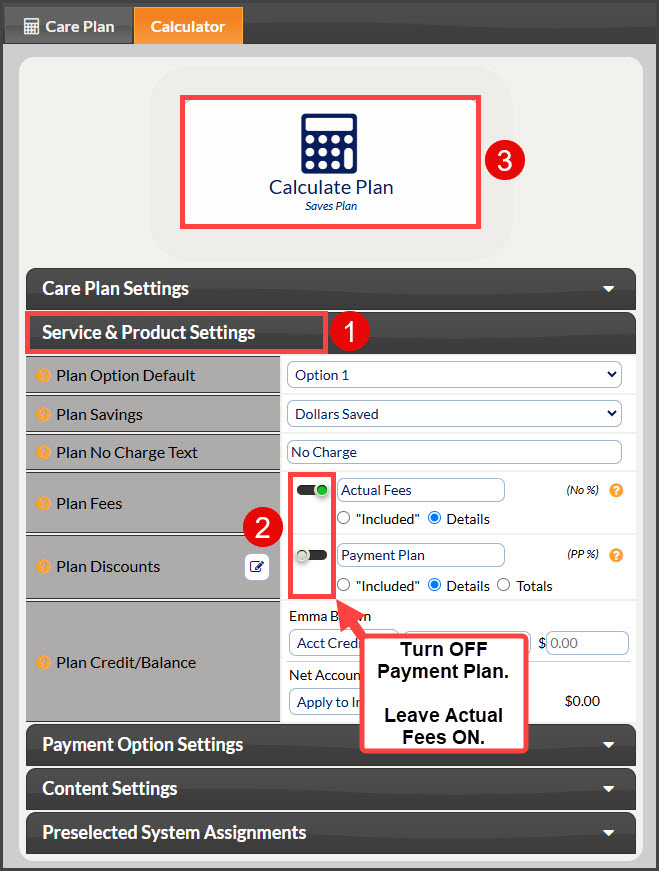
Select the "Service & Product Settings" section to open it
Turn OFF the Payment Plan slider - leave Actual Fees ON
Click the [Calculate Plan] button at the top of the page
Part 4: Additional Calculator Settings
The page will be refreshed with the updates. On the left:
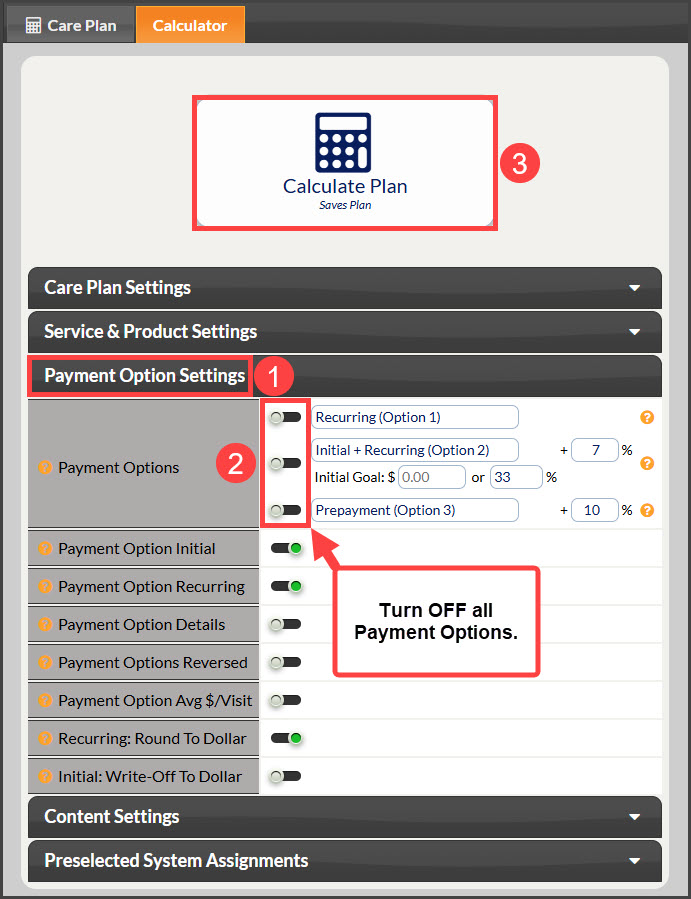
Select the "Payment Option Settings" drop-down menu
Turn OFF all Payment Option sliders
Click the [Calculate Plan] button at the top of the page
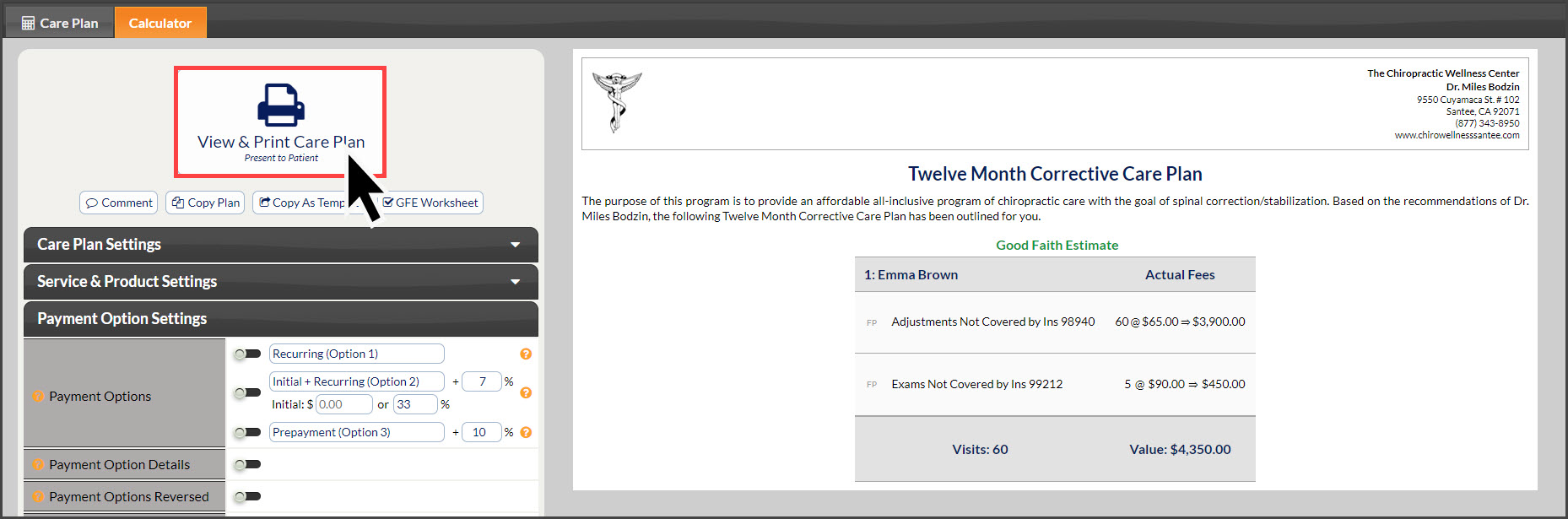
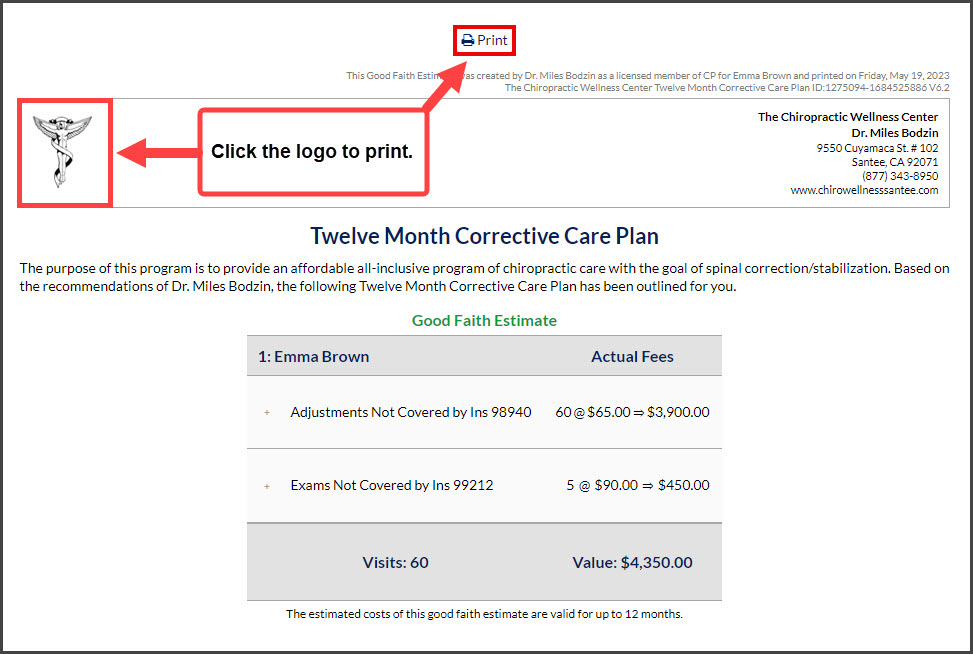
Part 5: The updated care plan/template will load, listing out the services/products along with the total.
When completed, click the [View & Print Care Plan] button (not applicable to templates) to print the plan → Next, click on the [logo] at the top left corner of the document or the [Print] button at the top-middle of the document to print the plan.