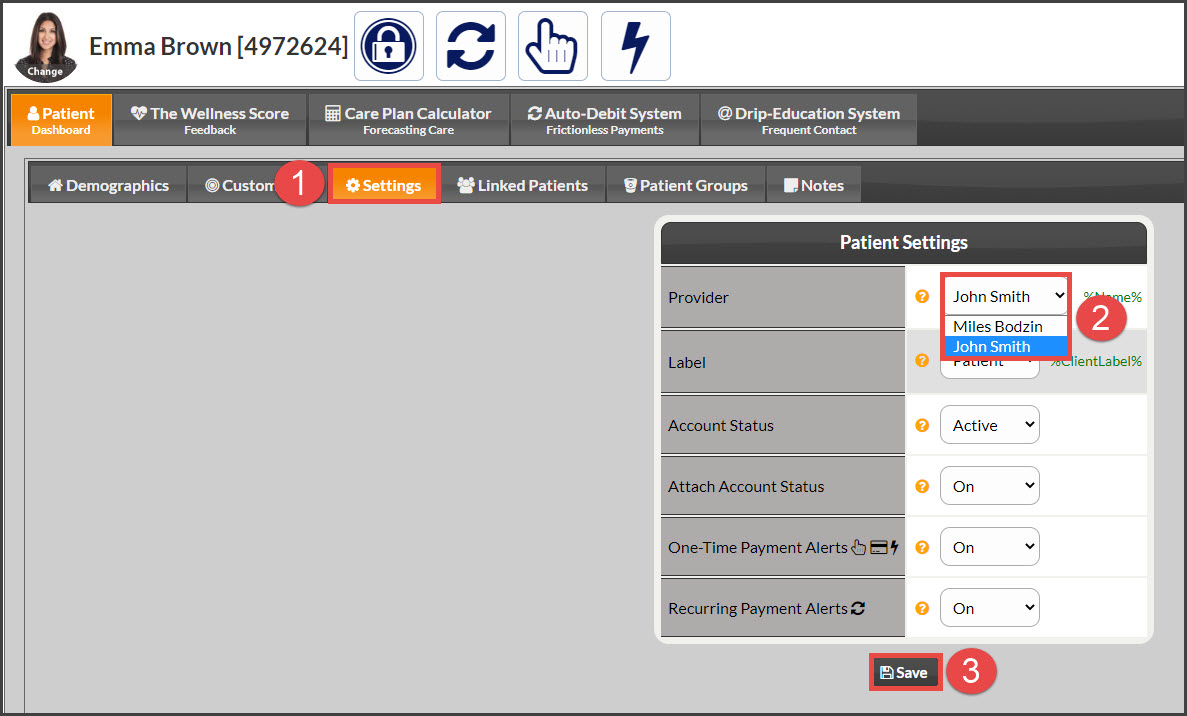
I have multiple Associates with my Cash Practice Account, how do I assign a patient to the correct associate?
If you have multiple providers (an associate license) with your Cash Practice® account, you will need to assign each patient to the correct provider. This can be done while importing a patient list or individually. This is only necessary if you have an Associate License.
Getting Started:
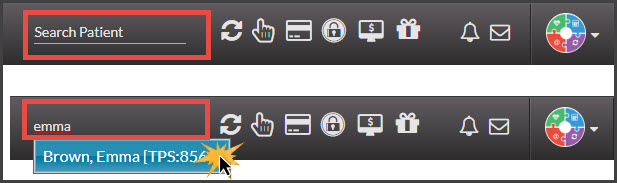
Option 1: From the top-right side of the website, head to [Search Patient], type the name of the person you are looking for and select their name from the drop-down menu. This then directly brings you to the Patient Record. Skip ahead to Step 4.
Option 2 :
Step 1: Hover over the [Patients] menu→ and select [Search Patients].
Step 2: Insert your search criteria, then click [Search].
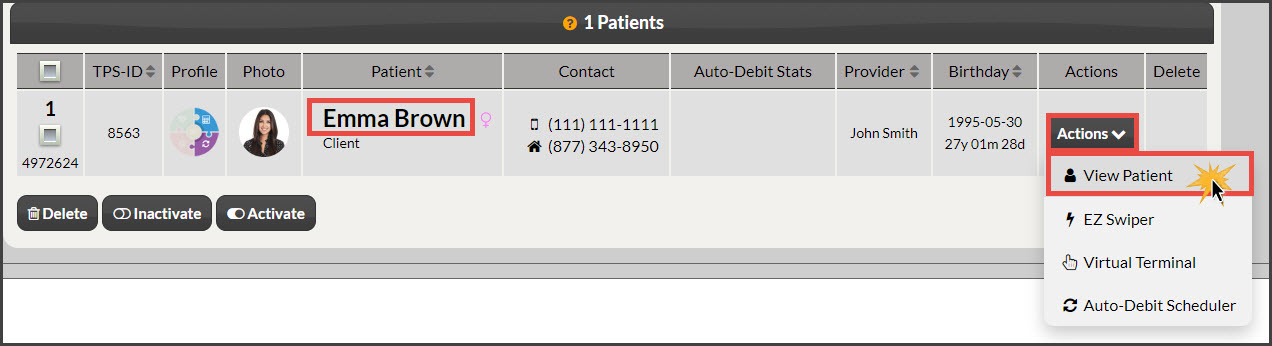
Step 3: Either click on the patient's bolded name under the "Patient" column or click on the [Actions] drop-down menu and select [View Patient].
Step 4: In the patient record, select the [Settings] tab→ and choose the correct provider in the "Provider" drop-down menu→ click [Save].