To remove a patient account from a patient group, please follow these steps:
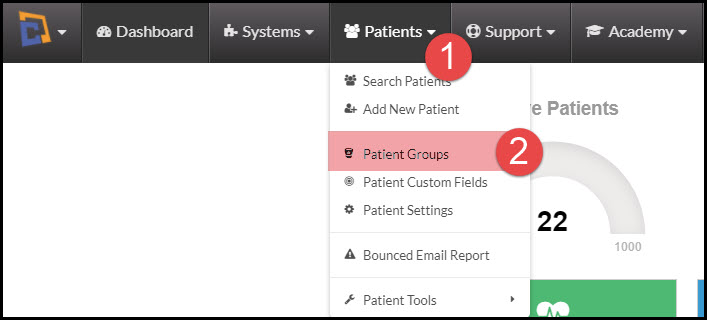
Step 1: Hover over [Patients] select [Patient Groups].
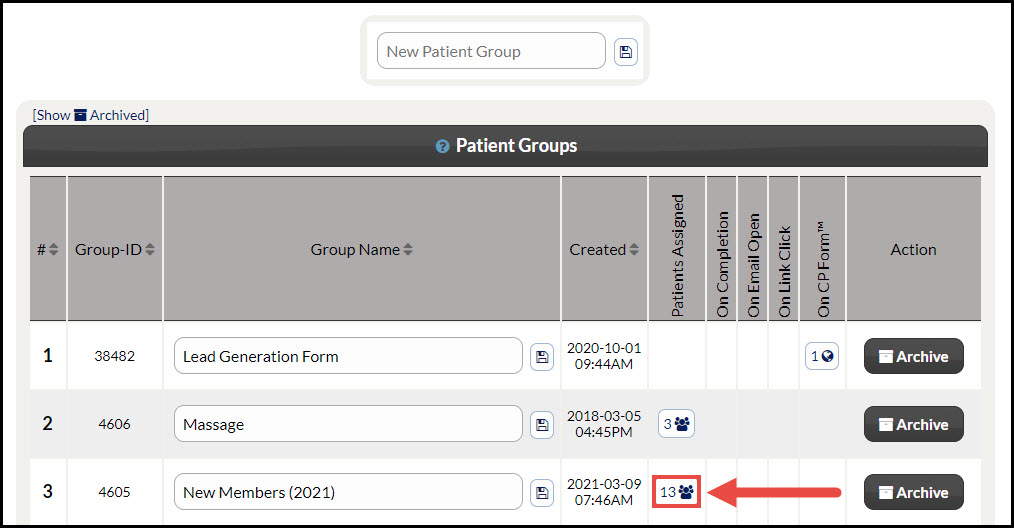
Step 2: Select the 'People' icon under the [Patients Assigned] column to display all of your patients assigned to that specific group.
Step 3: Your patient search results will appear. Locate the patient in which you wish to remove from the group. Select the [Actions] button under the "Actions" column and select the [View Patient] button to edit the Patient Record.
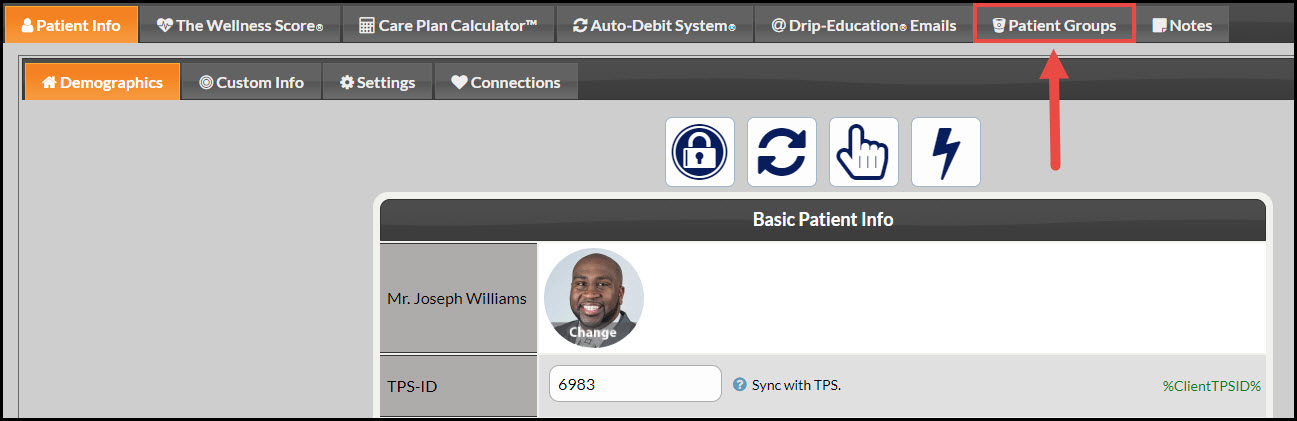
Step 4: When the Patient Record loads, select the [Patient Groups] tab at the top of your page.
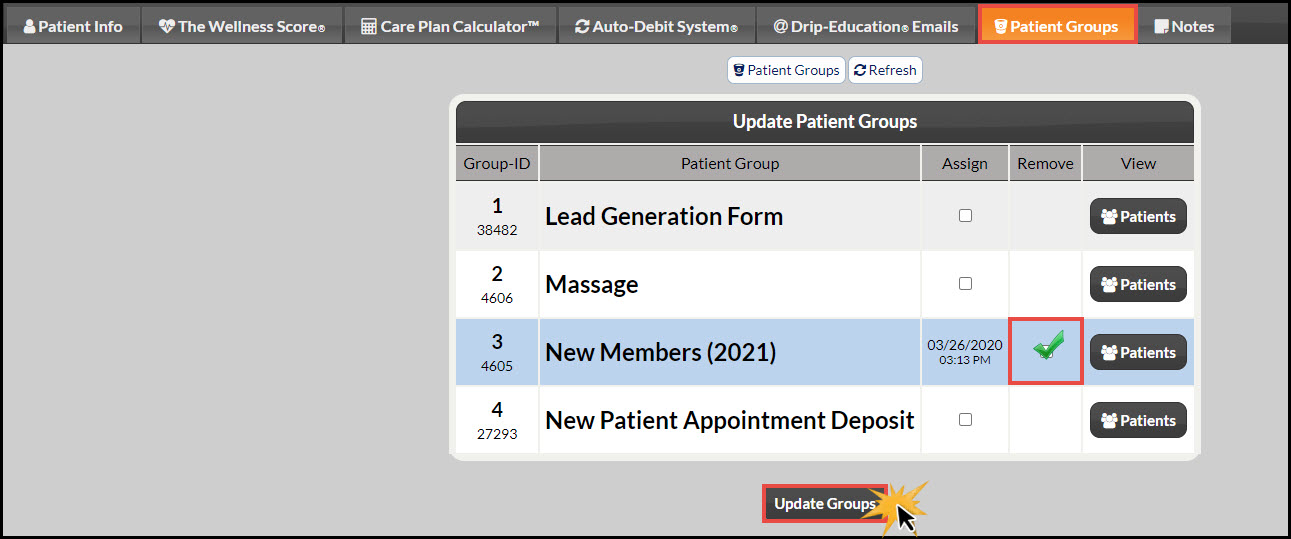
Step 5: Next to the group you wish to remove the patient from, select the toggle box under the [Remove] column, and then select the [Update Groups] button at the bottom to save your changes.